Categories B2B

I built my backlink strategy on guest blogging — here’s exactly how it drove results

If I were looking for the best way to divide a room full of marketers, I’d bring up the topic of guest blogging and link building.

Download Now: How to Start a Successful Blog [Free Guide]

Without a doubt, I’d start a heated debate. Some will argue that digital PR is the best way to earn backlinks. Others will call purposeful link building a waste of time. But in the end, every marketer out there will agree there’s no way to rank in SERPs without quality backlinks — and guest blogging.

However, I must warn you that only a well-crafted guest blogging strategy will effectively fuel your site’s growth. Here’s how you can create one.

Table of Contents

What is guest blogging?

Guest blogging is a content marketing tactic that involves writing and publishing articles on other websites to secure a backlink. Nearly 65% of link builders call guest blogging the most popular tactic.

These articles include your byline and, oftentimes, are highlighted by the editor of that website (or publication) as being written by a “guest author” or a “contributor”.

Depending on the publication, you might pay compensation to publish your guest post. However, that’s not always the case. Some high-quality publications on notable resources are free of charge, and you will get a link back to your personal website or social media accounts for the sake of quality content.

In rare cases, guest bloggers may receive a monetary reward for their efforts. (Although, I’ve only heard of that happening twice.)

But guest blogging isn’t solely about link building.

Benefits of Guest Blogging

Here are some of the biggest benefits people get from guest blogging:

  • Build a profile as an industry expert/thought leader.
  • Grow your personal brand.
  • Grow an audience (social followers, subscribers, etc.)
  • Improve SEO performance.
  • Build authoritative backlinks.
  • Build relationships and drive new partnerships (e.g., co-marketing partnerships, job offers).
  • Drive referral traffic.
  • Improve a company’s brand awareness.
  • Get more leads, users, and even customers.

Actually, you receive most of these with a single guest post if you’re strategic about media outlets and the topic of your article.

How to Become a Successful Guest Blogger

First, let’s define success. I measured it by the number of guest posts published per month per person, the domain rating (DR) of a site, and the amount spent on guest posts.

I was proud to have my small team publish 168 articles with $0 spend on SEJ, SEW, WordStream, SingleGrain, MOZ, OrbitMedia, and other notable blogs. The total number of guest posts exceeded 200+ in one year.

I also measured the number of leads, referral traffic, and shares to understand how guest posts impact business growth, too.

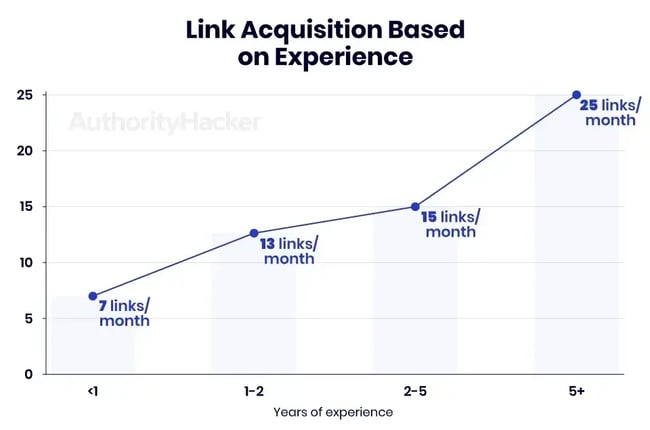
Benchmarks show that 13-15 links per month is the average for link builders with 1-5 years of experience, using different tactics. I reached that number through guest blogging alone.

the definition of success for a link builder — the number of links built per month

Source

With that, let’s map out your strategy to become a successful guest blogger.

1. Set specific, achievable goals, like the number of guest posts.

The first step to start a successful guest blogging process is to set attainable, measurable goals. And you know where to hit now — you can start from 7 posts per month and grow the number along the way.

Seven will work if you’re both a writer and an outreach specialist. If someone else writes articles, set the bar higher and target 10-12 posts per month.

You can also set goals related to your business performance (like getting more leads or clients) or your website performance (like improving your search visibility or your referral traffic), or blend these goals with the number of posts.

Whatever your goal is, make it SMART. Make sure you have the capacity to write and outreach to attain those targets.

If you’re just getting started, here are five examples of measurable goals you can set:

  • Get X referral visits from your guest posts, or increase referral traffic by X% from your guest posts. But be cautious, even Forbes won’t guarantee referral traffic. Track it, but don’t get obsessed with it.
  • Get X leads from referral traffic from your guest posts, or increase the number of leads from your guest posts by X%.
  • Get X clients from your guest posts, or increase clients from your guest posts by X%.
  • Improve your SEO performance or SERP visibility by X%.
  • Get X number of high-quality backlinks to relevant content from your guest posts.

My personal preference is to set goals around SERP visibility, increased SEO traffic, and the number of backlinks. A change in these metrics can be somewhat easily traced back to guest posts. Clients and leads are obviously more important for the business and can be influenced by guest blogging, but correct attribution is a challenge.

2. Choose topics that will benefit both your own business goals and the publisher’s.

Many times, guest bloggers fail because they pitch irrelevant or weak submissions, or, conversely, overlook their topical relevance.

What I advise you to do is pick topics that serve your ultimate goal first — whether that’s referral traffic, SEO performance, leads, or clients. Secondly, you’ll need to find theme-aligned media outlets.

Start by making a short list of your top website pages that you want to promote and include in your future guest blogs. You can also select underperforming pages, those lingering in the top-20, top-30, but with high traffic and lead potential. Plus, you can link to your pillar content and distribute link juice through internal linking.

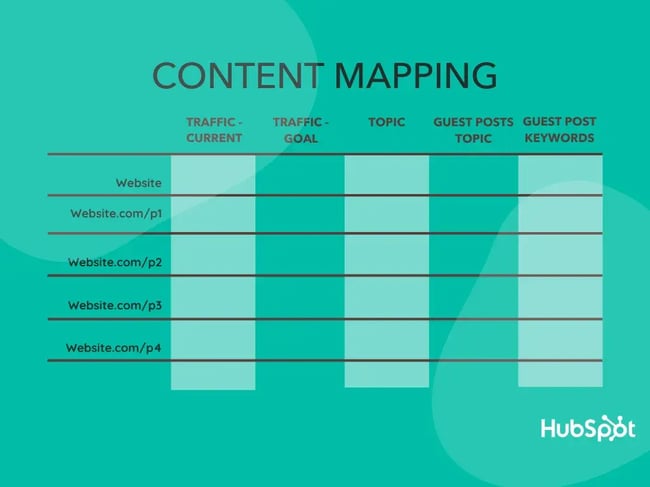
content mapping for guest blogging

For each page, analyze your current status, like your monthly SEO traffic, SERP positions, conversion rates, etc., and set a goal that you want to achieve in a certain timeframe of guest blogging. You can have both an overall website goal and page-specific goals.

For each target page, pick an overarching topic that is relevant to your expertise and would be useful for readers. Then you can start using keyword research tools like SEMRush and Ahrefs (just to name a couple) to fuel your bank of ideas for future guest posts.

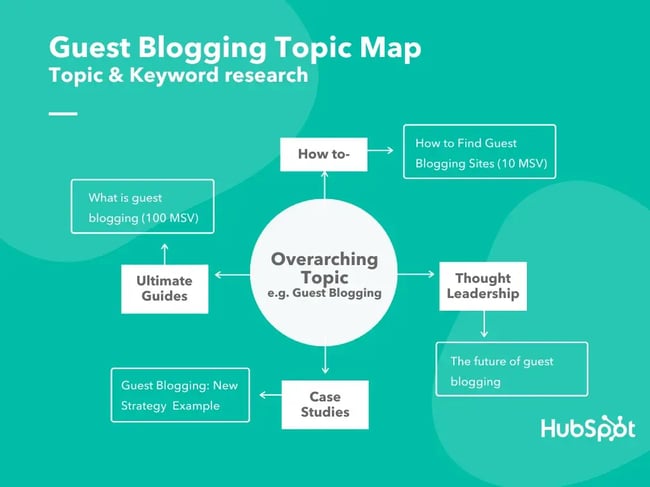
guest blogging topic map

Example:

Let’s take a meta-example and say I build a guest blogging strategy around the overarching topic of “guest blogging.” I can create different types of content under the umbrella of this topic: how-to articles, thought leadership, case studies, and ultimate guides. For each type of content, I can find relevant article ideas using keyword research tools.

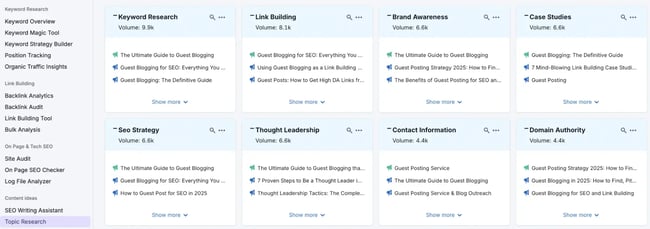
Here, I used Topic Research (Semrush) and found relevant content clusters and topic themes to build your pitch around. I’d opt for thought leadership since it’s relevant to my niche, and I can easily incorporate guest blogging mentions.

generate guest blogging topic ideas for your outreach

If you use Ahrefs, I recommend running competitor analysis and finding content gaps to build your pitch around. At the end of the day, a blog where you want to publish your guest post also aims to attract organic traffic.

There are actually more ways to find guest post ideas that will get buy-in:

  • Evaluate the informational traffic potential for a keyword.
  • Use Google Trends to find niche-relevant trends.
  • Offer blog post updates that have declined in search traffic.
  • Analyze the most shareable content across a domain in the last 30-90 days and ask ChatGPT to find a pattern.

3. Find reputable guest blogging sites.

Now that you have your content ideas mapped out, it’s time to find relevant publications and guest blogging sites.

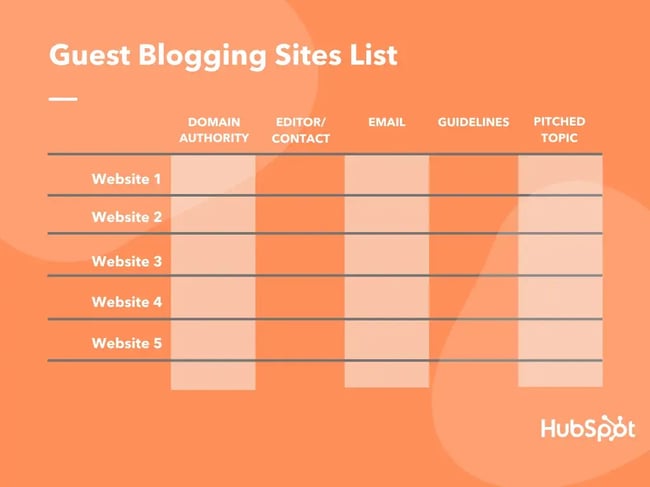
Start by putting together a list of target websites, as in the example below:

guest blogging sites list

Here’s how I discover guest blogging opportunities to populate the list:

  • Advanced Search Operators — where I use advanced search operators like “intext:submit a guest post/write for us” OR “guest post”, “guest author”, “become a contributor” AND your keyword.

how to find a guest blogging opportunity in serp

  • Google Reverse Image Search — take the headshot of a popular guest blogger or a thought leader, and use it to find places where they’ve published in the past. Those publications most likely accept guest posts.
  • Look for lists of top websites that accept guest posts, but verify their DR before pitching.
  • Check your competitors’ backlinks with tools like Semrush or Ahrefs.

Next, make sure you prioritize your list and only pitch blogs that have:

  • Domain Authority of 40 or higher (or Domain Rating if you’re using Ahrefs)
  • Spam Score of 3% or lower
  • Thorough editorial process

Ultimately, you will build a spreadsheet with hundreds of potential blogs for guest posting with the editor’s contact, guidelines, etc.

4. Prepare for guest blogging outreach.

At this point, it’s time to start thinking about how to pitch your guest post ideas.

Read editorial guidelines and tailor your pitch.

As I mentioned in the previous step, the publications you want to target have a thorough editorial process. So first, look for the website’s guest blogging guidelines, then prepare your pitch idea.

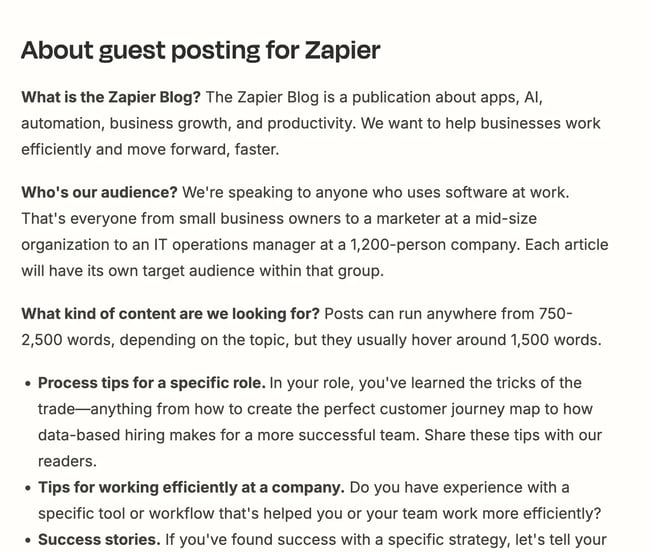
For example, Zapier outlines their ICP, word count, and even topics.

guest blogging guidelines example

My suggestion would be to approach your blogger outreach process very strategically, starting from the keywords you previously found and your target publication. Check if your target website already ranks for the topic you chose.

Sara McGuire, Content Marketing Lead at Venngage, says that “before pitching an idea to a site, it‘s fundamental that you do your research. Go through their posts and see if there’s a topic that hasn’t been covered or an angle you could take to complement their existing posts. Then, craft your pitch with their publishing guidelines in mind.”

“Doing the groundwork first will show editors that you are willing to put in the work to produce good content for them and that you want to contribute value to their site — something most editors will find irresistible. ”

While there are many tactics you can use to get a response, a good heuristic to follow is asking yourself, “Does my pitch offer real value?

Don‘t beat around the bush. If you’ve done your research, and especially if you’ve already built up a portfolio of visibly great content, then a straightforward pitch should do the trick.

Check out guest posting outreach templates for inspiration.

Once your pitch is ready, it’s time to find your contact person and reach out to them.

Find relevant people to send out your guest posting ideas.

Different people can accept your pitch:

  • Head of Content
  • Editor-in-Chief
  • Content Marketer
  • Editorial Assistant
  • Editor, Contributor Content
  • Website owner
  • Journalist

It all starts with an outlet. For example, HubSpot evaluates guest blogging pitches only via the guest blogging form. But it doesn’t limit you to trying out and pitching editors. With one caveat: you first have to build strong relationships with them through X or LinkedIn.

Here’s how I find those people:

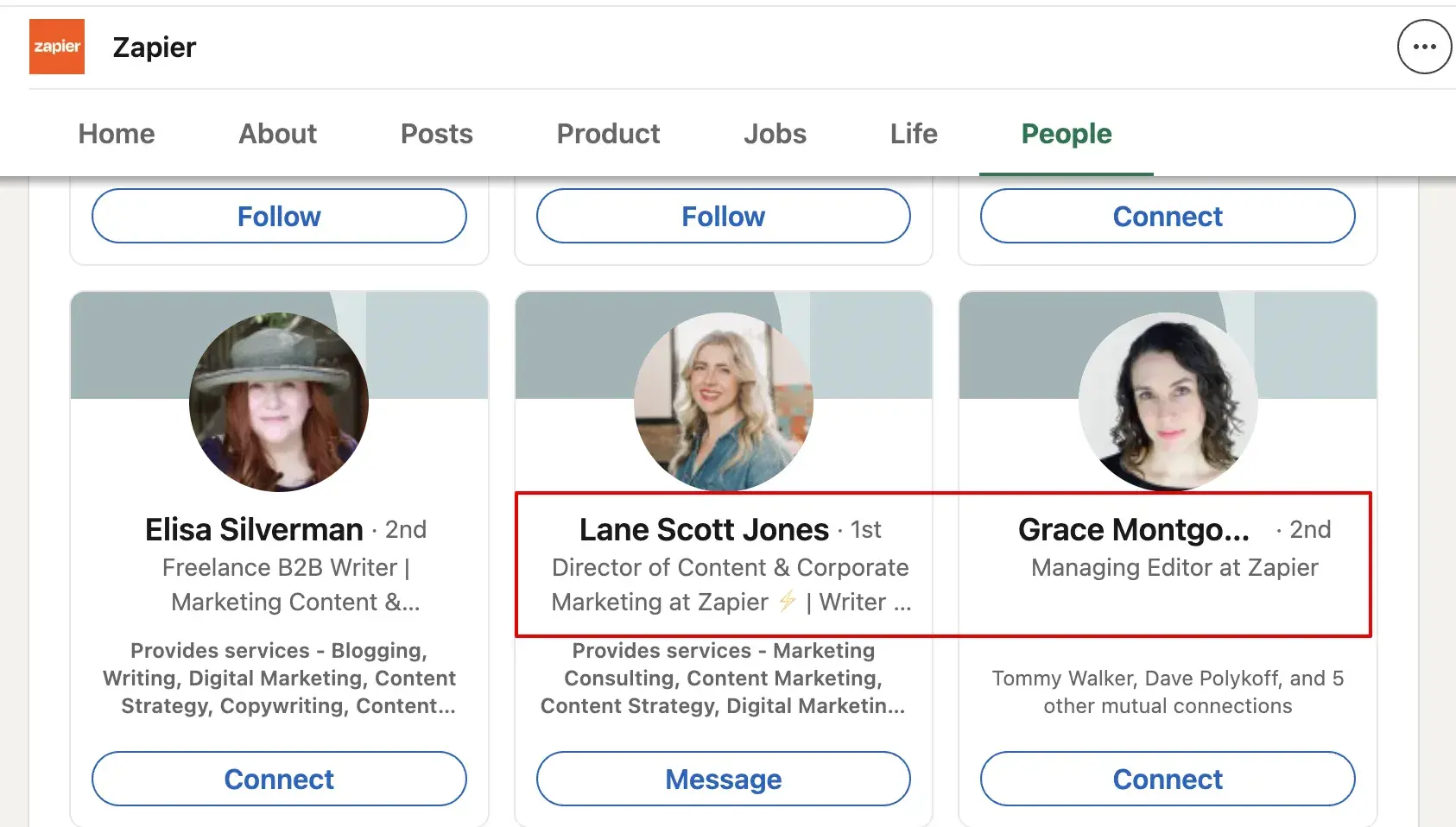
1. Look up
LinkedIn for selected job titles at a company. Go to
Company
People
Keywords “content/editor”, and look through the list of employees. I usually connect with a warm connection request and don’t pitch them right away.

how to find a relevant person for a guest blogging pitch

2. Try
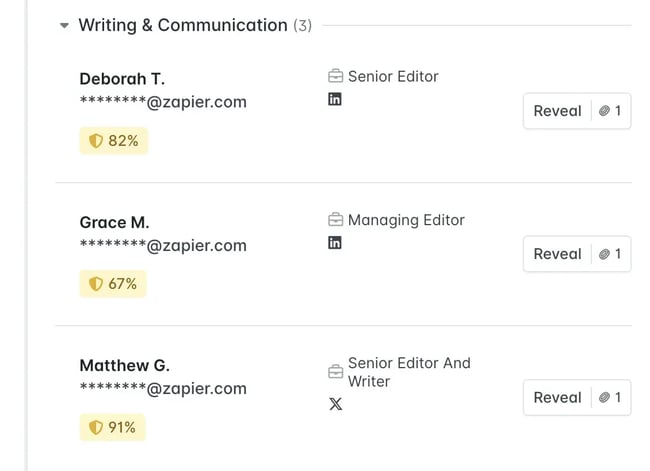
Hunter.io to find relevant people and get their verified emails. Find
Company
Departments (Marketing, Writing & Communications)
Reveal. Alternatively, you can use Hunter to find the email address of a specific person.

use prospecting tools to find contacts for guest blogging

I prefer writing cold emails for guest blogging and use LinkedIn outreach only if I’ve built rapport with a person.

Emails give me more space to talk about the guest post idea, why I think it’s useful, unique, etc. LinkedIn primarily allows for a brief pitch and an email address to send details.

Note: Some publications, including HubSpot, require a full draft to be included in the initial pitch. Make sure you always read the guest blogging guidelines of the site to ensure your pitch includes all necessary elements.

5. Choose your all-in-one guest post platform.

Lots of marketers still use Google Sheets or Excel to track their contacts and responses. It’s not bad, but it means you’re missing out on tracking a lot of valuable information.

By using HubSpot’s email tracking tool, you can gain insights into email opens, clicks, and other engagement metrics, allowing you to refine your outreach strategy with actionable data.

A powerful CRM can help you track all of the relevant information you need — emails, meeting notes, and projects. Plus, you can go back and refresh your memory anytime.

In my case, I’m using our own HubSpot CRM, but any CRM you‘re using would work for this task. If you’re looking for one now, HubSpot CRM is 100% free forever, no matter how many contacts you’re adding.

For the outreach part, I also suggest trying Respona, an all-in-one search, outreach, and engagement platform. Using AI, it helps you with your content and keyword research, lets you find contact information for your target publications, and enables you to send dynamic emails (Yes, it includes email templates for almost any type of campaign).

However, I’ve listed more outreach tools at the end of the article so you can find one that suits your budget.

6. Write the post.

This should be the easiest step of the process, as long as you’ve picked a topic that you feel passionate about and you have expertise in. You just need to set time aside and start typing.

If you‘re not comfortable with your writing, it’s perfectly fine to hire an editor to review your draft. I‘d actually highly recommend it, even for experienced writers. It’s always good to have a fresh pair of eyes pick your article apart and make suggestions. Feedback is the breakfast of champions!

But I can’t leave you empty-handed with “just write,” so check out my 12 essential recommendations for writing guest posts (and any type of post, for that matter):

  1. Write long-form, compelling content (at least 1,500-2,000 words).
  2. Break the text into small, digestible paragraphs.
  3. Structure your post with logic. Every heading (e.g., H2, H3, H4) serves a clear idea.
  4. Optimize for on-page SEO using Clearscope or SurferSEO.
  5. Use only original images and graphs to make the content more linkable (Canva is a great tool for novice designers).
  6. Add quotes from subject-matter experts and influencers.
  7. Link to your other published guest posts.
  8. Link to your own, relevant content.
  9. Link to other publications: studies, data, thought leadership, etc.
  10. Link internally to other articles from your publisher.
  11. Add your byline and explain what makes you an expert on that topic.
  12. Make sure your article has a unique angle, offers practical value, inspiration, etc.

How do I know if I’ve done a great job? I read the post out loud and think, “Would I read this article till the end? Anything is missing here?”

When you send your final draft to the editor, don’t forget to include your author details: your full name, a short bio, your social media links so readers can connect with you, a headshot, and your website.

Now you’re all set to hit “send” and deliver your guest post to the editor.

There’s just one more step before you call this project done: measuring the results.

7. Track your posts’ results over time.

This is the final, yet arguably most crucial, step in the process.

You’ll want to ensure you always compare your results to where you were at the beginning of the process.

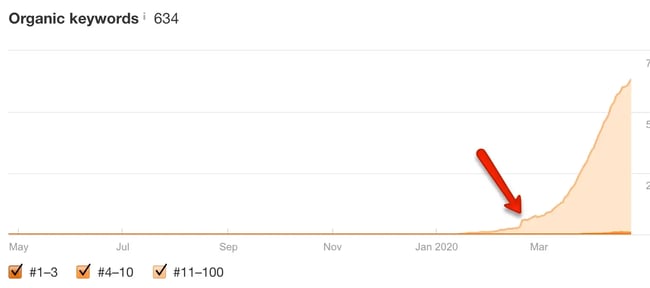
Depending on your goals, you can have different SEO tools to track different metrics. For example, Ahrefs to check everything from changes in the number of backlinks, referring domains, organic traffic performance, or even the number of keywords for which the website ranks in Google (see the example below):

check organic keywords growth for a URL

Guest Blogging SEO

Since I mentioned how to prioritize your opportunities based on Domain Authority and Spam score, I think it’s important to discuss the SEO aspect of guest blogging.

First of all, you SEO optimize a guest post because you want it to rank high and receive a high URL Rating. It’s like Domain Rating but for a single URL.

If a page performs well in the SERP, it passes on quality link juice to the pages you link back to.

Secondly, a great post can garner lots of shares and social media signals. It matters because Google analyzes the author, so your own website will gain topical authority in Google’s eyes, too. Remember the E-E-A-T algorithm, here.

Lastly, if your guest post shows great SEO performance, you’ll become a likable guest author who can deliver value to readers and organic traffic to another website. So, you’ll get more publications in the future.

Oftentimes, blog editors place a no-follow tag on links from guest authors. In the past, that was seen as a “lower-value” backlink because it didn’t carry any authority. With relatively recent updates, Google has made it public that even “no-follow” backlinks are seen as signals by their ranking algorithm.

Important: Don‘t try to overdo it with guest blogging for the sake of building backlinks. If you ignore content quality and user experience, you’ll most likely end up hurting your SEO performance and ultimately your reputation.

Top Tools for Guest Blogging

I hope you now feel better equipped to start crafting your own guest blogging strategy.

The best strategy for your business and your context is always going to be the one you craft, after trial and error. So don’t be afraid to just get started and learn along the way.

Categories B2B

5 best CRMs for cleaning businesses in 2025

Running a successful cleaning business in 2025 goes far beyond spotless floors and sparkling windows — it requires seamless communication, efficient scheduling, and reliable customer management. Yet, finding the right tools to keep everything organized is a challenge; here’s why: the CRM needs of cleaning businesses are uniquely demanding, blending field service logistics with customer service, recurring job tracking, and quick invoicing.

Learn more about why HubSpot's CRM platform has all the tools you need to grow  better.

Unlike generic CRM systems, cleaning companies need platforms that accommodate mobile crews, on-the-go updates, and repeat customer interactions. This is where Customer Relationship Management (CRM) software becomes essential. The right CRM doesn’t just store contact information; it helps streamline workflows, automate client follow-ups, reduce no-shows, and improve customer satisfaction at scale.

In fact, a recent study from CRM.com revealed that 91% of companies with 10 or more employees now use CRM software. And it’s not just theory — real cleaning businesses already use platforms (like HubSpot) to centralize operations, personalize marketing, and ultimately drive more revenue with less friction.

In this article, we’ll walk you through the top five CRM systems tailored for cleaning businesses in 2025. You’ll find:

  • A comparison table of the top platforms
  • A breakdown of key features and pricing
  • Tips on how to choose the right CRM for your business needs
  • A quick-start how-to guide for getting up and running fast

Whether running a solo operation or managing a multi-location cleaning service, this guide will help you choose a CRM that keeps your business spotless — inside and out.

BTW: Did you know that Paidy increased their target audience reach by 50% by implementing HubSpot’s OneSignal integration? If you didn’t, you do now.

Table of Contents

What is a CRM for cleaning businesses?

A CRM (Customer Relationship Management) system for cleaning businesses is a tool that helps manage client relationships, streamline job scheduling, and track recurring services — all from one centralized platform.

For example, HubSpot helps cleaning businesses:

  • Automate email reminders
  • Organize and track leads from initial inquiry to repeat customer
  • Gain insights into team performance and customer satisfaction through reporting and analytics

This makes it a strong fit for cleaning businesses looking to scale their operations while delivering top-tier customer service.

Best CRMs for Cleaning Businesses at a Glance

CRM

Best For

Key Features

Pricing

Free Trial

HubSpot

Growing cleaning businesses seeking all-in-one solution

Automated scheduling and dispatch

Customer portal with online booking

Invoice and payment processing

Marketing automation tools

Mobile app for field teams

Integration with QuickBooks

Free: $0/month

Starter: $9/month/user

Starter Customer Platform: $9/month/seat

Professional: $720/month

Enterprise: $2,000/month

Yes, 14 days

Jobber

Field service companies with multiple crews

Route optimization

Two-way SMS communication

Before/after photo storage

Chemical tracking

Recurring job automation

Connect: $109/month (up to 5 users)

Plus: $378/month (up to 15 users)

Grow: $210/month (up to 10 users)

Yes, 14 days

ServiceTitan

Large commercial cleaning operations

Advanced dispatching

Inventory management

Performance dashboards

Customer review management

Equipment maintenance tracking

Custom pricing only (must request a demo for price quote information; see here)

Yes, 14 days

Housecall Pro

Residential cleaning services

Online booking widget

Automated review requests

GPS time tracking

Credit card processing

Customer communication hub

Basic: $59/month (up to 1 user)

Essentials: $149/month/user (up to 5 users)

Max: $299/month/user (up to 8 users)

Yes, 14 days

ZenMaid

Maid services and house cleaners

Cleaning-specific workflows

Quality control checklists

Team communication tools

Client preferences tracking

Automated reminders

Starter: $19/month (up to 40 clients per month)

Pro: $39/month (unlimited clients per month)

Premium: $49/month (unlimited clients per month)

Yes, 14 days

Best CRM Software for Cleaning Company Businesses

Choosing the right CRM can transform your cleaning business, saving time, reducing manual tasks, and improving customer satisfaction. With so many platforms on the market, it’s crucial to find one that meets the needs of cleaning services, from managing recurring jobs to handling team scheduling and mobile access.

In this section, we’ll explore the best CRM software for cleaning businesses in 2025, highlighting key features, pricing, and what makes each one stand out. Take a look:

1. HubSpot

a screenshot of hubspot’s CRM user interface

Source

Best for: Growing cleaning businesses that need comprehensive customer management solutions.

Key HubSpot Features

  • Automated scheduling and dispatch: HubSpot eliminates double-bookings and reduces administrative time for cleaning companies managing multiple properties daily.
  • Customer portal with online booking: HubSpot streamlines the appointment workflow by allowing clients to self-schedule recurring cleanings, view service history, and update preferences without phone calls.
  • Marketing automation integrated with QuickBooks: HubSpot automatically syncs invoices, tracks payment status, and triggers follow-up campaigns based on service completion, creating a seamless billing-to-marketing pipeline.

HubSpot Pricing (Operations Hub)

  • Free: $0/month
  • Starter: $9/month/user
  • Starter Customer Platform: $9/month/seat
  • Professional: $720/month
  • Enterprise: $2,000/month

2. Jobber

a screenshot of jobber’s CRM user interface

Source

Best for: Multi-crew cleaning companies managing field technicians across residential and commercial properties.

Key Jobber Features

  • Route optimization with live GPS tracking: Saves cleaning crews time daily by calculating the most efficient paths between job sites.
  • Two-way SMS with automated appointment reminders: Reduces no-shows through customizable text messages sent 24 hours before scheduled cleanings.
  • Chemical inventory tracking with usage reports: Monitors cleaning supply levels across all teams and automatically generates reorder alerts when products run low.

Jobber Pricing (For Teams)

  • Connect: $109/month (up to 5 users)
  • Plus: $378/month (up to 15 users)
  • Grow: $210/month (up to 10 users)

3. ServiceTitan

a screenshot of service titan’s CRM user interface

Source

Best for: Enterprise-level commercial cleaning operations with 50+ employees servicing large facilities.

Key ServiceTitan Features

  • Performance dashboards with real-time KPIs: Critical for commercial cleaners to track contract compliance.
  • Advanced dispatching with skills-based routing: Matches specialized cleaning crews (carpet, window, biohazard) to appropriate jobs based on certifications and equipment availability.
  • Automated review management integrated with Google My Business: Captures customer feedback immediately after service completion.

ServiceTitan Pricing

  • Custom pricing only (must request a demo for price quote information; see here)

4. Housecall Pro

a screenshot of housecall pro’s CRM user interface

Source

Best for: Residential cleaning services focused on recurring house cleaning appointments.

Key Housecall Pro Features

  • Online booking widget with instant quotes: Converts website visitors into customers by allowing them to select cleaning packages, view pricing, and book services.
  • GPS time tracking with before/after photos: Provides transparency for homeowners by documenting arrival/departure times.
  • Integrated payment processing with stored cards: Simplifies recurring billing for weekly/biweekly cleanings by automatically charging saved payment methods after service completion.

Housecall Pro Pricing

  • Basic: $59/month (up to 1 user)
  • Essentials: $149/month/user (up to 5 users)
  • Max: $299/month/user (up to 8 users)

5. Zen Maid

a screenshot of zen maid’s CRM user interface

Source

Best for: Independent maid services and small cleaning teams under 20 employees.

Key ZenMaid Features

  • Cleaning-specific quality checklists: Ensures consistency across all homes by providing room-by-room task lists that cleaners check off via mobile app.
  • Client preference tracking with special instructions: Maintains detailed notes about pet locations, alarm codes, and cleaning product preferences that automatically appear in work orders.
  • Automated feedback collection via SMS: Sends satisfaction surveys 2 hours after cleaning completion, allowing immediate issue resolution before negative reviews appear online.

ZenMaid Pricing

  • Starter: $19/month (up to 40 clients per month)
  • Pro: $39/month (unlimited clients per month)
  • Premium: $49/month (unlimited clients per month)

Benefits of CRM Software for Cleaning Businesses

Eliminates Scheduling Chaos with Automated Dispatch Management

Cleaning businesses often struggle with double-bookings, forgotten appointments, and inefficient route planning that costs valuable time and fuel. A robust CRM transforms this chaos into streamlined operations.

HubSpot’s automated scheduling software allows you to:

  • View all appointments in a centralized calendar
  • Automatically assign crews based on availability and location
  • Send instant notifications to field teams

Then, the system automatically blocks a time slot, assigns an appropriate team, and optimizes a route based on other appointments in the area, eliminating the manual juggling act that causes costly scheduling errors.

Transforms Customer Communication from Reactive to Proactive

Many cleaning companies lose clients simply because they fail to maintain consistent communication between services.

HubSpot’s automated communication workflows solve this by creating touchpoints that strengthen customer relationships without manual effort. When a cleaning is completed, HubSpot automatically triggers a thank-you email, sends a satisfaction survey 24 hours later, and schedules a reminder for the next appointment.

Gives You Real-Time Visibility into Field Operations

Without proper tracking, cleaning business owners operate blindly—unsure if crews arrived on time, how long jobs took, or whether quality standards were met.

HubSpot’s mobile CRM app provides complete visibility by allowing field teams to check in/out of jobs, upload completion photos, and update job status in real-time. Managers can monitor all active jobs through HubSpot’s customizable dashboards, instantly seeing which properties are being serviced, tracking average cleaning times, and identifying bottlenecks. This visibility enables data-driven decisions that improve efficiency and profitability across all operations.

Automates Billing and Payment Collection

Chasing down payments is one of the most time-consuming aspects of running a cleaning business, often resulting in cash flow problems and awkward customer conversations.

HubSpot’s integration with payment processors and QuickBooks creates an automated billing ecosystem that handles everything from invoice generation to payment collection. When a cleaning is marked complete in HubSpot’s system, it automatically:

  • Generates an invoice
  • Charges stored credit cards for recurring clients
  • Syncs all financial data to your accounting software

This automation through HubSpot’s workflow builder reduces payment delays from weeks to hours while freeing staff from manual billing tasks.

Scales Your Business with Data-Driven Insights

Growing a cleaning business requires understanding which services are most profitable, which customers generate the most revenue, and where opportunities exist for expansion.

HubSpot’s advanced analytics and custom reporting transform raw data into actionable insights by tracking metrics like:

  • Customer lifetime value
  • Service profitability
  • Team performance

For instance, HubSpot’s list segmentation can identify your top customers by revenue, allowing you to create VIP service packages or referral programs targeting this valuable segment. These insights enable strategic growth decisions based on actual performance data rather than guesswork.

5 Important Features for a Cleaning Businesses CRM

  1. Mobile access for field teams: Your cleaning crews spend their entire day moving between properties, making mobile functionality non-negotiable. HubSpot’s mobile CRM app equips field teams to access customer information, update job status, and capture photos directly from their smartphones. When a cleaner arrives at a property, they can pull up client preferences, special instructions, and service history through HubSpot’s mobile interface. Plus, HubSpot’s offline mode ensures teams can continue working even in areas with poor connectivity, syncing all updates once reconnected.
  2. Customizable pipeline management for service workflows: Cleaning businesses have unique workflows that generic CRMs can’t accommodate — from initial quotes to recurring services to special deep-cleaning projects. HubSpot’s custom pipeline builder allows you to create multiple pipelines that mirror your exact business processes. For instance, you can build a “New Customer Onboarding” pipeline in HubSpot with stages like “Quote Requested,” “Property Walkthrough Scheduled,” “Contract Signed,” and “First Cleaning Booked.” Each stage in HubSpot’s pipeline can trigger automated actions, ensuring no step is missed in your service delivery process.
  3. Integrated quoting and invoicing tools: Speed wins deals in the cleaning industry — customers expect quick, professional quotes and seamless billing. HubSpot’s quote builder software creates branded, professional estimates in minutes by pulling from your service catalog and applying appropriate pricing tiers. When integrated with HubSpot’s product library, you can maintain standardized pricing for different cleaning packages (basic, deep clean, move-in/out) while still allowing customization for unique properties. Once a quote is accepted, HubSpot automatically converts it to a deal and can trigger invoice creation through integrated accounting tools.
  4. Automation workflows for repetitive tasks: Cleaning businesses thrive on recurring revenue but struggle with the repetitive administrative tasks that come with it. HubSpot’s workflow automation eliminates this burden by handling routine tasks automatically. For example, if a customer hasn’t booked a cleaning in 60 days, HubSpot can automatically send a win-back offer, assign a task to your retention specialist, and flag the account for review. These HubSpot automation sequences run 24/7, ensuring consistent service delivery without manual intervention.
  5. Integration ecosystem for seamless operations: Your CRM should connect with every tool your cleaning business uses, from scheduling to payments to team communication. HubSpot’s extensive integration marketplace includes direct connections to QuickBooks for accounting, Google Calendar for scheduling, Stripe for payment processing, and even specialized cleaning industry tools. Additionally, HubSpot’s Operations Hub takes integration further by allowing custom connections via APIs when pre-built options don’t exist. For example, you can connect HubSpot to your GPS tracking system to automatically log arrival/departure times, or integrate with supplier systems to track cleaning product inventory.

How to Choose a CRM for Cleaning Businesses (Step-by-Step)

Step 1: Map your workflows.

Before evaluating any CRM, document your current business processes from lead capture to payment collection. Start by sketching out each customer touchpoint. Ask yourself questions like:

  • How do leads find you?
  • What happens during quotes?
  • How do you handle recurring appointments?

For cleaning businesses, this typically includes lead intake → property assessment → quote delivery → service scheduling → job completion → invoicing → follow-up.

Once mapped, identify friction points where tasks get dropped or delayed. This exercise reveals which CRM features will deliver the most impact. For instance, if quote turnaround is your bottleneck, prioritize CRMs with instant quoting tools and automated follow-ups.

Step 2: Identify must-have features.

Based on your workflow mapping, create a non-negotiable feature list specific to cleaning operations. Essential features typically include:

  • Mobile access for field teams to update job status
  • Recurring appointment scheduling for regular clients
  • Route optimization to minimize drive time
  • Before/after photo storage for quality documentation
  • Integrated payment processing for faster collections
  • Customer portal for self-service booking

Separate these “must-haves” from “nice-to-haves” (like advanced analytics or marketing automation). This focused list prevents feature overload and ensures you choose a CRM that handles core cleaning business needs effectively.

Step 3: Compare ease of use and team fit.

The best CRM is worthless if your team won’t use it. Evaluate each platform’s user experience by requesting demos with actual cleaning scenarios. Have your office manager test scheduling features, let field crews try the mobile app, and ensure your bookkeeper understands the invoicing flow.

Look for intuitive interfaces that require minimal training — your cleaners shouldn’t need tech expertise to mark jobs complete. Consider language support if you have multilingual teams. Request free trials and involve key team members in testing. Their buy-in during selection dramatically improves adoption rates.

Step 4: Check cost at scale.

Calculate total cost of ownership beyond monthly fees. Factor in:

  • Per-user pricing as you add crew members
  • Transaction fees for payment processing
  • Integration costs for accounting software
  • Training and onboarding expenses
  • Data migration from current systems

Model costs at your current size and projected growth — some CRMs become prohibitively expensive as you scale. Compare this against potential ROI; ask yourself: If a CRM saves 10 hours weekly on scheduling and reduces no-shows by 20%, what’s that worth?

Quality CRMs pay for themselves through efficiency gains and reduced customer churn.

Step 5: Choose a flexible platform — like HubSpot.

Select a CRM that grows with your business rather than forcing you to switch systems later. HubSpot’s scalable platform starts free for small operations but expands to enterprise-level capabilities as needed. You can begin with basic contact management and scheduling, then add advanced features as you grow.

The right CRM investment today positions your cleaning business for scalable growth tomorrow. Take time to evaluate thoroughly — your future operations depend on this foundational technology choice.

BTW: BruntWork scaled to 2,500 staff and $50 million in recurring revenue by implementing HubSpot’s CRM platform.

Frequently Asked Questions (FAQs)

What is the best CRM for cleaning businesses?

The best CRM for cleaning businesses depends on your specific needs, but HubSpot consistently ranks as a top choice due to its comprehensive feature set and scalability. Its combines scheduling, customer management, invoicing, and marketing automation in a single system, eliminating the need for multiple disconnected tools.

For small cleaning businesses, HubSpot’s free CRM provides essential features to get started, while larger operations benefit from HubSpot’s advanced automation capabilities that handle complex workflows like recurring appointments, route optimization, and multi-crew dispatching. Plus, HubSpot’s integration ecosystem and user-friendly interface make it ideal for cleaning businesses seeking long-term growth without switching systems later.

What features should I look for in a CRM for cleaning businesses?

When evaluating CRMs for your cleaning business, prioritize features that address industry-specific challenges. Essential features include:

  • Mobile access for field teams
  • Automated scheduling for recurring appointments
  • Route optimization to minimize drive time
  • Integrated payment processing

HubSpot excels in all these areas, offering a robust mobile app that allows cleaners to update job status in real-time.

Additionally, look for customer portal capabilities that HubSpot provides, enabling clients to book services, view history, and make payments 24/7. HubSpot’s custom pipeline builder lets you create cleaning-specific workflows, from initial quotes through service completion, ensuring nothing falls through the cracks. Lastly, integration capabilities are crucial. Again, HubSpot connects seamlessly with QuickBooks, Google Calendar, and payment processors, creating a unified operational ecosystem.

Is HubSpot good for cleaning businesses?

Yes, HubSpot is exceptionally well-suited for cleaning businesses of all sizes. Its scalability means you can start with HubSpot’s free CRM for basic contact management and upgrade features as you grow.

HubSpot’s ease of use reduces training time to just 2 weeks, even for non-technical cleaning crews, while HubSpot’s automation tools eliminate repetitive tasks like sending appointment reminders, requesting reviews, and processing recurring payments.

How much does a CRM for cleaning businesses cost?

CRM costs for cleaning businesses vary widely based on features and company size. HubSpot offers a free CRM that includes contact management, scheduling, and basic automation for up to 1,000,000 clients.

HubSpot provides better value through its all-in-one approach, eliminating the need for separate marketing, sales, and service tools. For a cleaning business with 10 employees, HubSpot’s scalability means you can start small and add features as revenue grows, avoiding the costly platform switches that plague businesses using less flexible systems.

Can I migrate my existing data to a new cleaning business CRM?

Yes, migrating existing customer data, schedules, and service history to a new CRM is typically straightforward with the right platform. HubSpot offers comprehensive data migration tools and support, including CSV imports for contacts, deals, and custom properties specific to cleaning businesses.

The migration process with HubSpot typically takes 1 to 2 weeks for most cleaning businesses, including testing and staff training. HubSpot’s Import Tool handles bulk data uploads while maintaining data integrity, and you can map custom fields like “preferred cleaning products” or “pet information.” Many cleaning businesses successfully migrate from spreadsheets, QuickBooks, or legacy CRMs to HubSpot without disrupting operations, often completing the transition between seasons when business is slower.

Meet HubSpot, the Top CRM Choice for Cleaning Companies

When it comes to managing a cleaning business efficiently, HubSpot stands out as the premier CRM solution designed to handle the unique challenges of service-based operations. From solo cleaners to multi-location franchises, HubSpot provides the tools needed to streamline operations, delight customers, and scale sustainably.

Key HubSpot Features for Cleaning Businesses

  • Automated service scheduling with smart routing: HubSpot’s intelligent scheduling system automatically assigns cleaning crews based on location, availability, and skill set while optimizing routes to minimize drive time.
  • Integrated payment processing with automated invoicing: HubSpot’s payment integration eliminates cash flow delays by automatically generating invoices upon job completion and processing stored credit cards for recurring clients.
  • Mobile-first field management: HubSpot’s mobile app empowers cleaning crews to access client information, update job status, upload before/after photos, and collect digital signatures — all from their smartphones. Real-time synchronization means office staff instantly see job completions, enabling immediate invoicing and follow-up.

Proven Real-World Impact with HubSpot

The power of HubSpot for service businesses is proven through dramatic results. Insurance for Texans achieved 60% year-over-year revenue growth without paid advertising by implementing HubSpot’s unified platform. By consolidating their fragmented tech stack into HubSpot, they eliminated costly integrations and focused on what matters — serving customers quickly when they need it most.

Ready to see how HubSpot can transform your cleaning business operations? Start your free trial today or schedule a personalized demo and discover why thousands of cleaning companies trust HubSpot to manage their growth.

Categories B2B

5 best accounting software CRMs for small businesses in 2025

Managing client relationships in the accounting world involves much more than keeping contact info in one place. For small business accountants, it means staying on top of recurring deadlines, securely handling sensitive financial data, and ensuring no client communication falls through the cracks. These unique needs make it essential to have a CRM that’s not just flexible but tailored to the specific demands of accounting work.

Learn more about why HubSpot's CRM platform has all the tools you need to grow  better.

That’s where a specialized CRM can really make a difference. The right tool doesn’t just track leads or send reminders — it helps you automate invoicing, keep tabs on client documents, and sync effortlessly with your accounting software. Whether preparing for tax season or managing ongoing bookkeeping, a well-suited CRM can save you time, reduce errors, and keep your client relationships running smoothly.

In this guide, we’ll compare the five best accounting software CRMs for small businesses in 2025. You’ll get:

  • A side-by-side comparison of the top CRMs built with accounting needs in mind
  • Key features explained in plain terms — so you know exactly what you’re getting
  • Tips on how to choose the right CRM for your firm’s size, goals, and workflow
  • A quick-start guide to help you get up and running smoothly

And yes — real accounting firms are using HubSpot to simplify client management, automate follow-ups, and integrate seamlessly with tools like QuickBooks and Xero. Keep reading to determine if HubSpot is the right fit for your team.

BTW: Did you know that NOW Finance reduced manual processing time from three applications to one by implementing HubSpot’s unified platform? If you didn’t, you do now.

Table of Contents

What is an accounting software CRM for small businesses?

An accounting software CRM for small businesses is designed to help firms manage client relationships, streamline communication, and keep financial workflows organized — all in one place. Unlike general-purpose CRMs, these tools often include features like:

  • Invoice tracking
  • Client document storage
  • Integration with accounting platforms.

HubSpot offers customizable pipelines, automated follow-ups, and integrations with tools like QuickBooks, making it an excellent fit for small accounting teams that need to stay efficient and client-focused.

Best Accounting Software CRMs for Call Center Businesses at a Glance

CRM

Best For

Key Features

Pricing

Free Trial

HubSpot

Growing businesses seeking an all-in-one solution

Integrated accounting features with QuickBooks sync

Contact & deal management

Email marketing & automation

Reporting dashboard

Invoice tracking

Free: $0/month/seat

Starter: $9/month/seat

Starter Customer Platform: $9/month/seat

Professional: $90/month/seat

Enterprise: $150/month

Yes, 14 days

Zoho Books + CRM

Budget-conscious businesses needing accounting focus

Full accounting suite

Invoice & expense management

Bank reconciliation

Tax compliance

CRM integration

Free: $0/month (up to 1 user, 1 accountant)

Standard: $15/month (up to 3 users)

Professional: $40/month (up to 5 users)

Premium: $60/month (up to 10 users)

Elite: $120/month (up to 10 users)

Ultimate: $240/month (up to 15 users)

Yes, 14 days

FreshBooks

Service-based businesses & freelancers

Time tracking & billing

Project management

Client portal

Expense tracking

Basic CRM features

Lite: $8.40/month (up to 5 clients)

Plus: $15.20/month (up to 50 clients)

Premium: $26/month (unlimited clients)

Select: Custom pricing only (see here)

Yes, 30 days

QuickBooks + Method: CRM

Businesses already using QuickBooks

Deep QuickBooks integration

Customer lifecycle tracking

Automated workflows

Lead management

Financial reporting

Contact Management: $25/user/month

CRM Pro: $44/user/month

CRM Enterprise: $74/user/month

CRM Multi-entity: Custom pricing only (see here)

Yes, 14 days

Sage 50cloud

Established small businesses need robust accounting

Advanced accounting features

Inventory management

Cash flow forecasting

Contact management

Microsoft 365 integration

Pro Accounting: $61.92/month

Premium

Accounting: $109.67/month

Quantum Accounting: $188.67/month

Hosted: Custom pricing only (see here)

Yes, 30 days

Best Accounting CRM Software for Small Businesses

With so many CRM options, it can be tough to know which ones truly meet the needs of small accounting teams.

To help you narrow it down, we’ve rounded up the best accounting CRM software for small businesses — tools that combine client management with features like invoicing, reporting, and integrations with popular accounting platforms. Whether you’re a solo bookkeeper or managing a growing firm, these CRMs are built to support your workflow and scale with your business. Take a look below:

1. HubSpot

a screenshot of hubspot’s CRM user interface

Source

Best for: Growing small businesses need integrated accounting features with QuickBooks sync to streamline sales and financial operations.

Key HubSpot Features

  • HubSpot’s QuickBooks integration: Automatically syncs contacts, deals, and invoices between HubSpot’s CRM and QuickBooks, eliminating manual data entry that typically consumes 10+ hours monthly for accounting teams.
  • HubSpot’s email sequences: Automates follow-up communications tied to invoice status and payment reminders, ensuring consistent cash flow management while maintaining personalized customer touchpoints.
  • HubSpot’s custom pipelines: Creates specialized workflows for quote-to-cash processes with built-in automation rules, allowing finance teams to track deal progress alongside accounting milestones.

HubSpot Pricing (Sales Hub)

  • Free: $0/month/seat
  • Starter: $9/month/seat
  • Starter Customer Platform: $9/month/seat
  • Professional: $90/month/seat
  • Enterprise: $150/month

2. Zoho Books

a screenshot of zoho books' CRM user interface

Source

Best for: Budget-conscious small businesses seeking comprehensive accounting functionality with CRM integration.

Key Zoho Books Features

  • Full accounting suite integration: Combines complete bookkeeping functionality with CRM data.
  • Automated bank reconciliation: Matches transactions automatically while maintaining customer relationship context.
  • Multi-currency support with CRM sync: Manages international clients seamlessly by tracking exchange rates and customer preferences in one unified platform.

Zoho Books Pricing

  • Free: $0/month (up to 1 user, 1 accountant)
  • Standard: $15/month (up to 3 users)
  • Professional: $40/month (up to 5 users)
  • Premium: $60/month (up to 10 users)
  • Elite: $120/month (up to 10 users)
  • Ultimate: $240/month (up to 15 users)

3. FreshBooks

a screenshot of freshbooks' CRM user interface

Source

Best for: Service-based businesses and freelancers prioritizing time tracking with client billing.

Key FreshBooks Features

  • Integrated time tracking: Captures billable hours directly within project workflows.
  • Automated expense receipts: Snaps and categorizes receipts via mobile app, connecting expenses to specific clients.
  • Client portal access: Provides secure, login-free viewing of invoices and project status.

FreshBooks Pricing

  • Lite: $8.40/month (up to 5 clients)
  • Plus: $15.20/month (up to 50 clients)
  • Premium: $26/month (unlimited clients)
  • Select: Custom pricing only (see here)

4. Method

a screenshot of method's CRM user interface

Source

Best for: Established businesses already using QuickBooks who need robust CRM capabilities without data migration.

Key Method Features

  • Deep QuickBooks integration: Offers patented two-way sync that updates customer data in real time.
  • Automated commission tracking: Calculates sales rep commissions based on QuickBooks invoice data.
  • Custom workflow builder: Creates industry-specific processes (like construction job costing) that pull financial data directly from QuickBooks entries.

Method Pricing

  • Contact Management: $25/user/month
  • CRM Pro: $44/user/month
  • CRM Enterprise: $74/user/month
  • CRM Multi-entity: Custom pricing only (see here)

5. Sage 50cloud

a screenshot of sagecloud 50s' CRM user interface

Source

Best for: Established small businesses with complex inventory needs requiring desktop accounting with cloud accessibility.

Key Sage 50cloud Features

  • Advanced inventory management: Tracks serial numbers and multi-location stock levels.
  • Cash flow forecasting: Projects future financial position based on historical data and current pipeline.
  • Microsoft 365 integration: Syncs financial data with Excel for custom reporting while maintaining audit trails.

Sage 50cloud Pricing

  • Pro Accounting: $61.92/month
  • Premium Accounting: $109.67/month
  • Quantum Accounting: $188.67/month
  • Hosted: Custom pricing only (see here)

Benefits of Accounting CRM Software for Small Businesses

Eliminate Manual Data Entry Between Sales and Accounting Systems

Small businesses can lose hours of valuable time weekly to duplicate data entry between CRM and accounting software, leading to costly errors and delayed invoicing.

HubSpot’s native QuickBooks integration automatically syncs customer information, deals, and invoices bidirectionally, ensuring your sales team’s closed deals instantly appear as billable customers in your accounting system. This real-time synchronization through HubSpot eliminates the risk of missed invoices or mismatched customer records.

Gain Complete Visibility Into Cash Flow and Sales Pipeline

Financial uncertainty kills small businesses. Luckily, HubSpot’s unified dashboard combines pipeline visibility with accounting data, showing exactly when deals will close and how they impact your financial position.

Plus, through HubSpot’s customizable reporting, finance teams can view real-time metrics like average deal size, payment terms, and collection periods alongside traditional sales metrics. This enables proactive cash management instead of reactive scrambling when bills come due.

Automate Invoice Follow-ups and Payment Collection

Late payments drastically impact small businesses’ success. HubSpot’s workflow automation triggers personalized payment reminder sequences based on invoice status from your accounting system, dramatically improving collection rates without awkward manual follow-ups.

These automated sequences through HubSpot can include escalating reminders, automatically applying late fees, and even pausing further services for overdue accounts — all while maintaining professional client relationships.

Enable Mobile Access for Field Teams and Remote Work

Modern small businesses need financial visibility in today’s digital economic climate.

HubSpot’s mobile CRM app provides full access to customer financial history, outstanding invoices, and payment status from any device, empowering field sales and service teams to make informed decisions on-site.

Through HubSpot’s mobile interface, small business teams can:

  • Create quotes
  • Check credit limits
  • Process payments during client meetings

Scale Financial Operations Without Adding Headcount

Growing businesses often hit a wall where manual processes can’t keep pace with increased transaction volume.

HubSpot’s scalable platform handles 10 to 10,000+ customers without requiring additional administrative staff. It uses intelligent list segmentation to automatically categorize customers by payment history, industry, or revenue potential.

This segmentation capability in HubSpot enables targeted financial communications, automated credit limit management, and personalized service levels, allowing small teams to deliver enterprise-level financial management.

5 Important Features for an Accounting Software CRM

  1. Real-time accounting software integration: The ability to seamlessly sync with popular accounting platforms is non-negotiable for modern businesses. Again, HubSpot’s certified integrations with QuickBooks, Xero, and NetSuite ensure that every customer interaction, invoice, and payment updates instantly across both systems. Unlike basic API connections, HubSpot’s deep integration maps custom fields, syncs historical data, and maintains audit trails — critical for businesses managing 50+ monthly transactions.
  2. Automated quote-to-cash workflows: Converting estimates into revenue requires seamless handoffs between sales and accounting teams. HubSpot’s CPQ (Configure, Price, Quote) functionality generates professional quotes using real-time pricing from your accounting system, then automatically converts approved quotes into invoices without re-entering data. Through HubSpot’s workflow automation, businesses can set approval chains based on deal size, apply dynamic discounts, and trigger invoice creation upon electronic signature.
  3. Mobile-first financial management: Mobile access to financial data is essential for small business owners managing operations on the go. Again, HubSpot’s mobile app provides full CRM functionality, including invoice viewing, payment status tracking, and deal updates from any iOS or Android device. Field teams using HubSpot can check customer credit limits, view payment history, and even create new quotes during client meetings — all syncing instantly with the accounting system.
  4. Customizable revenue recognition dashboards: Understanding revenue patterns requires more than basic reporting — it demands visual, real-time insights tailored to your business model. HubSpot’s customizable dashboards combine CRM data with accounting metrics to show recurring revenue trends, customer lifetime value, and payment collection rates.
  5. Intelligent payment automation and tracking: Late payments cripple small business cash flow, making automated collection processes vital for financial health. HubSpot’s payment tools integrate with Stripe and other processors to accept payments directly from emailed invoices, automatically updating CRM and accounting records upon receipt.

How to Choose an Accounting Software CRM for Small Businesses (Step-by-Step)

Step 1: Map your current financial workflows.

Start by documenting how financial information flows through your organization today, from initial lead contact through invoice payment.

Identify every touchpoint where sales and accounting data intersect, such as:

  • Quote creation
  • Contract signing
  • Invoice generation
  • Payment collection
  • Commission calculation

Pay special attention to manual handoffs between departments, as these represent the highest risk for errors and delays. For example, if your sales team currently emails closed deals to accounting for invoice creation, that’s a prime workflow to automate through CRM integration.

Step 2: Identify must-have features for your industry.

Different businesses require different accounting CRM capabilities. Service businesses need robust time tracking and project billing, while product companies prioritize inventory management and multi-currency support.

Create a ranked list of non-negotiable features based on your workflow mapping. Essential features typically include:

  • Real-time accounting sync
  • Mobile access for field teams
  • Automated payment reminders
  • Customizable pipelines for your sales process
  • Reporting that combines financial and customer data

Don’t get distracted by fancy features you’ll never use — focus on capabilities that directly address your current pain points.

Step 3: Compare ease of use and team adoption potential.

The best accounting CRM is worthless if your team won’t use it. Evaluate platforms based on user interface intuitiveness, learning curve, and similarity to tools your team already knows.

Request demos focused on the daily tasks your team performs most frequently — creating quotes, checking payment status, or updating customer information. Consider change management requirements; ask yourself: Will I need extensive training, or can teams start using the system immediately?

Look for platforms offering robust onboarding support and ongoing training resources to ensure successful adoption.

Step 4: Calculate total cost of ownership at scale.

Don’t just compare starting prices — project costs as your business grows. Factor in the following:

  • Per-user pricing
  • Transaction fees
  • Integration costs
  • Potential add-ons

Consider hidden costs like implementation time, data migration, training, and ongoing support. Calculate the break-even point where efficiency gains offset subscription costs. For example, if a CRM saves 10 hours weekly on manual data entry (valued at $500), a $200/month platform pays for itself while providing additional benefits.

Remember: Account for contract terms — annual commitments often provide discounts but reduce flexibility.

Step 5: Choose a platform built for growth — Like HubSpot.

Select an accounting CRM that scales with your ambitions, not one you’ll outgrow in 18 months.

HubSpot’s modular approach lets you start with basic CRM and accounting integration and add advanced features like marketing automation, customer service tools, and custom reporting as needed. This flexibility eliminates the disruption of switching systems during critical growth phases — a mistake that costs small businesses lost productivity and migration expenses.

BTW: Joinrs achieved a response rate of over 20% by implementing HubSpot’s automated lead generation engine integrated with LinkedIn and Apollo.

Frequently Asked Questions

What is the best CRM for small business accounting?

The best CRM for small business accounting depends on your specific needs, but HubSpot consistently ranks as a top choice due to its seamless QuickBooks integration and comprehensive feature set.

HubSpot offers a free CRM tier with basic accounting integration capabilities, making it ideal for startups and growing businesses. Unlike other platforms that require complex setup or third-party connectors, HubSpot’s native integrations with QuickBooks, Xero, and other accounting software ensure real-time data synchronization.

What features should I look for in a CRM for accounting and bookkeeping?

When selecting a CRM for accounting and bookkeeping, prioritize features that eliminate manual data entry and provide financial visibility. Essential features include:

  • Two-way accounting software sync
  • Automated invoice generation from closed deals
  • Payment tracking within the CRM interface

HubSpot excels in these areas, adding powerful automation capabilities like payment reminder sequences and late fee applications. Look for platforms offering customizable pipelines that match your quote-to-cash process. HubSpot’s visual pipeline builder lets you create stages specific to your billing cycle. Mobile access is crucial for field teams, and HubSpot’s mobile app provides full functionality, including invoice viewing and payment status updates.

Finally, ensure the CRM offers robust reporting that combines sales and financial data. HubSpot delivers this through customizable dashboards showing everything from cash flow projections to customer lifetime value.

Is HubSpot good for accounting firms and bookkeeping businesses?

HubSpot is excellent for accounting firms and bookkeeping businesses. It offers specific features that address industry challenges like client onboarding, document management, and recurring billing.

HubSpot’s automation capabilities streamline client communications, automatically sending engagement letters, tax reminders, and invoice follow-ups based on customizable workflows. Many accounting firms use HubSpot’s Service Hub alongside the CRM to manage client requests and track billable hours, creating a comprehensive practice management solution.

How much does a CRM for small business accounting cost?

CRM costs for small business accounting vary widely, from free to $200+ per user monthly. HubSpot offers the most flexible pricing structure, starting with a free CRM with basic accounting integration features.

When calculating total cost, consider that HubSpot’s built-in features often eliminate the need for separate tools — its email marketing, payment processing, and document management capabilities can replace 3 to 4 standalone subscriptions, making it cost-effective despite the higher upfront price.

Meet HubSpot, the Top CRM Choice for Small Business Accounting

HubSpot is the premier CRM solution for businesses seeking seamless integration between sales and accounting operations. Over 194,000 companies worldwide trust HubSpot to manage customer relationships and financial workflows, and it’s proven to be the platform that scales with growing businesses while maintaining the simplicity that small teams need.

Key Features for Accounting-Focused Businesses

  • Automated invoice workflows with payment tracking: HubSpot’s workflow engine automatically generates invoices from closed deals, sends payment reminders based on due dates, and updates payment status in real-time.
  • Real-time QuickBooks synchronization: Unlike CRMs requiring manual exports or overnight batch processing, HubSpot’s certified QuickBooks integration instantly syncs contacts, invoices, and payments.
  • Comprehensive financial reporting dashboard: HubSpot combines CRM and accounting data into unified reports showing customer lifetime value, payment velocity, and revenue attribution by source.

Proven Real-World Impact with HubSpot

The transformative power of HubSpot for finance-focused businesses is exemplified by Pleo, one of the EU’s leading fintech companies. Pleo saved approximately $350,000 each year by consolidating multiple tools onto HubSpot’s single platform, eliminating redundancies and reducing overhead costs. Additionally, Pleo’s sales team eliminated the need to switch between numerous tools through HubSpot’s centralized platform and automated workflows, dramatically streamlining their processes and increasing efficiency.

As Jeppe Wienziers Stenbæk, Pleo’s Head of Business Architecture & Technology, explains: “HubSpot is a one-stop platform that can do everything. The value of having a single tool that does everything outweighs the value of researching the best tool on the market for each individual function.”

Ready to see how HubSpot can transform your small business accounting and CRM processes? Start your free trial today or schedule a personalized demo and discover why it’s the trusted choice for over 194,000 businesses worldwide. 

Categories B2B

4 best CRMs for oil and gas businesses in 2025

The oil and gas industry faces unique challenges that standard business software often can’t address. From managing complex, multi-year drilling projects to tracking equipment across remote locations, energy companies need specialized tools to stay competitive. Customer relationship management (CRM) systems designed for oil and gas operations help companies streamline vendor relationships, manage lengthy sales cycles, and coordinate between field operations and corporate headquarters.

Learn more about why HubSpot's CRM platform has all the tools you need to grow  better.

This article compares the top CRM solutions for oil and gas businesses, including detailed feature breakdowns, pricing information, and guidance on choosing the right platform. We’ll also explore why energy companies like SPOC Automation trust HubSpot to manage their customer relationships and drive growth. According to recent CRM research, companies using CRM tools see a 27% increase in customer retention and 47% report improved customer service efficiency.

Table of Contents

What is a CRM for oil and gas?

A CRM for oil and gas is a specialized platform that manages customer relationships, vendor partnerships, and project workflows specific to energy sector operations. These systems track long-term contracts, regulatory compliance requirements, and multi-stakeholder projects that can span several years.

HubSpot‘s CRM supports oil and gas companies with custom pipeline stages, deal tracking for complex energy projects, and integration capabilities that connect field operations with corporate sales teams.

Best CRMs for Oil and Gas Companies at a Glance

CRM

Key Features

Pricing

Free Trial

HubSpot

Custom pipelines, project tracking, regulatory compliance tools

Free tier available; Starter at $15/month

Yes – Free forever plan

Salesforce Energy Cloud

Industry-specific modules, advanced analytics, compliance tracking

Starting at $150/user/month

Yes – 30 days

Microsoft Dynamics 365

ERP integration, field service management, supply chain tools

Starting at $95/user/month

Yes – 30 days

SAP CRM

Deep ERP integration, advanced reporting, industry templates

Custom pricing starting at $150/user/month

Contact for demo

Choosing the right CRM can transform how your energy company manages client relationships and project workflows. Here are the top platforms designed to handle the unique demands of oil and gas operations.

Best CRM Software for Oil and Gas Businesses

1. HubSpot

desktop interface showing hubspot's pipeline management with oil and gas project stages

HubSpot is best for: growing oil and gas companies that need scalable solutions without the complexity of enterprise-only platforms.

Key HubSpot Features

  • Custom pipeline management: HubSpot allows oil and gas companies to create pipeline stages that match their unique project lifecycle, from initial exploration permits to final production agreements
  • Project tracking and deal management: HubSpot’s deal tracking system helps energy companies monitor multi-million dollar projects across extended timelines, with custom properties for regulatory milestones and compliance checkpoints
  • Integration capabilities: HubSpot connects with field management software, accounting systems, and regulatory reporting tools commonly used in oil and gas operations

HubSpot Pricing

  • Free tier with basic CRM functionality
  • Starter Plan: $15/user/month or starting at $9/user/month when billed annually
  • Professional Plan: $1,450/user/month for automation and reporting

View detailed HubSpot pricing.

2. Salesforce Energy Cloud

desktop interface showing salesforce energy cloud dashboard with project analytics

Best for: Large oil and gas enterprises requiring industry-specific modules and advanced compliance tracking capabilities.

Key Salesforce Energy Cloud Features

  • Industry-specific modules: Pre-built templates for upstream, midstream, and downstream operations
  • Advanced analytics and reporting: Comprehensive dashboards for project performance and regulatory compliance
  • Regulatory compliance tools: Built-in features for environmental reporting and safety management

Salesforce Energy Cloud Pricing:

  • Energy Cloud: Starting at $150/user/month
  • Additional industry modules: $50-100/user/month
  • Custom enterprise packages available

View Salesforce Energy pricing.

3. Microsoft Dynamics 365

desktop interface showing dynamics 365 with field service integration

Best for: Oil and gas companies already integrated into the Microsoft ecosystem seeking unified business management.

Key Microsoft Dynamics 365 Features

  • ERP integration: Seamless connection with financial and supply chain management systems
  • Field service management: Tools for coordinating remote operations and equipment maintenance
  • Supply chain integration: Advanced inventory and vendor management capabilities

Microsoft Dynamics 365 Pricing

  • Sales Professional: $95/user/month
  • Customer Service Enterprise: $120/user/month
  • Field Service: $110/user/month

View Microsoft Dynamics pricing.

4. SAP CRM

desktop interface showing sap crm with energy industry dashboard

Best for: Large-scale oil and gas operations requiring deep ERP integration and extensive customization capabilities.

Key SAP CRM Features

  • Deep ERP integration: Complete integration with SAP’s enterprise resource planning suite
  • Advanced reporting and analytics: Comprehensive business intelligence tools for energy operations
  • Industry-specific templates: Pre-configured modules for various oil and gas business segments

SAP CRM Pricing

  • Custom pricing based on deployment size
  • Typically starts at $150/user/month for basic functionality
  • Enterprise packages require consultation

Contact SAP for pricing.

Benefits of CRM Software for Oil and Gas

Improved Project Management and Visibility

Oil and gas projects often span multiple years and involve dozens of stakeholders. HubSpot’s timeline view and custom deal stages help energy companies track project milestones, from initial geological surveys to final production startup. This visibility reduces project delays and keeps all team members aligned on critical deadlines.

Enhanced Vendor and Partner Relationship Management

Energy companies work with numerous contractors, suppliers, and joint venture partners. HubSpot’s contact management system organizes vendor relationships, tracks contract renewals, and maintains communication history across complex partnership structures. This centralized approach improves vendor negotiations and reduces procurement costs.

Streamlined Regulatory Compliance Tracking

The oil and gas industry faces extensive regulatory requirements that vary by location and project type. HubSpot’s custom properties and workflow automation help companies track compliance deadlines, environmental permits, and safety certifications. Automated reminders ensure teams never miss critical regulatory submissions.

Better Sales Cycle Management for Long-Term Contracts

Energy sector sales cycles can extend 12-24 months or longer, involving multiple decision-makers and complex approval processes. HubSpot’s deal progression tracking and probability scoring help sales teams focus on the most promising opportunities while maintaining engagement with prospects throughout extended evaluation periods.

Integrated Communication and Documentation

Oil and gas projects generate extensive documentation, from geological reports to environmental impact studies. HubSpot’s document management and email integration ensure all project communication stays organized and accessible, reducing time spent searching for critical information during audits or regulatory reviews.

5 Important Features for an Oil and Gas CRM

  1. Custom pipeline configuration: HubSpot allows oil and gas companies to create pipeline stages that reflect their unique business processes, from lease acquisition to production optimization, ensuring deal progression matches industry workflows.
  2. Multi-location project tracking: Energy companies operate across multiple geographic regions with different regulatory requirements. HubSpot’s location-based custom properties help track region-specific compliance needs and local partnership requirements.
  3. Long-term contract management: Oil and gas deals often involve multi-year agreements with complex terms. HubSpot’s deal tracking system supports extended timelines and milestone-based progression, helping teams manage contracts that span several years.
  4. Integration with field management systems: HubSpot connects with popular oil and gas software platforms, allowing companies to sync field data, production metrics, and operational updates directly into their CRM for comprehensive project visibility.
  5. Regulatory compliance automation: HubSpot’s workflow automation helps oil and gas companies track environmental permits, safety certifications, and regulatory deadlines, ensuring compliance requirements never fall through the cracks.

How to Choose a CRM for Oil and Gas (Step-by-Step)

Step 1: Map your current workflows. Start by documenting how your team currently manages projects, from initial prospecting through contract completion. Identify bottlenecks in your process, such as delayed approvals or missing documentation, that a CRM could address.

Step 2: Identify must-have industry features. List the specific capabilities your oil and gas operation requires, such as multi-year project tracking, regulatory compliance tools, or integration with field management software. Prioritize features that directly impact your revenue cycle.

Step 3: Evaluate integration requirements. Consider which existing systems your CRM needs to connect with, including accounting software, field management platforms, and regulatory reporting tools. Strong integration capabilities reduce manual data entry and improve accuracy.

Step 4: Calculate total cost of ownership. Factor in setup costs, training time, and ongoing subscription fees when comparing platforms. Consider how pricing scales as your team grows and whether the platform offers flexibility for seasonal workforce changes.

Step 5: Choose a flexible, scalable platform — like HubSpot. Select a CRM that can adapt as your business evolves, like HubSpot, which offers customizable pipelines and scalable pricing tiers. SPOC Automation increased total video views by 968% after implementing HubSpot’s Service Hub and Marketing Hub, demonstrating how the right platform grows with your business needs.

Frequently Asked Questions

What is the best CRM for oil and gas companies?

HubSpot stands out as the best overall CRM for oil and gas companies due to its flexibility, industry-friendly pricing, and robust integration capabilities. HubSpot’s custom pipeline management and workflow automation specifically address the long sales cycles and complex project management needs common in energy sector operations.

What features should I look for in a CRM for oil and gas?

Key features include custom pipeline configuration, multi-location project tracking, regulatory compliance automation, and integration with field management systems. HubSpot offers all these capabilities plus scalable pricing that works for both growing companies and established enterprises in the oil and gas sector.

Is HubSpot good for oil and gas companies?

Yes, HubSpot is excellent for oil and gas companies of all sizes. The platform‘s flexibility allows energy companies to customize deal stages, track multi-year projects, and automate compliance workflows. HubSpot’s integration capabilities also connect seamlessly with industry-specific software commonly used in oil and gas operations.

How much does a CRM for oil and gas cost?

CRM pricing for oil and gas companies varies widely, from HubSpot’s free tier to enterprise solutions costing $150+ per user monthly. HubSpot offers the best value with its Starter plan at $20/user/month, providing advanced features specifically beneficial for energy sector project management and client relationships.

Can a CRM help with regulatory compliance in oil and gas?

Absolutely. Modern CRMs like HubSpot include workflow automation and custom property tracking that help oil and gas companies monitor environmental permits, safety certifications, and regulatory deadlines. HubSpot’s reminder system ensures compliance requirements are never overlooked during complex, multi-year projects.

Meet HubSpot, the Top CRM Choice for Oil and Gas Companies

HubSpot emerges as the leading CRM solution for oil and gas companies seeking growth without the complexity of enterprise-only platforms. Here’s why energy sector leaders choose HubSpot:

  • Flexible pipeline management: HubSpot’s customizable deal stages adapt to any oil and gas workflow, from upstream exploration to downstream distribution, ensuring your CRM matches your business processes
  • Scalable pricing structure: Starting with a robust free tier, HubSpot grows with your company without requiring expensive enterprise commitments, making it ideal for both emerging energy companies and established operators
  • Industry-proven integration capabilities: HubSpot connects seamlessly with field management software, regulatory reporting tools, and financial systems commonly used across the oil and gas industry

SPOC Automation increased total video views by 968% using HubSpot’s Service Hub and Marketing Hub. The oil and gas automation company also saved $140,000 in the first month while improving customer service efficiency. Additionally, companies using CRM tools see a 27% increase in customer retention according to recent industry research.

Ready to see how HubSpot can transform your oil and gas operations? Get started with HubSpot’s free CRM today and discover why energy companies worldwide trust our platform to manage their most important client relationships and drive sustainable growth.

Categories B2B

5 best CRMs for call center businesses in 2025

Managing customer relationships in call centers presents challenges that standard business software simply can’t address. Unlike typical sales environments, call center teams handle hundreds of interactions daily, require instant access to customer history across multiple touchpoints, and need sophisticated routing and monitoring capabilities to maintain service quality. These high-volume, fast-paced environments demand specialized tools to keep up with rapid-fire customer inquiries while maintaining detailed records and enabling seamless handoffs between agents.

Learn more about why HubSpot's CRM platform has all the tools you need to grow  better.

Modern CRM systems are game-changers for call centers, turning what could be overwhelming customer interactions into smooth, efficient experiences. These powerful platforms automatically capture every call detail, instantly pull up customer history when calls come in, and help supervisors track team performance without hovering over shoulders.

In this comprehensive guide, we’ll explore the five best CRM solutions for call centers in 2025, starting with HubSpot — a platform trusted by companies like Ritual, Zoom, and DoorDash to power their customer service operations. You’ll find:

  • A detailed comparison table to quickly assess each option
  • In-depth breakdowns of key features that matter most for call center teams
  • A practical how-to guide for evaluating and implementing the right CRM for your specific needs

Whether you’re looking to upgrade from spreadsheets or switch from an outdated system, this guide will help you make an informed decision that transforms your call center operations.

BTW: Did you know, Santagostino, a healthcare company operating in Italy, grew their customer base 9x larger to 830,000 contacts by implementing HubSpot’s CRM and Marketing tools? If you didn’t, you know now.

Table of Contents

What is a CRM for call centers?

A CRM for call centers is a specialized software platform that centralizes customer interactions, call history, and contact information to help agents deliver more personalized and efficient service. These systems automatically log calls, track customer issues, and provide agents with complete customer context during conversations, enabling faster resolution times and improved customer satisfaction.

Modern CRM solutions like HubSpot go beyond basic contact management by integrating advanced features such as call recording, real-time analytics, and AI-powered insights that help call centers optimize operations and enhance the overall customer experience.

Best CRMs for Call Center Businesses at a Glance

CRM

Best For

Key Features

Pricing

Free Trial

HubSpot

Growing businesses seeking an all-in-one solution

Advanced call tracking and recording

Automatic call logging

VoIP integration

Real-time notifications

Conversation intelligence

Unified customer view

Free CRM: $0/month

Starter: $9/month/seat

Professional: $90/month/seat

Enterprise: $150/user/month

Yes, 14 days

Salesforce Service Cloud

Large enterprises with complex needs

Omnichannel routing

CTI adapter framework

AI-powered case classification

Workforce management

Advanced analytics

Starter: $25/user/month

Pro Suite: $100/user/month

Enterprise: $165/user/month

Unlimited: $330/user/month

Yes, 30 days

Zendesk

Customer service-focused teams

Automatic ticket creation from calls

Talk partner integrations

Call monitoring

IVR capabilities

Real-time dashboards

Suite Team: $55/agent/month

Suite Growth: $89/agent/month

Suite Professional: $115/agent/month

Suite Enterprise: Custom pricing only (must request a demo for price quote information; see here)

Yes, 14 days

Freshworks

Small to mid-size support teams

Built-in phone channel

Call masking

Smart escalations

Voicemail drop

Team collaboration tools

Free: $0 (for up to 10 agents)

Growth: $15/agent/month

Pro: $49/agent/month

Enterprise: $79/agent/month

Yes, 14 days

Zoho Desk

Budget-conscious businesses

Telephony integration

Call scripting

Automatic call distribution

Multi-language support

SLA management

Free: $0/month (for up to 3 agents)

Express: $7/user/month

Standard: $14/user/month

Professional: $23/user/month

Enterprise: $40/user/month


Best CRM Software for Call Center Businesses

1. HubSpot

a screenshot of hubspot’s CRM user interface

Source

Best for: Growing call centers seeking to unify customer data and automate workflows with HubSpot’s all-in-one platform.

Key HubSpot Features

  • HubSpot’s conversation intelligence: Automatically transcribes and analyzes calls to identify customer sentiment and coaching opportunities, helping call center managers improve agent performance without manually reviewing every interaction.
  • HubSpot’s unified timeline view: Consolidates all customer touchpoints (calls, emails, chats, tickets) in one chronological feed, enabling agents to quickly understand context before answering calls and reducing time spent searching across systems.
  • HubSpot’s workflow automation with VoIP integration: Triggers automated follow-up sequences based on call outcomes, such as sending satisfaction surveys after resolved issues or escalating unresolved calls to supervisors, while seamlessly connecting with popular phone systems like Aircall and RingCentral.

HubSpot Pricing (Service Hub)

  • Free CRM: $0/month
  • Starter: $9/month/seat
  • Professional: $90/month/seat
  • Enterprise: $150/user/month

2. Salesforce Service Cloud

a screenshot of salesforce’s service cloud CRM user interface

Source

Best for: Enterprise call centers handling complex, multi-channel support cases.

Key Salesforce Service Cloud Features

  • Omnichannel routing: Intelligently distributes incoming calls based on agent skills, availability, and customer priority levels.
  • Case swarming capabilities: Enables real-time collaboration where multiple specialists can join complex calls, share screens, and contribute expertise.
  • Einstein AI integration: Predicts case escalation likelihood and suggests next best actions during calls.

Salesforce Service Cloud Pricing

  • Starter: $25/user/month
  • Pro Suite: $100/user/month
  • Enterprise: $165/user/month
  • Unlimited: $330/user/month

3. Zendesk

a screenshot of zendesk’s CRM user interface

Source

Best for: Customer service teams prioritizing quick ticket resolution across voice and digital channels.

Key Zendesk Features

  • Automatic ticket creation from voicemails: Converts missed calls and voicemails into trackable tickets with transcriptions.
  • Side conversations workflow: Allows agents to loop in subject matter experts via internal notes or private messages while on active calls.
  • Talk Partner integrations: Connects with telephony providers and includes built-in call monitoring, whisper coaching, and barge-in capabilities for real-time agent training.

Zendesk Pricing

  • Suite Team: $55/agent/month
  • Suite Growth: $89/agent/month
  • Suite Professional: $115/agent/month
  • Suite Enterprise: Custom pricing only (must request a demo for price quote information; see here)

4. Freshworks

a screenshot of freshworks’ CRM user interface

Image Source

Best for: Small to mid-size support teams needing affordable call center functionality.

Key Freshworks Features

  • Built-in phone channel with call masking: Protects agent privacy by displaying company numbers instead of personal phones when making outbound calls.
  • Scenario automation for common issues: Pre-built templates for frequent call types (i.e., password resets, order status, billing inquiries) that auto-populate fields and suggest resolution steps.
  • Team huddle integration: Enables supervisors to join live calls silently, provide real-time chat guidance to agents, and take over calls when escalation is needed.

Freshworks Pricing

  • Free: $0/month (for up to 10 agents)
  • Growth: $15/agent/month
  • Pro: $49/agent/month
  • Enterprise: $79/agent/month

5. Zoho Desk

a screenshot of zoho desk’s CRM user interface

Source

Best for: Budget-conscious businesses requiring multilingual call center support.

Key Zoho Desk Features

  • Multi-language IVR system: Automatically detects caller language preferences and routes to appropriate agents.
  • Blueprint workflow engine: Enforces consistent call handling procedures by guiding agents through predefined steps based on call type.
  • Telephony integration with call scripting: Displays dynamic scripts that update based on customer data and previous interactions.

Zoho Desk Pricing

  • Free: $0/month (for up to 3 agents)
  • Express: $7/user/month
  • Standard: $14/user/month
  • Professional: $23/user/month
  • Enterprise: $40/user/month

Benefits of CRM Software for Call Centers

Dramatically Reduced Average Handle Time

Call centers constantly battle against lengthy call times that frustrate customers and limit agent productivity. CRM systems solve this by providing instant access to complete customer histories, eliminating the need for agents to ask repetitive questions or search through multiple systems.

HubSpot’s unified lifecycle timeline chronologically displays every previous interaction, purchase, and support ticket, allowing agents to understand context within seconds of answering a call.

Real-Time Performance Visibility for Better Coaching

Call center managers struggle to identify coaching opportunities without proper visibility into team performance until it’s too late to impact service quality. Modern CRMs provide live dashboards that track key metrics like:

  • First-call resolution rates
  • Customer satisfaction scores
  • Individual agent performance (in real-time)

HubSpot’s custom reporting dashboards allow managers to monitor these KPIs across their entire team, automatically flagging when metrics fall below thresholds and enabling immediate intervention.

Automated Follow-Ups That Never Miss a Beat

Call centers often lose customer trust when promised callbacks or follow-ups fall through the cracks during busy periods. CRM automation ensures every commitment is kept by triggering actions based on call outcomes without agent intervention. HubSpot’s workflow automation can automatically schedule follow-up calls, send confirmation emails, or escalate unresolved issues based on specific call dispositions.

For instance, if an agent marks a call as “awaiting parts,” HubSpot can automatically create a task for a callback in three days, send the customer an update email, and notify the agent when it’s time to reconnect, eliminating manual tracking and improving customer satisfaction scores.

Seamless Collaboration Across Shifts and Departments

The traditional challenge of shift handovers and interdepartmental transfers often results in customers repeating their issues multiple times, leading to frustration and increased call times. CRM systems create a single source of truth where every note, interaction, and case update is instantly visible to any agent or department.

HubSpot’s internal commenting system and @mention notifications enable agents to tag specialists or leave detailed notes that the next shift can immediately access. When a technical issue requires escalation from customer service to technical support, HubSpot maintains the complete context, allowing the specialist to jump in without asking customers to start over.

Intelligent Call Routing Based on Customer Value

Not all customers require the same level of service, yet many call centers treat every incoming call identically, potentially frustrating high-value clients with long wait times. CRM-integrated phone systems can automatically prioritize and route calls based on customer data.

HubSpot’s predictive lead scoring and customer segmentation work seamlessly with VoIP integrations to ensure VIP customers reach senior agents immediately, while routing routine inquiries to appropriate tier-one support.

5 Important Features for a Call Center CRM

  1. Omnichannel communication tracking: Modern customers expect seamless support whether they call, email, chat, or reach out via social media. A robust CRM must unify all these channels into a single conversation thread, preventing agents from losing critical context when customers switch communication methods. HubSpot’s conversations inbox consolidates phone calls, emails, live chats, and even Facebook Messenger interactions into one unified view, allowing agents to see the complete customer journey regardless of channel.
  2. Real-time analytics and performance dashboards: Call center managers need instant visibility into team and individual performance to maintain service quality and meet SLAs. Advanced CRMs provide customizable dashboards that track real-time metrics like average handle time, first-call resolution rates, and customer satisfaction scores. HubSpot’s reporting dashboard enables managers to create custom views that monitor these KPIs across teams, automatically calculating agent productivity scores and highlighting performance trends.
  3. Intelligent call routing and skills-based distribution: Connecting customers with the right agent on the first attempt dramatically improves satisfaction while reducing transfer rates and handle times. Modern CRMs must integrate with phone systems to route calls based on agent expertise, language capabilities, availability, and customer priority levels. 
    HubSpot’s workflow automation works seamlessly with VoIP partners to create sophisticated routing rules. For example, automatically directing Spanish-speaking VIP customers to bilingual senior agents while routing billing inquiries to finance specialists. HubSpot’s contact properties and custom fields enable unlimited routing criteria, ensuring every customer reaches the most qualified available agent.
  4. Mobile CRM access for remote and hybrid teams: With the rise of remote work, call center agents increasingly need full CRM functionality from any location or device. Mobile access isn’t just about viewing data — agents must be able to update records, access knowledge bases, and handle calls seamlessly from their phones or tablets. HubSpot’s mobile app provides complete functionality for iOS and Android devices, allowing agents to make calls, log activities, update tickets, and access customer histories from anywhere. HubSpot also supports mobile-specific features like click-to-call from contact records and automatic call logging, ensuring remote agents maintain the same productivity levels as their office counterparts.
  5. Automated workflow triggers and follow-up sequences: Manual follow-ups and task creation consume valuable time agents could spend helping customers. CRMs must automate routine post-call activities based on call outcomes, customer segments, or specific triggers. Again, HubSpot’s workflow automation instantly triggers dozens of actions after each call, sending satisfaction surveys for resolved issues, scheduling callbacks for pending cases, escalating urgent matters to supervisors, or enrolling customers in nurture sequences.

How to Choose a CRM for Call Centers (Step-by-Step)

Step 1: Map your workflows.

Start by documenting your call center’s current processes from initial customer contact through resolution and follow-up. Include:

  • How calls are routed
  • Where customer information is stored
  • How agents access knowledge bases
  • What happens after calls end

Pay special attention to handoffs between teams, escalation procedures, and manual tasks that slow agents down. This workflow mapping reveals exactly where a CRM can eliminate bottlenecks. For instance, if agents toggle between five different systems to find customer information, you’ll know to prioritize CRMs with unified customer views.

Step 2: Identify must-have features.

Create a prioritized list of non-negotiable features versus nice-to-haves based on your workflow analysis. Essential features for most call centers include:

  • Automatic call logging
  • Screen pops with customer data
  • Real-time reporting
  • Integration with your existing phone system

Consider your specific needs: multilingual teams require language-based routing, while technical support centers need robust knowledge base integration. Also, evaluate future needs. If you plan to add chat support or expand internationally, ensure your CRM choice can scale accordingly without requiring a platform switch.

Step 3: Compare ease of use and team fit.

The most feature-rich CRM becomes worthless if agents refuse to use it. Request demos focused on daily agent workflows rather than admin features, and involve actual agents in the evaluation process.

Test how many clicks it takes to log a call, update a ticket, or find customer history. Consider the learning curve. Ask yourself: Can new agents become productive within days, or will training take weeks? Also, evaluate mobile usability if you have remote agents, and ensure the interface works well for both tech-savvy millennials and less technical team members.

Step 4: Check cost at scale.

Look beyond the sticker price to understand the total cost of ownership as your team grows. Many CRMs seem affordable for small teams but become prohibitively expensive when you add more agents, need advanced features, or require additional storage. Calculate costs for your current team size plus projected growth over three years. Include hidden expenses, such as:

  • Implementation
  • Training
  • API calls
  • Premium support

Compare whether vendors charge per user, per agent, or have unlimited user options. Don’t forget to factor in potential savings from improved efficiency — if a CRM reduces handle time by 30%, you may need fewer agents overall.

Step 5: Choose a flexible platform — like HubSpot.

Select a CRM that can evolve with your changing needs rather than forcing you into rigid workflows. Look for platforms with robust APIs, extensive integration libraries, and customization options that don’t require developer resources. The ability to create custom properties, modify pipelines, and build automated workflows ensures your CRM adapts to your processes rather than vice versa.

Plus, Kaplan Early Learning Company reduced average response times by over 30% by implementing HubSpot’s Breeze AI features in Service Hub. By following these steps, you’ll select a CRM that solves today’s challenges and positions your call center business for sustainable growth and competitive advantage in the talent acquisition market.

Frequently Asked Questions

What is the best CRM for call centers?

The best CRM for call centers depends on your specific needs, but HubSpot consistently ranks as a top choice due to its comprehensive feature set and scalability.

HubSpot excels in call center environments because it combines automatic call logging, real-time analytics, and powerful automation in one unified platform. Unlike many competitors that require multiple add-ons or integrations, HubSpot provides native call tracking, conversation intelligence, and omnichannel support out of the box. Its ability to scale from small teams to enterprise operations — while maintaining ease of use — makes HubSpot particularly valuable for growing call centers that need a platform to evolve with them.

What features should I look for in a CRM for call centers?

Essential CRM features for call centers include:

  • Automatic call logging
  • Real-time reporting dashboards
  • VoIP integration
  • Intelligent call routing
  • Workflow automation

HubSpot delivers all these capabilities and advanced features, like conversation intelligence that automatically transcribes calls and identifies coaching opportunities. Ultimately, look for platforms that provide:

  • Unified customer timelines
  • Omnichannel communications
  • Enable skills-based routing
  • Mobile accessibility

HubSpot’s full-featured mobile app ensures agents can work effectively from anywhere. Additionally, prioritize CRMs with robust automation capabilities. HubSpot’s workflows can trigger follow-ups, escalations, and surveys based on call outcomes without manual intervention.

Is HubSpot good for call centers?

Yes, HubSpot is excellent for call centers of all sizes, from small support teams to enterprise contact centers handling thousands of daily interactions.

HubSpot’s Service Hub specifically addresses call center needs with features like automatic ticket creation from calls, real-time sentiment analysis, and seamless handoffs between agents. The platform’s ease of use means new agents can become productive quickly, while its extensive integration library (supporting over 1,000 apps, including major VoIP providers) ensures HubSpot fits seamlessly into existing tech stacks.

How much does a CRM for call centers cost?

CRM costs for call centers typically range from free to $300+ per agent monthly, depending on features and scale. HubSpot offers exceptional value with its free CRM tier, which includes basic contact management and call logging — perfect for small teams starting out.

While HubSpot’s per-seat pricing may initially seem higher than some competitors’, its all-in-one nature eliminates the need for separate analytics, automation, and customer data management tools, often resulting in lower total costs.

How do I migrate my call center data to a new CRM?

Migrating to a new CRM requires careful planning, but modern platforms have simplified the process significantly. HubSpot provides free migration tools and dedicated onboarding specialists who guide you through importing contacts, call histories, and custom fields from your existing system. The platform also supports bulk imports via CSV files and offers direct integrations with many legacy CRMs for automated data transfer.

HubSpot’s implementation typically takes 2 to 4 weeks for basic setups. The platform’s intuitive interface allows agents to start handling calls immediately while advanced features are configured. To ensure a smooth transition, HubSpot recommends running both systems in parallel briefly, allowing teams to familiarize themselves with the new workflows without disrupting customer service.

Meet HubSpot, the Top CRM Choice for Call Center Companies

HubSpot has emerged as the leading CRM platform for call centers seeking to transform customer service operations through intelligent automation and unified data management. With its comprehensive Service Hub explicitly designed for high-volume support environments, HubSpot empowers call center teams to deliver exceptional customer experiences while dramatically improving operational efficiency.

Key HubSpot Features for Call Centers

  • AI-powered conversation intelligence: HubSpot’s Breeze AI automatically transcribes calls, analyzes sentiment, and identifies coaching opportunities in real-time, eliminating hours of manual call reviews while ensuring consistent service quality across all agents.
  • Unified omnichannel timeline: Every customer interaction — whether phone, email, chat, or social media — appears in one chronological view, enabling agents to understand the complete customer context in seconds and resolve issues faster on first contact.
  • Automated workflow engine: HubSpot’s visual workflow builder triggers unlimited post-call actions based on outcomes, from sending satisfaction surveys to escalating urgent issues.

Proven Real-World Impact with HubSpot

Swapfiets streamlined support for 40,000+ monthly tickets across eight countries by implementing HubSpot’s Service Hub with complete interaction histories. Additionally, the German-based micro-mobility company improved call quality and routing for 280,000 members through HubSpot’s Aircall integration.

Ready to see how HubSpot can revolutionize your call center business operations and help you place more candidates faster? Get started with HubSpot today, and join thousands of recruitment professionals who’ve already transformed their workflows, improved client satisfaction, and scaled their businesses with confidence.

Categories B2B

5 best CRMs for investment banking businesses in 2025

Investment banking operates in a fast-paced environment where relationship management, deal tracking, and regulatory compliance determine success. Investment banks face rapid market changes and growing client demands, increasing regulatory demands, and the need to manage intricate client relationships that traditional spreadsheets and generic tools simply cannot handle effectively.

Learn more about why HubSpot's CRM platform has all the tools you need to grow  better.

This comprehensive guide compares the best 5 CRM solutions for investment banking, including feature breakdowns, pricing analysis, and implementation guidance to help you select the right platform for your firm’s success. With the global investment banking market projected to reach $433.84 billion by 2034, selecting the right technology infrastructure becomes crucial for competitive advantage.

Table of Contents

What is a CRM for investment banking?

A CRM for investment banking is specialized software that manages complex client relationships, tracks high-value deals, and ensures regulatory compliance within the financial services sector. Unlike generic business CRMs, these systems handle sensitive financial data, support intricate deal pipelines, and provide relationship intelligence crucial for building lasting client partnerships.

HubSpot’s CRM adapts to investment banking needs through custom objects, automated workflows, and financial services integrations that support deal management and client relationship building.

Best CRMs for Investment Banking at a Glance

CRM

Key Features

Pricing

Free Trial

HubSpot

Custom objects, deal tracking, compliance tools, relationship mapping

Free plan available; Paid from $15/month when billed annually

Yes

Salesforce

Advanced customization, robust security, enterprise integrations

From $25/user/month

14-day trial

MadeMarket

Purpose-built deal workflows, transaction management, buyers list tools

Custom pricing

Contact for demo

Affinity

AI-powered relationship insights, automatic data entry, network mapping

Tiered pricing starting mid-market

Contact for pricing

DealCloud

Highly customizable pipelines, advanced reporting, institutional workflows

From $250/month

No free trial

Best CRM Software for Investment Banking Businesses

1. HubSpot

hubspot for financial service dashboard

HubSpot is best for: serving growing investment banking firms by providing comprehensive automation and scalability that support relationship building, deal tracking, and client engagement throughout the entire investment lifecycle.

Key HubSpot Features

  • Custom objects: HubSpot allows investment banks to create custom data structures for funds, investors, and deal details without expensive development costs, making relationship management more precise and efficient.
  • Deal pipeline management: HubSpot’s customizable deal stages mirror investment banking workflows from initial pitch to deal closure, with automated notifications and task assignments that keep teams aligned.
  • Compliance and security tools: HubSpot provides enterprise-grade security with role-based permissions and audit trails, ensuring sensitive client data remains compliant with financial industry regulations.

HubSpot Pricing

  • Free CRM: Includes contact management, deal tracking, and basic email marketing for up to 1M contacts
  • Starter: $15/month per seat, or starting at $9/month per seat when billed annually
  • Professional: $1,450/month for advanced automation and custom reporting
  • Enterprise: Custom pricing for large-scale implementations

Visit HubSpot Pricing.

2. Salesforce

salesforce financial services cloud

Best for: Large investment banking institutions that require extensive customization capabilities and enterprise-level security for managing complex client relationships and deal structures.

Key Salesforce Features

  • Advanced customization options: Extensive configuration capabilities allow banks to tailor every aspect of their CRM to specific investment banking workflows and compliance requirements.
  • Enterprise security features: Bank-grade security with advanced encryption, audit trails, and granular permission controls that meet strict financial industry standards.
  • Einstein AI integration: AI-powered insights for relationship mapping, deal scoring, and predictive analytics that help identify the most promising opportunities.

Salesforce Pricing

  • Sales Cloud Essentials: $25/user/month (minimum 5 users)
  • Professional: $100/user/month
  • Enterprise: $180/user/month
  • Unlimited: $300/user/month

Visit Salesforce Pricing.

3. MadeMarket

mademarket investment banking dashboard

Best for: Investment banking teams that need purpose-built deal execution tools and transaction management capabilities designed specifically by former finance professionals.

Key MadeMarket Features

  • Purpose-built deal workflows: Transaction-specific features including buyers list builders, document trackers, and deal stage management created specifically for investment banking operations.
  • Secure transaction workspaces: Dedicated secure environments for each deal with document sharing, team collaboration, and confidentiality controls tailored to financial transactions.
  • Automated reporting tools: Pre-configured dashboards and analytics designed around investment banking metrics, deal flow tracking, and relationship intelligence.

MadeMarket Pricing

  • Custom pricing based on firm size and requirements
  • Purpose-built features typically cost less than heavily customized generic CRMs
  • Implementation and training are included with most packages

Contact MadeMarket for pricing.

4. Affinity

affinity crm banking dashboard

Best for: Investment firms prioritizing relationship intelligence and automated data capture to leverage existing networks for deal sourcing and client relationship building.

Key Affinity Features

  • AI-powered relationship intelligence: Automatically surfaces meaningful connections and relationship insights to identify warm introductions and strengthen existing client relationships.
  • Automatic data capture: Seamlessly logs email interactions, meeting notes, and communication history without manual data entry, saving hundreds of hours annually.
  • Network mapping capabilities: Visual relationship mapping shows connection strength and interaction history across your entire professional network.

Affinity Pricing

  • Tiered pricing structure with advanced features unlocked at higher levels
  • Mid-market and enterprise pricing available
  • Implementation typically completed within 72 hours

Contact Affinity for pricing.

5. DealCloud

dealcloud banking crm dashboard

Best for: Private equity firms and investment banks managing complex institutional relationships with highly customizable pipeline requirements and advanced reporting needs.

Key DealCloud Features

  • Highly customizable pipelines: Extensive customization options allow firms to create complex workflows that match specific investment banking processes and institutional requirements.
  • Advanced analytics and reporting: Comprehensive reporting capabilities with custom dashboards, deal analytics, and performance metrics tailored to financial services.
  • Enterprise integration capabilities: Robust API and integration options connect with existing financial software, data rooms, and institutional platforms.

DealCloud Pricing

  • Custom pricing starting around $250/month per user
  • Significant customization and implementation costs
  • 24/7 customer support included with enterprise plans

Contact DealCloud for pricing.

Benefits of CRM Software for Investment Banking

Enhanced client relationship management: CRMs centralize all client interactions, transaction history, and communication preferences in one accessible platform. HubSpot’s 360-degree customer view consolidates financial holdings, relationship data, and deal history, enabling investment bankers to provide personalized service and identify cross-selling opportunities that strengthen long-term client partnerships.

Streamlined deal pipeline management: Investment banking CRMs provide visual deal tracking from initial pitch through closing, with automated task assignments and progress notifications. HubSpot’s customizable deal stages mirror complex investment banking workflows, ensuring no opportunities fall through the cracks while maintaining clear visibility across entire deal pipelines.

Automated compliance and reporting: Financial services require strict regulatory compliance and detailed audit trails. HubSpot’s built-in compliance tools automatically track client interactions, document approvals, and transaction details, generating reports that satisfy regulatory requirements while reducing manual compliance work by up to 60%.

Improved team collaboration: CRMs break down information silos by providing shared access to client data, deal progress, and communication history. HubSpot’s team collaboration features ensure that relationship managers, analysts, and senior partners have real-time access to critical deal information, improving coordination and reducing miscommunication risks.

Data-driven decision making: Advanced analytics and reporting capabilities provide insights into deal performance, relationship strength, and market opportunities. HubSpot’s AI-powered analytics help investment bankers identify patterns, predict deal success probability, and allocate resources more effectively based on data-driven insights rather than intuition alone.

5 Important Features for an Investment Banking CRM

Use bullet format and highlight features most relevant to this industry — e.g. mobile access, pipeline customization, integrations, quoting tools, automation, etc. Mention how HubSpot supports each feature in each feature explanation.

  1. Relationship intelligence and network mapping: HubSpot provides comprehensive relationship tracking that maps connections between clients, prospects, and referral sources, helping bankers identify warm introductions and leverage existing relationships for new business development.
  2. Deal pipeline customization: HubSpot’s flexible deal stages accommodate complex investment banking workflows from initial pitches through regulatory approvals and final closings, with automated notifications and milestone tracking that keeps deals moving forward.
  3. Advanced security and compliance controls: HubSpot offers enterprise-grade security with role-based permissions, audit trails, and data encryption that meet strict financial industry standards while providing detailed compliance reporting capabilities.
  4. Email integration and communication tracking: HubSpot seamlessly integrates with email platforms to automatically log client communications, track email engagement, and provide communication history that ensures consistent client interactions across team members.
  5. Custom objects and data structure: HubSpot allows investment banks to create custom data structures for funds, investors, deals, and regulatory requirements without expensive development, providing the flexibility to adapt the CRM to specific business needs.

How to Choose a CRM for Investment Banking (Step-by-Step)

Step 1: Map your deal workflows. Document your current processes from prospect identification through deal closure, including client onboarding, due diligence, regulatory approvals, and post-transaction management. Understanding your specific workflow requirements helps identify which CRM features are essential versus nice-to-have.

Step 2: Identify must-have compliance features. List regulatory requirements, data security standards, and audit trail needs specific to your investment banking focus areas. Consider KYC requirements, MNPI handling, and client confidentiality needs that your CRM must support to maintain compliance.

Step 3: Evaluate integration requirements. Assess existing software systems, including email platforms, document management, financial databases, and reporting tools that must integrate with your new CRM. Seamless integration reduces data silos and improves operational efficiency.

Step 4: Calculate total cost of ownership. Consider not just monthly subscription fees but also implementation costs, training expenses, customization requirements, and ongoing support needs. Factor in the value of time saved through automation and improved deal flow efficiency.

Step 5: Choose a flexible platform — like HubSpot. Select a CRM that adapts to changing business needs, regulatory requirements, and market conditions. Allica Bank scaled from start-up to £1bn+ in lending with HubSpot CRM, demonstrating the platform’s ability to support rapid growth while maintaining operational efficiency and client service quality in competitive financial markets.

Frequently Asked Questions

What is the best CRM for investment banking?

HubSpot consistently ranks as the top choice for investment banking due to its comprehensive automation, scalability, and financial services features. HubSpot combines deal pipeline management, relationship intelligence, and compliance tools in one integrated platform, making it ideal for growing investment banks that need sophisticated CRM capabilities without the complexity of enterprise-only solutions.

What features should I look for in a CRM for investment banking?

Look for relationship intelligence, customizable deal pipelines, advanced security controls, email integration, and compliance reporting capabilities. HubSpot provides all these features plus custom objects for funds and investors, automated workflow management, and real-time collaboration tools that support complex investment banking operations while maintaining regulatory compliance.

Is HubSpot good for investment banking?

Yes, HubSpot excels in investment banking applications through its flexible architecture, financial services integrations, and scalable automation capabilities. HubSpot’s custom objects handle complex deal structures, while its relationship intelligence features help bankers leverage existing networks for deal sourcing and client development, making it particularly effective for growing investment firms.

How much does a CRM for investment banking cost?

Investment banking CRM costs range from free (HubSpot’s basic plan) to $300+ per user per month for enterprise solutions. HubSpot offers transparent pricing starting at $20/month, with professional features at $890/month that include advanced automation, custom reporting, and financial services integrations that provide excellent value for growing investment banks.

Can investment banking CRMs integrate with existing financial software?

Yes, modern investment banking CRMs offer extensive integration capabilities with financial databases, email platforms, document management systems, and regulatory reporting tools. HubSpot provides over 1,700 integrations including connections to PitchBook, CapitalIQ, and major email platforms, ensuring seamless data flow across your entire technology stack.

Meet HubSpot, the Top CRM Choice for Investment Banking Companies

HubSpot stands out as the premier CRM solution for investment banking firms seeking comprehensive relationship management, deal tracking, and operational efficiency. Here’s why leading investment banks choose HubSpot:

  • Comprehensive financial services features: HubSpot provides custom objects for complex deal structures, automated compliance tracking, and relationship intelligence specifically designed for investment banking workflows and regulatory requirements.
  • Scalable growth platform: HubSpot grows with your firm from startup to enterprise scale, offering flexible pricing and feature sets that adapt to changing business needs without requiring platform migration or data loss.
  • Proven investment banking success: HubSpot powers successful investment firms worldwide, with documented case studies showing improved deal flow, enhanced client relationships, and operational efficiency gains that directly impact bottom-line results.

Market Financial Solutions grew new inquiries by 30% with HubSpot, while the platform’s automation capabilities helped streamline their loan processing workflow and improve client communication. Similarly, Allica Bank scaled from start-up to £1bn+ in lending with HubSpot CRM, leveraging the platform’s flexibility and integration capabilities to support rapid growth in competitive financial markets.

Ready to see how HubSpot can transform your investment banking operations? Get started with HubSpot today and discover why leading investment firms choose HubSpot for relationship management, deal tracking, and business growth.

Categories B2B

33 ChatGPT prompts I keep in my toolkit

Honestly, I used to be an AI critic. When ChatGPT first came out, I tried a bunch of ChatGPT prompts. The output I got was often surface-level and sometimes inaccurate. I concluded that it would take more time to edit the work than to do it from scratch myself.

Download Now: 100 ChatGPT Prompts for Marketers [Free Guide]

The main problem, though? My prompts looked something like this: “Write a 500-word blog post on [X] topic.” Generic requests, which, to no surprise, produced generic answers.

As models improved and I learned to prompt better, everything changed.

Turns out, today’s ChatGPT can do a lot: research the internet, give me a 7/10 draft, analyze posts, generate ideas, and identify blind spots.

The catch? To do all of this, you need to prompt it the right way.

I’ve spent hundreds of hours testing prompts that give me usable drafts and actionable marketing insights. So, if you’re struggling with using AI effectively, I have you covered. This article will walk you through the 33 of the best ChatGPT prompts every marketer needs in their toolkit.

Table of Contents

The basic version of ChatGPT is free, with some restrictions on model usage, file uploads etc. There are two paid versions: ChatGPT Plus ($20/month) and ChatGPT Pro ($200/month). Each tier unlocks advanced models and features, such as Sora and Custom GPTs.

Pro tip: If you’re just starting with ChatGPT, I’d recommend testing the Plus version and upgrading if needed.

What makes a great ChatGPT prompt for marketing?

Like any chatbot, ChatGPT’s output is only as good as the input, meaning a not-so-good prompt will yield a not-so-good answer. So I strongly encourage you to be specific, clear, and rich in context to get the most out of ChatGPT or any other chatbot.

Here’s an example of a vague ChatGPT prompt:

“Write a social media post about Nike shoes.”

Here’s what ChatGPT generated in response:

“Step up your game with the latest Nike kicks! 🏃‍♂️🔥 Whether you’re hitting the gym, the streets, or just looking fresh, Nike’s got you covered with style, comfort, and performance. Ready to crush your goals? #JustDoIt #Nike #SneakerGoals #RunYourWorld”

This response isn‘t terrible, but it’s as vague as the prompt. There’s no mention of any special features or benefits of wearing Nike. I could remove “Nike” from this post and replace it with any other athletic shoe brand.

Here’s a more specific prompt:

“Write an Instagram caption promoting our summer line of Nike shoes. The caption must be no longer than 125 characters and should focus mainly on the shoe’s Dri-Fit fabric and how it draws sweat away from the skin. The tone should be lighthearted, fun, casual, and emphasize summer.”

And here is ChatGPT’s response:

“Keep cool & comfy all summer long! ☀️ Nike’s Dri-Fit fabric wicks sweat away so you can shine, not sweat! #SummerVibes #Nike

The new response details Nike, the season, and the shoe’s unique feature. Like the prompt, it is more robust and optimized for a specific social media channel.

Speaking of social media, here’s a fun fact. Breeze, our AI solution, contains features similar to ChatGPT, such as its Social Media Agent. Social Media Agent analyzes performance, industry data, and best practices to craft engaging social media content.

Quick Statistics About AI and Marketing

Over the past year, I’ve seen a drastic change in how marketers approach AI (myself included!). Marketers have transitioned from resisting AI or using it passively to actively incorporating it into their daily workflows.

Based on HubSpot’s recent State of AI report, most marketers think it’s time to go all-in on AI.

  • 66% of marketers globally and 74% of American marketers use AI in their roles.
  • Marketers tend to favor specific AI tools over others: Chatbots like Gemini (40%), image generators like DALL-E (40%), video/audio editing tools (36%), and audio generators (33%).
  • 64% of marketers used AI to increase productivity in the workplace.
  • 55% of marketers who use AI rely on it for writing but emphasize the need to check for accuracy and biases.
  • Apart from writing, marketers primarily use AI for deep research (47%), marketing automation in direct messages/SMS (41%), media content creation (38%), and data analysis and reporting (36%).
  • ChatGPT is the chatbot of choice for marketers (88%), followed by Gemini (52%), Copilot (44%), and Meta AI assistant (28%).
  • 77% of marketers say AI is effective at personalization, which leads to better brand loyalty and sales.
  • 67% of companies plan to increase their investment in AI, with a focus on developing internal AI tools for productivity.
  • Marketers cited better data insights (39%), advanced personalization (39%), and ROI improvements as the main benefits of AI usage. Key AI downsides included data privacy concerns, learning curve, and training budgets.

8 Basic ChatGPT Prompts for Marketing

1. “Generate [number] blog ideas for [product or niche] for [audience] at different stages of their buyer journey. For each idea, include the content angle, who it is for, and suggested keywords.”

chatgpt prompts, screenshot of my prompt asking for 5 blog ideas

Why I use this prompt: When planning campaigns, I aim to add content ideas for each stage of the customer funnel. Sometimes I get stuck trying to find fresh angles for a particular stage, so I use this prompt to give me ideas.

2. “Rewrite [copy/image] for flow and tone based on the previous articles and messaging guidelines.”

Why I use this prompt: I often use ChatGPT as my editorial assistant. I’ll usually dump rough ideas and points into a prompt and then ask it to organize and polish them. Of course, I don’t use the rewrite verbatim, but it helps me structure my thoughts.

3. “I have attached my article structure and a [industry report]. Extract specific insights and data from the report to support the article. For each piece of information, include the source page so I can cite it.”

chatgpt prompts, screenshot of my prompt asking for highlights from provided documents

Why I use this prompt: This prompt is a lifesaver since I don’t like reading a 60-page report to find one relevant data point. You can quickly extract data points from long reports and contextualize them to your content by using this prompt.

However, make sure you always cross-check the source since ChatGPT can sometimes make up facts.

4. “Act as a professional YouTube scriptwriter. Write a [X-minute] script in [niche] using the first point POV. Inject curiosity every 4-5 sentences. End every paragraph with a soft cliffhanger. The goal is to educate the audience about [topic] while promoting [product] naturally.”

chatgpt prompts, screenshot of my prompt asking for a youtube script

5. “Here is a transcript of a call [transcript]. Summarize the key takeaways, action items for each stakeholder, deadlines, and any follow-up questions. “

chatgpt prompts, screenshot of my prompt asking for notes from an onboarding call transcript

Why I use this prompt: I find this prompt incredibly useful for client and internal calls. Marketing calls often cover a wide range of topics — social media, budget allocations, urgent customer emails, and more. It’s easy to lose track of who’s responsible for what. Then, you’re stuck re-listening to an entire recording, trying to piece together information. Instead, use this prompt to get a handy summary of all the important points.

6. “Create a social media calendar based on the following content pillars: [pillars] for [product]. Given the nature of our product, analyze which social platforms will give us the most traction to achieve [goal].”

chatgpt prompts, example prompt for marketing

7. “Act as a senior advertising strategist. Create a 90-day advertising campaign for [brand, company, or service] targeting [target audience]. Include key messages and taglines, promotional channels, and sample ad copy.”

chatgpt prompts, prompt example for marketers

8. “Outline a 5-email sequence for new subscribers who have downloaded [lead magnet]. Adopt a value-driven approach building on each topic in the lead magnet.”

chatgpt prompts, prompt example for marketers

Once you have the outline for your email sequence finalized, use Hubspot’s Free AI Email Writer to draft effective emails in seconds.

5 ChatGPT Prompts for Business

1. “Identify trends in [industry] over the past 6 months. Make sure this research is data-backed (announcements, policy changes, macro data etc) and link sources. For each trend, analyze potential implications on customer buying behavior.”

chatgpt prompts, prompt example for business

2. “What are the most common pain points for customers in [niche] at each stage of the buying process? Suggest content angles and strategies that address each pain point and naturally move them to the next stage of the buying process.“

You can provide data from your sales team for more targeted recommendations. Use AI to group objections or questions from your buyers and filter them by priority. Then, feed it into this prompt for strategies to answer each question.

chatgpt prompts, prompt example for business

3. “Research [competitor] across forums, social media and customer reviews. Compile a SWOT analysis of their best features. Based on gaps in their product, suggest features we can include for [product].”

Here, I’d make a project and add documents about our product and the competitor as context. This will give ChatGPT sufficient context to return valuable feature suggestions.

chatgpt prompts, prompt example for business

4. “Here is the current lead generation workflow at [niche] company: [details about workflow]. Act as an expert AI consultant to identify potential areas of automation. Ask me any questions you need to make the recommendations specific to my team.”

Since you’re reading an article about ChatGPT prompts, I’m guessing you’re also considering other automation opportunities. The above prompt will help you work through your business bottlenecks and automate any repetitive tasks.

If you’re stretched thin and want an all-in-one automation solution, look into tools like Hubspot’s Breeze. Breeze allows you to automate across multiple marketing departments and give you a clear view of what’s working at scale.

chatgpt prompts, prompt example for business

5. Act as a business consultant with deep industry experience in [industry], specifically for small business owners. Craft a clear and compelling mission statement highlighting our purpose, core values, and value proposition of [your business].

chatgpt prompts, prompt example for business

7 ChatGPT Prompts for Content Creation and Social Media

As a full-stack marketer for tech brands, social media is a key part of my job. While content creation is powerful for brand awareness and driving top-of-funnel leads, it can get repetitive quickly.

I have to constantly switch between audiences, brand and founder voices, and platforms. So, when creative blocks hit, I often turn to AI to help me get unstuck or refine my writing.

Here are some of my favorite prompts.

1. “Here is a library of hooks that have worked for my client: [hooks]. Please conduct an emotional analysis of these hooks and template them. For each new social media post, I want you to refer back to this analysis and write the hooks in a similar style.”

2. “Repurpose this blog post into 10 LinkedIn posts. Vary the format: story-driven, data-focused, question-based, controversial take, how-to. Each post should have a key takeaway for the [target audience].”

For this prompt, I also like to include 2-3 examples of high-performing LinkedIn posts (either my own or a competitor’s post) so ChatGPT understands the style I want.

3. “Write a 1000-word evidence-backed blog post. Use data, expert quotes, and real-world examples. Include the following keywords in the headline, subheading, and body paragraphs.”

4. “Analyze top-performing YouTube videos in [industry]. Using best practices from your analysis, write a YouTube script about [product, blog, company, etc.]. Break it into intro-hook, key points with visuals, and a closing CTA with link reference.”

chatgpt prompts, prompt example for content creation and social media

5. “Give me a 5-part Instagram story sequence for the launch of [product]. Each story should target an audience’s pain point and build on the previous one. The goal is to drive more visits to the landing page.”

Attach any product documents and the landing page for this prompt.

chatgpt prompts, prompt example for content creation and social media

6. “Craft a content strategy for an X account in the [industry]. The strategy should include content pillars, positioning, and different niches we can target. Include content ideas with formats that perform well on X.”

chatgpt prompts, prompt example for content creation and social media

7. “Suggest five topic ideas for a podcast with [guest] who has expertise in [niche]. Each topic should have a key takeaway for the audience. Please include five potential questions I can ask in each topic idea to achieve this goal.”

chatgpt prompts, prompt example for content creation and social media

5 ChatGPT Prompts for Analytics

1. “What are the most important KPIs for an ad campaign focused on [goal] for [audience demographics]? For context, this campaign is going to run on [ad channel] for [duration] with a budget of [budget]. Include what “good” performance looks like for each KPI.”

chatgpt prompts, prompt example for analytics

2. “I’ve attached my social media marketing data for the past 3 months below. What content types, posting times, and formats are driving the best results?”

3. “Here are the top-performing newsletters in [industry] with the highest open rates. For each newsletter, analyze subject lines, content structure, tone, and CTA placement. Present this analysis in a report with key takeaways for our [product]’s newsletter strategy.”

4. “I want to A/B test my [copy/email/landing page] for [audience] to achieve [goal]. What variables should I consider and how should I structure this experiment?”

chatgpt prompts, prompt example for analytics

5. “Analyze the performance of our last campaign using the data from [specific timeframe]. Compare their performance across key metrics and recommend which approach to continue or update for better results.”

8 ChatGPT Prompts for Email Campaigns

ChatGPT is a great tool for generating subject lines for emails and analyzing campaign performance. I’ve used it to personalize copy for cold emails, segment my audience, and find low-effort, high ROI tweaks to existing campaigns.

1. “Suggest [number] subject lines for a holiday-themed launch of [product].”

2. “What type of subject lines are best to increase open rates? Create five examples for [product or service] based on each type.”

chatgpt prompts, prompt example for email campaigns

3. “Structure an A/B testing plan for a [business] campaign. Include a hypothesis, variables, and success metrics.”

4. “You’re an email marketing expert. Outline an email marketing content strategy for a [niche] brand, including key themes, target audiences, and a monthly content calendar.”

5. “Draft a re-engagement email for subscribers who haven’t opened our emails in the past month. Write a curiosity-driven subject line that makes them open the email.”

6. “Here is an email which had [Y] opens but only [X] clicks: [attach email content]. Rewrite it to optimize for clickthrough rates.”

7. “Create a 5-day email welcome sequence for [audience] who just signed up for [lead magnet]. The goal is to build on the information provided in the lead magnet and convert them to a loyal reader.”

chatgpt prompts, prompt example for email campaigns

8. “Here is audience data from my customers: [data]. Segment the audience based on purchase behavior, demographics, and interests.”

I’ve found that these prompts perform best when I give ChatGPT context about my subscriber base — things like how and why they signed up, previous interactions with my emails, and where they are in the customer journey. Ask ChatGPT to act as an “email marketing expert” while answering these prompts.

I also include emails that have performed well in the past as context. If you’re starting from scratch, competitor emails can also be a great reference.

How to Use These Marketing ChatGPT Prompts

ChatGPT is a fantastic tool, but it’s just that — a tool. So, like any tool, to use it effectively you have to understand how it works and what you can do.

Here are six tips to help you make the most of these marketing ChatGPT prompts.

1. Understand what kind of output you want.

I often treat ChatGPT as my intern. It’s capable of producing great work, but only when you guide it correctly. For that, you need to have an understanding of what you want it to accomplish.

Let’s take social media content for example. If you don’t understand the current platform trends or what your brand voice is, you’ll accept whatever AI generates. Then, you’ll be frustrated when the content falls flat. AI works best as an execution engine; the strategy and direction need to come from you.

Pro tip: For best results, I give ChatGPT a clear list of objectives, along with examples of what the end output should look like. Then, I work with it through a feedback loop to refine its responses.

2. Select the right model.

Not all AI models are created equal. If you use ChatGPT as much as I do, you’ve probably seen different model options in its interface:

chatgpt prompts, menu of gpt models to choose from

Each model is trained for a specific task, so switching between them can drastically improve your outputs. Here’s what I prefer to use:

  • GPT 4o – My go-to for everyday, low-lift tasks. Can handle general writing, summaries, etc
  • GPT o3 – Best for research-heavy tasks like data analysis.
  • GPT 4.5 – Works well for creative writing and strategy.
  • GPT 4.1 – Great coding assistant since it follows instructions to a tee.

OpenAI updates these models often (and also releases new ones), so my recommendations aren’t set in stone. If you want more current data, you can refer to LiveBench’s industry benchmarks.

3. Give the tool a lot of context.

When I say give a lot of context to ChatGPT, I mean go overboard here. ChatGPT is a robot — a smart robot, but a robot. You have to spell out what you’re looking for.

Think:

  • Your ideal client profile and the funnel stage.
  • Any messaging or tone of voice guidelines.
  • Existing winning content or campaigns.
  • Specific outcomes like “X versions of headline” or “include X ideas.”
  • Anything you might include if you were tasking this to a team member.

You can also ask ChatGPT if it’s missing any information to execute your task well.

I rely on ChatGPT’s project feature so I don’t have to attach all of these documents repeatedly. You also add specific chats to a project, so it has full context on previous instructions.

My advice? If you’re regularly working on specific types of tasks or marketing campaigns, consider setting up custom GPTs. Custom GPTs have permanent instructions (different from your account settings) and are trained to do a very specific task. You can even share these custom GPTs with your team.

chatgpt prompts, setting up a custom gpt

Setting up a Custom GPT is quick and easy. Click on Create and choose the chat-based builder for a guided experience.

4. Write specific, detailed prompts.

Another important piece of the puzzle is writing good prompts. Ask questions that get right to the point (like many of the prompts in this article).

Like I mentioned at the beginning of the article, I learned this the hard way.

Instead of asking, “What marketing tactics should I consider?” try saying: “I run a [business] in [niche]. My [audience] has responded well to messages and campaigns about how to solve [pain point]. What are some related ideas I could try?”

Let’s try another example. “Help me write better subject lines” will give you generic email templates that might or might not resonate with your audience.

Instead, try saying: “I run a [B2B/B2C] company in [niche]. My products are seasonal, so I am looking to draft some email campaigns. In the past, these subject lines have worked for me: [data]. I’m looking for improvements on these to boost open rates.”

Pro tip: Give ChatGPT a specific role before diving into your actual prompt. Something like: “You’re an expert [role] with [number] years of experience creating a [what you’re creating] for [describe audience.”

5. Work with ChatGPT to refine the output.

The best thing about AI is that you can play with it till it generates exactly what you need. So, instead of expecting the right answer on the first try, give feedback.

  • Feedback example #1: If your social post feels too formal, say “I’m looking for a conversational tone for this post. Here are some examples that you can emulate: [examples].”
  • Feedback example #2: If the campaign strategy feels too generic, say, “This could work for any company. Please go through our documents again and provide specific recommendations for our [niche] using our unique differentiators.”
  • Feedback example #3: If outputs don’t make any sense, say “None of these ideas work. Try a different angle or approach. [Provide any specific angles, if applicable].”

Pro tip: One hack that works very well for me is to ask ChatGPT to give me different variations of the copy. Then, I cherry-pick the best elements from each response and either combine them or run with the strongest angle.

chatgpt prompts, asking it to give me five versions of an output so i can choose the best

6. Don’t trust it farther than you can throw it.

While ChatGPT can help you speed up your work, be wary of what it generates. I’ve caught it making up stats and facts, especially in technical industries.

Once, I asked it to run an analysis of my credit cards and choose the ones that would maximize my rewards. It missed critical details and recommended the wrong cards. I had to call out the mistake for it to admit the analysis was off.

Because ChatGPT is designed to sound human, it often includes language that seems logical. If you accept what it gives at face value, you’ll ruin your brand’s reputation. Always double-check or triple-check anything it spits out.

Using ChatGPT in Marketing

Generative AI tools like ChatGPT are changing everything about the way we market. I’ve seen huge time savings in my daily workflow, especially while generating first drafts, transcripts, and creative images.

However, I suspect this is just the tip of the iceberg.

That’s why learning how to prompt well is a critical skill to have in the AI era. Using the prompts here will give you a head start in automating low-leverage tasks, so you can focus on the creative aspects of marketing.

Remember: Using these ChatGPT prompts in your marketing workflow is an iterative process. Play around with these prompts, tweak them to your use case, and build your own library of what works for your business.

Time to get prompting.

Editor’s note: This post was originally published in April 2023 and has been updated for comprehensiveness.

Categories B2B

Writing a perfect executive summary that sets your document up for success (templates + examples)

One of the first real jobs I landed as a B2B content writer was summarizing a couple of campaign reports for a product adoption platform. I’ll be honest — I was terrified. Coming from a fiction-writing background, I was way more comfortable describing things in detail.

Summarizing? Not my strong suit.

Download Now: Free Executive Summary Template

Every time I heard the phrase “executive summary,” it sounded stiff, formal, and overly corporate. But soon, I learned that executive summaries are, put simply, the elevator pitch or the TL;DR (too long; didn’t read) of a document. And they’re critical, especially in marketing and sales, where leaders don’t have time to read 30-page decks or full audit reports.

In this article, I’m going to teach you how to write an executive summary — what to include, what mistakes to avoid, and whether it’s okay (and smart) to use AI tools to help you.

Table of Contents

Ultimately, an executive summary gives readers a concise overview of the most important information in a document, so they don’t have to read the entire thing.

Think of it like the SparkNotes of the business world.

Documents that frequently have an executive summary include:

  • Business plans
  • Research reports
  • Project proposals
  • Annual reports

How does it differ from other business statements? Let’s compare.

Executive Summary vs. Business Plan

All business plans have an executive summary, but not all executive summaries belong to business plans.

A business plan includes a company overview, short-term and long-term goals, information on your product or service, sales targets, expense budgets, your marketing plan, and even team information.

Business plans are very detailed and comprehensive. They can be as short as a dozen pages or as long as 100 pages. The executive summary is the first section of the business plan.

An in-demand CEO or investor might not have the bandwidth to read your full business plan without first understanding your company or goals. That’s where an executive summary comes in handy.

Note: Need help putting together your business plan? We’ve got a template for you.

Executive Summary vs. Mission Statement

Mission statements and executive summaries are typically found in business plans, but they serve different purposes.

A mission statement defines your organization’s purpose, values, and vision. It’s your company’s North Star and communicates your core identity and reason for existence. On the other hand, an executive summary provides a high-level overview of the document.

hubspot highlights its mission on its “about” page

Source

Ultimately, your mission statement directs your business plan, while your executive summary describes your business plan to executives and shareholders.

Executive Summary vs. Company Description

Like mission statements and executive summaries, company descriptions can be found in business plans, your “About Us” page, or even social media profiles.

They provide an overview of your business, including company history, what your company does, unique selling points, goals, management team, and overall value proposition.

Executive Summary vs. Objective

An objective is a specific goal or target that your company sets to help achieve its overall goal.

It is a concrete, measurable outcome guiding your business’ actions and decisions. Objectives are usually set at the strategic level and align with the company’s mission, vision, and overall strategic plan.

Company objectives are often included in executive summaries but are not their sole focus.

What is the purpose of an executive summary?

An executive summary may seem like a “nice-to-have.” After all, you can find the same information just by reading the rest of the document. However, these summaries serve many purposes.

Benefits of an Executive Summary

  • It saves your readers’ time. CEOs and investors often have limited time to review lengthy documents. An executive summary lets them quickly grasp the main points, key findings, and recommendations without reading the entire document.
  • It provides clarity. Executive summaries distill complex information and present it in a manner that’s easy to understand.
  • It helps with document navigation. For longer documents or reports, an executive summary provides a roadmap for readers. It signals the main sections or topics covered, improving overall document usability and accessibility.

I’ve cultivated a list of the necessary components and an example to get you started. This template is focused on writing an executive summary for a business plan, but the guidelines are adaptable to other documents.

Follow Along With HubSpot’s Executive Summary Template

HubSpot's executive summary template

Click to Download

When is an executive summary necessary?

They skim and scan documents because they want to get right to the point. That’s why, in marketing and sales, an executive summary is a make-or-break move that can mean the difference between buy-in and being ignored.

From my experience, here are a few moments where skipping an executive summary simply isn’t an option:

1. When you’re pitching a new marketing or sales strategy.

Whenever I propose a new campaign, strategy, or project — whether it’s a go-to-market plan, an ABM campaign, or a product repositioning — an executive summary lets me frame the big idea before getting into the details. This helps leaders understand the “what,” “why,” and “how” without getting lost in the fine print.

2. When you’re presenting to external stakeholders or potential investors.

Executives and investors hear pitches all the time, and you usually get one shot to make an impression.

An executive summary distills the value proposition, market opportunity, and ROI into something they can quickly digest and feel confident backing. It shows them that you respect their time and understand what matters most to them: outcomes, risk, and speed to value.

3. When you’re submitting reports or project updates to leadership

Every month or quarter, marketing and sales teams churn out a mountain of reports. But here’s the thing: senior leaders aren’t looking for data dumps. They’re scanning for patterns and decisions. They want to know: Are we hitting the KPIs? Are we pacing to goal?

I use executive summaries to identify trends, highlight key wins and risks, and recommend specific actions. It‘s a huge trust builder when leadership can instantly see that you’re driving the business forward, not just reporting activity.

4. When you’re requesting resources or budget increases.

Whether it’s asking for $5,000 for a new tool or $500,000 for a campaign, I’ve learned that executives need the story behind the numbers upfront. A tight executive summary justifies the ask before they even flip to the second page.

It links your request to a clear business case and shows how the investment ties directly to revenue goals, customer growth, or operational efficiencies. It’s way easier for execs to say yes when they can see the payoff in 30 seconds or less.

5. When you’re closing out a project or campaign.

At the end of a campaign, it’s tempting to flood the room with metrics. But executives and team leads want the punchline first: Did it work? What’s next? I use executive summaries to recap goals, actual performance, key lessons, and future recommendations — all without overwhelming them.

This way, leadership not only sees the success (or where pivots are needed), but they also trust that I’m thinking strategically about continuous improvement.

If I had to sum it up: anytime you’re communicating something important where decisions, investments, or trust are involved, an executive summary isn’t optional. It’s your chance to get them nodding before they even ask a question.

These elements will ensure your executive summary is effective, informative, and impactful.

1. Read (and understand) the full document.

Writing an executive summary without reading the full document is not only risky, but also obvious. Executives can spot when a summary feels surface-level a mile away.

Before you even think about summarizing, sit down and read through the entire document, start to finish. You need to fully understand:

  • The main objectives (What was this document trying to achieve?)
  • The key results and metrics (What numbers actually matter?)
  • The core recommendations or next steps (What action are you pushing for?)

As you read, take quick notes — kind of like building a highlight reel. Focus on moments that tie directly to outcomes, value, or business impact. In marketing and sales, that usually means anything connected to lead generation, pipeline acceleration, revenue growth, customer retention, brand lift, or ROI improvements.

Think of it like pulling out the “greatest hits” of the project. If it wouldn‘t make an exec sit up and pay attention, it doesn’t belong in your notes (or summary).

2. Remind yourself who your audience is.

Writing an executive summary without thinking about the target audience is like launching a campaign without knowing your buyer persona — you’ll miss the mark. Before I even start drafting, I always ask myself two questions:

  • Who exactly will read this?
  • What outcome are they hoping for?

If I’m summarizing for a CMO, I know they care about brand positioning, customer growth, and revenue. If it’s for a CFO, they’re looking for efficiency, margins, and return on investment (ROI). The audience shapes everything: the language you use, the metrics you highlight, even how bold or cautious your recommendations should sound.

3. Outline the structure.

An executive summary isn’t just a greatest-hits reel; it’s also a map. And the easiest way to create that map is by following the structure of your full document.

When I skip around or cherry-pick ideas out of order, the summary feels confusing. However, when I mirror the original flow — even if I trim details — it keeps everything logical and easy to follow.

In marketing and sales, especially, execs want a smooth path from problem → solution → expected impact. If the executive summary jumps around, they’ll assume the actual plan does too (and that’s a fast track to “no thanks.”)

Here’s how I think about structuring:

  • Start with the problem or opportunity (What’s happening in the market, with customers, or internally?)
  • Then move into your key solution or recommendation (What exactly are you proposing?)
  • Support it with high-level evidence (Think major KPIs, customer insights, competitive advantages — not minor stats.)
  • End with the next steps or calls to action (What are you asking them to do or approve?)

For example, if I’m summarizing a campaign performance report, I wouldn’t jump straight to optimization ideas. I’d first summarize the campaign’s original goals, then its results, then the proposed adjustments.

This way, when someone does read the full document later, it feels like they’re simply filling in details, not discovering something brand-new.

4. Summarize the objectives of the document.

Before you dive into metrics, strategies, or recommendations, you need to be crystal clear on one thing: What was the goal of the document you’re summarizing? If you don’t lead with the “why,” executives won’t have the right lens for everything else you share.

I always start my executive summaries by answering three questions quickly:

  • What problem are we addressing?
  • What’s the overall goal?
  • What action or mindset shift are we hoping for?

This keeps the focus tight and sets the tone for the rest of the summary. For example, if I’m summarizing a marketing audit, my objective might sound like: “This report identifies key gaps in our inbound strategy and recommends targeted improvements to boost lead generation by 25% over the next two quarters.”

And if you need a hand? Tools like the Axios HQ AI Summary Generator and HubSpot’s AI Summarization Tool can help speed things up, especially if you need a first draft to refine (I’ll talk about using AI to write executive summaries soon).

5. Highlight critical facts and information.

Once you’ve nailed down your audience and your objective, it’s time to pull out the critical facts that make your case impossible to ignore. Think of it like building a sales pitch: you‘re not listing everything you could say; you’re choosing only the strongest proof points that drive your story forward.

Here are a few examples of what I mean:

  • Marketing campaign proposal. Instead of dumping every stat, highlight KPIs that matter, like “Past similar campaigns drove a 22% lift in qualified leads and a 15% increase in conversion rates within three months.”
  • Sales enablement strategy. Spotlight a customer pain point backed by data, like “60% of lost deals last quarter were due to delayed follow-up times, creating a $1.2M revenue gap.”
  • Budget request for a new CRM tool. Showcase ROI potential—“Teams using [X CRM] saw a 30% faster sales cycle and a 20% jump in annual revenue compared to non-users, according to Forrester.”

Notice how each fact isn’t just interesting — it’s directly tied to the objective I’m trying to achieve: getting the “yes.”

6. Present your resolution or conclusion.

An executive summary without a clear ending leaves people hanging. After you lay out the objective and the critical facts, you need to bring it all home with a strong resolution or call to action.

When I’m wrapping up an executive summary, I always zoom back out and answer three things clearly and quickly:

  • What’s the key takeaway?
  • What action should we take (or what action was taken)?
  • Why does this matter right now?

Depending on what you’re summarizing, your resolution might look a little different.

  • Campaign report: Summarize the key results and what they mean for future marketing initiatives. (e.g., “This campaign exceeded pipeline goals by 18%, demonstrating the effectiveness of segmented ABM strategies moving forward.”)
  • Sales analysis: Highlight the trend or opportunity and recommend next steps. (e.g., “Sales velocity increased by 12% in regions where lead response time was under one hour; we recommend expanding rapid-response training company-wide.”)
  • Market research report: Present the most urgent insight and what leadership should do next. (e.g., “Survey results show a 40% increase in demand for flexible pricing models; we recommend piloting a new tiered offering in Q3.”)

7. Edit and proofread.

Even the best first draft is still just that — a first draft. And you should never send a first draft.

Once I finish writing, I never hit send right away. I take what content expert Ann Handley smartly calls “the messy first draft” and set it aside for a few hours; ideally, a full day if I can. When I come back to it with fresh eyes, I’m not just looking for grammar mistakes. I’m asking:

  • Is the message crystal clear from the very first sentence?
  • Did I cut every ounce of fluff?
  • Is the tone right for this audience? (Confident, not casual? Urgent, but not frantic?)
  • Does every fact, number, and recommendation support the goal?

If possible, I also ask someone else, like a teammate, a manager, or even someone outside of marketing or sales, to read it quickly. A fresh reader can spot confusing wording or gaps that I might be too close to see.

Now that you know how to write an executive summary, I’ll go over what you should include.

What to Include in Your Executive Summary

An executive summary should provide a preview for readers, letting them know what to expect from the rest of your report.

Generally, that means including the following components.

  • Overview: Background and context for the document. Is there a mission behind what you’re doing? Why is the company taking on this project or objective? This is where you share that story.
  • Objective or Purpose: This is the goal of the document. It tells the reader why this document even exists.
  • Key Facts and Data: Include any data necessary to understand the document’s contents or justify the argument. This may include statistics, sales numbers, timelines, data sources, target markets, competitors, or financial numbers.
  • Results/Recommendations: These are the key takeaways or actions you recommend. Recap the main findings or results presented in the document.
  • Conclusion: Your conclusion should be a concise, memorable wrap-up of your main points.

The length and nuances of these elements will differ depending on the document you’re summarizing. But you’ll be in good shape if you use these as a guide.

How long should an executive summary be?

There is no hard and fast rule for the exact length of executive summaries, but they typically range from one to three pages. Don’t get caught up in an arbitrary word or page count when gauging if yours is too long or short.

At the end of the day, your executive summary should engage the reader and highlight the most critical points of your document while avoiding any fluff. If it does that, you’re golden.

5 Tips for Writing an Executive Summary

You’ve got the basics — now let’s add some flash.

Here’s how to take your executive summary to the next level. Let’s assume you’re writing an executive summary for a marketing campaign proposal, a sales strategy update, or a major performance report.

1. Tell your story.

When CMOs, sales VPs, or revenue leaders read your executive summary, you want them to quickly grasp what you’re trying to achieve and why it matters. The best way to do this is by telling a story that connects the strategy to the people and the outcomes behind it.

In your executive summary, frame the story around:

  • Who your audience or customers are;
  • What challenge or opportunity you uncovered;
  • How your strategy or solution helps solve it.

For example, if you’re trying to simplify B2B transactions for clients, and your campaign reduces friction in the sales funnel, that’s the story to highlight. You can also briefly touch on leadership or team strengths, like noting if your sales enablement manager developed a new training method that dramatically improved conversion rates.

Learn more about how to use stories in your marketing with “The Ultimate Guide to Storytelling.”

2. Lean into your data.

You grabbed the reader with emotion — now, back it up with proof.

While short, an executive summary should include plenty of data because data is objective and often what seals decisions in marketing and sales environments.

Highlight the most important findings and insights. That might include:

  • Campaign KPIs (like impressions, clicks, qualified leads, conversion rates)
  • Sales outcomes (like new deals closed, revenue generated, win rates)
  • Market trends (new buyer behaviors, customer needs uncovered)

If relevant, briefly explain how your strategy addressed a key pain point or market gap. Also, if it strengthens your case, include high-level budget information, customer acquisition costs, or ROI projections — whatever most directly supports your narrative.

The bottom line: If it proves your solution’s value or future potential, it belongs in the summary.

3. Pay attention to your tone.

Your executive summary needs to sound professional and persuasive, but also true to your brand’s voice and your reader’s mindset. In marketing and sales, tone can be the difference between someone leaning in and someone tuning out.

Aim for a tone that conveys authority and credibility without sounding robotic. Here are some tips to keep in mind:

  • Focus on presenting information objectively, using facts and evidence.
  • Don’t voice personal opinions or use subjective statements.
  • Strive for clarity and simplicity in your language, ensuring that your message is easily understood.
  • Avoid unnecessary complexity.
  • Don’t use hyperbole or excessive claims.
  • Use strong verbs, active voice, and concise language to make your points effectively.
  • Aim to resonate with the reader’s interests and concerns.

HubSpot’s Director of Content Marketing, Karla Hesterberg, summarized it best.

“Don’t try to get fancy. A good executive summary reduces everything to simple, straightforward parts. A good exercise here is to try explaining something out loud, like talking to a colleague—people tend to use simpler language when explaining something in person,” she says.

By striking the right balance between professionalism, clarity, and energy, you’ll keep the reader engaged and encourage them to take the next step.

4. Avoid cliché language.

As with any marketing or sales communication, it’s best to steer clear of clichés.

Clichés can feel lazy, and in executive summaries, where every word matters, they can dilute the impact of your message.

Some clichés include:

  • “Thinking outside the box”
  • “Innovative solutions”
  • “Cutting-edge technology”

Instead of relying on these overused phrases, be specific. Describe exactly how your campaign, product, or sales strategy benefits your target audience. If you claim to offer a “game-changer,” back it up with proof: How does it change the game for your customer? What results can they expect?

By staying true to your brand voice and avoiding canned phrases, you’ll keep your writing fresh and your audience engaged.

5. Write it last.

Even though an executive summary appears at the beginning of a report or plan, it’s almost always smarter to write it last.

Focus first on completing the full marketing plan, sales report, or campaign analysis. Only when you fully understand the strategies, insights, and outcomes can you distill them into a strong, accurate summary.

I still follow this advice today — even when writing blog articles like this one. I always write the core content first, then go back and write the introduction once I know the full story.

Writing your executive summary last ensures it reflects the document’s actual findings and recommendations, not guesses or assumptions you made too early.

Mistakes to Avoid When Writing Executive Summaries

Now that you know when an executive summary is crucial, let’s talk about where things can go off the rails. I’ve seen (and made) my fair share of mistakes writing executive summaries, and the truth is, some slip-ups can cost you attention, trust, or even the approval you’re aiming for.

Here are the biggest mistakes to watch out for — and how you can steer clear of them:

1. Writing a summary that’s too long.

If there’s one mistake I’ve made early in my career, it’s thinking, “More details will make it stronger.” Nope. The best executive summaries are short — usually no more than 10% of the full report’s length, and ideally one to two pages max.

When you overwhelm readers with five or six pages of dense text, you lose the very people you’re trying to engage. I always ask myself, “If someone were to read only this summary, would they still understand the core idea and feel confident moving forward?”

If the answer isn’t an immediate yes, I cut ruthlessly.

2. Being too vague or generic.

I’ve seen executive summaries that sounded polished but said absolutely nothing concrete. “Our campaign will drive synergies across verticals and enhance stakeholder alignment.” What does that even mean?

In marketing and sales, leaders want clear outcomes: How many leads? How much pipeline? What’s the expected ROI?

If you’re too vague, executives are forced to dig into the full report to find the answers, and many won’t bother. Be specific about numbers, goals, timelines, and results whenever you can. I always assume that if it’s fuzzy to me while writing, it’ll be invisible to the reader.

3. Forgetting to tailor it to the audience.

One big thing I learned (sometimes the hard way) is that not every executive cares about the same details. A CMO might want to know how a campaign strengthens brand positioning. A CFO will want to know how it impacts profitability. If you write a one-size-fits-all summary, you risk missing what matters most to the decision-makers in the room.

Before I write a word, I ask myself: Who’s going to read this? What does success look like from their perspective? That small shift has made a huge difference in getting faster yeses and deeper engagement.

4. Burying the lede.

I can‘t count how many times I’ve read summaries where the main takeaway was hidden halfway through the second page. Big mistake. In executive summaries, put the most important information first. This is called the “inverted pyramid” style of writing — lead with the conclusion, not the setup source.

Instead of easing into your point, hit it early: “This proposal will increase qualified leads by 35% within six months through a targeted ABM strategy.” Then explain how you’ll make it happen.

I think of it like writing a great subject line for an email — you have about five seconds to catch their attention.

5. Using too much jargon.

Marketing and sales can be full of buzzwords — “synergies,” “paradigm shifts,” “disruption strategies.” But when I fall back on jargon, it only clouds the message. So, avoid them as much as possible, and instead, use simpler words.

The simpler and sharper you are, the stronger your executive summary sounds. I try to imagine explaining it to a smart friend outside of the industry — if I wouldn’t say it out loud, I don’t write it.

Executive Summary Template

HubSpot's executive summary template

Download Your Free Executive Summary Template Here

In this free executive summary template, you’ll be able to outline several pieces of information, including:

  • Introduction: Explain what your executive summary contains.
  • Company and opportunity: Explain who you are and your biggest opportunities for growth.
  • Industry and market analysis: Explain the state of your industry and your target market.
  • Management and operations: Explain who your key leaders are and their roles.
  • Implementation and marketing: Explain how you plan to deploy your product to the marketplace.
  • Financial plan: Explain your company’s finances. Change the verbiage depending on whether you’re writing to investors or a general audience.
  • Conclusion: Summarize what you’ve covered.

Ready? Download your free executive summary template.

Let’s review a few examples.

Executive Summary Examples

1. HubSpot’s 2024 DI&B (Diversity Report)

Even before joining the team, I always kept an eye out for HubSpot’s annual diversity report.

Similar to AllBirds’ sustainability report, this document is part of an admirable effort to be transparent about the company’s progress towards one of its biggest objectives: building a sustainable, equitable, and high-performing company.

executive summary example, hubspot

Source

In this six-page 2024 executive summary, we share why diversity, equity, and belonging (DI & B) are important to us, reiterate why we create this report, and highlight trends from the last year.

We share key statistics and wins, but also get candid about where we still need to improve and the steps we will take to make it happen.

executive summary example, hubspot

Source

I also love how we define key terms to help readers understand the rest of the report. This is an excellent example of setting the tone for the rest of your document in an executive summary and making it easier to navigate.

Here’s an excerpt of our executive summary:

Reflecting on 2023:

  • We maintained gender parity at the Director and Manager levels.
  • We sustained growth in BIPOC representation within our overall U.S. workforce.
  • Some progress has been made in enhancing BIPOC representation at the Director level, but more efforts are needed to ensure our Managers and VP population reflects our commitment to including underrepresented groups. This includes nurturing a robust internal talent pipeline and supporting equitable professional development processes, particularly at the managerial level.
  • Progress in achieving gender balance in Sales and Engineering was made, but we recognize that we are not progressing as rapidly as we would like, and our focus here will continue through 2024.

This report also includes self-reported categories from our Self-Identification Survey. This voluntary survey helps us have a deeper understanding of the full identities that color the perspectives, working styles, and experiences of HubSpotters. This year, 38% of HubSpotters chose to self-identify. A few highlights:

  • 48.2% identify as first-generation
  • 35.3% identify as parents
  • 14.7% identify as members of the LGTBQ+ community
  • 11.8% identify as having a disability.”

2. ClickUp: Product Update Release Notes

Now, I know this article is about writing an executive summary, but I love ClickUp’s unique approach with its product release notes videos.

executive summary example, clickup

Source

In this 3.54 update, they deliver their executive summary in a video under two minutes long. A member of their team speaks directly to the viewer, explaining the product updates made while also demonstrating the changes directly in the tool.

However, surrounding the video are brief notes that introduce and explain the two major updates made, along with insights on how ClickUp users can apply them. This is great for those who don’t want to (or are unable to) engage with the video.

Here are the notes:

ClickUp Release Notes 3.54

Hey, Community!

This week’s ClickUpdates brings you new Connected Search for Microsoft Teams, eye-catching link previews, and more!

Connected Search, now for Microsoft Teams: Looking to quickly find context buried in an old conversation? Now, you can easily locate Microsoft Teams conversations right from ClickUp’s Connected Search.

Context at a glance with eye-catching link previews: From Spotify songs and Miro boards to LinkedIn posts and Reddit threads, links pasted in ClickUp appear as rich previews that grab attention and add context, all without leaving your Workspace.

Check out these features and more in Release Notes 3.54! 🚀”

It’s snappy and engaging and gives you a taste of what you’ll find detailed in the longer notes.

3. McKinsey: A Microscope on Small Businesses: Spotting Opportunities to Boost Productivity (Research Report)

executive summary example, mckinsey global institute

Source

This digital report from research firm McKinsey Global Institute features an executive summary titled “At a Glance.”

executive summary example, mckinsey

Source

Here, the organization recaps the key findings from its 56-page research report in six easy-to-skim bullet points.

It’s compelling, easy to digest, and makes it easy to jump into the full report with download links.

Here’s an excerpt of the summary:

At a glance

  • Micro-, small, and medium-sized enterprises (MSMEs) form the backbone of economies. Across the 16 countries we examine, MSMEs account for two-thirds of business employment in advanced economies—and almost four-fifths in emerging economies—as well as half of all value added. They also power dynamism and will play an important role in preserving competitiveness in an era of shifting global production.
  • Boosting MSME productivity relative to large companies could yield significant value. Small business productivity is only half that of large companies, and less in emerging economies. Raising MSMEs to top-quartile levels relative to large companies is equivalent to 5 percent of GDP in advanced economies and 10 percent in emerging economies.”

4. UN: World Economic Situation and Prospects 2024

executive summary example, mckinsey

Source

Finally, we have a fairly traditional approach to an executive summary from the United Nations (UN), clocking in at 16 pages.

Now, I know. Sixteen pages seems lengthy, but the full report is just shy of 200 pages.

The executive summary highlights the report’s key findings with clear headers. Then, it expands on those headers with relevant statistics. It also uses bold font to draw attention to the countries or regions affected, which is likely to be the reader’s primary interest.

The tone and visual design are both formal, which aligns with the prestige of the United Nations. Overall, this executive summary does an admirable job of making the report’s information more approachable.

Here’s an excerpt of this executive summary:

A fragile resilience masks underlying risks and vulnerabilities

The world economy proved more resilient than expected in 2023 amid significant monetary tightening and lingering policy uncertainties worldwide, even as multiple shocks arising from conflict and climate change wrought havoc on the lives and livelihoods of millions, further jeopardizing progress towards sustainable development. Several large developed economies showed remarkable resilience, with robust labour markets supporting consumer spending despite sharp monetary tightening. At the same time, inflation gradually declined in most regions on the back of lower energy and food prices, allowing central banks to slow or pause interest rate hikes.

This veneer of resilience, however, masks both short-term risks and structural vulnerabilities. Underlying price pressures are still elevated in many countries. A further escalation of conflicts in the Middle East poses the risk of disrupting energy markets and renewing inflationary pressures worldwide. As the global economy braces for the lagged effect of sharp interest rate increases, the major developed country central banks have signalled their intention to keep interest rates higher for longer. The prospects of a prolonged period of higher borrowing costs and tighter credit conditions present strong headwinds for a world economy that is saddled with high levels of debt but also in need of increased investment, not only to resuscitate growth but also to fight climate change and accelerate progress towards the Sustainable Development Goals (SDGs).”

Should you use AI to generate executive summaries?

I’ll be honest: I used to be skeptical about using AI for executive summaries (or writing, in general).

Summarizing something important always felt like a deeply human task to me—reading between the lines, picking up the nuances, framing the story just right. And in a marketing and sales environment, where messaging is everything, the stakes feel even higher.

However, the reality is that AI has come a long way. Today, if used thoughtfully, AI tools can significantly speed up the summarization process without compromising quality. The key is to treat AI like your writing assistant, not your final editor.

Tools like HubSpot’s AI Content Writer can help you outline the rough shape of your summary, highlight important facts, and even suggest a more refined structure. Instead of staring at a blank page, you get a strong starting point, and that can be a major time-saver when you’re juggling multiple marketing campaigns, sales updates, or leadership reports.

But it’s still your job to sharpen the tone, make strategic decisions about what matters most, and tailor the summary to your specific audience.

So yes, use AI — but use it wisely. Here’s how:

Tips for Using AI to Write Executive Summaries

  • Feed it clean, organized inputs. AI models are only as good as the information you give them. Before you ask an AI tool to summarize, make sure your document is clearly structured and focused. Otherwise, you’ll get a messy, vague summary that you’ll have to rewrite from scratch.
  • Tell the AI exactly what you want. When using generative AI tools, be specific. Instead of saying “summarize this,” say “summarize this for a CMO, focusing on campaign results and next steps.” The more context you provide, the closer the first draft will be to something you can work with.
  • Don’t accept the first output at face value. AI can generate strong drafts, but they usually need a human touch to match your brand voice, pull in emotional elements, and tighten the message. I always review, revise, and reshape the AI’s output before calling it final.
  • Use AI to save time, not make final decisions. Think of AI as the assistant that helps you move faster, not the strategist who knows which details matter most. You still need to decide which results, facts, and calls to action should lead the story.
  • Double-check facts and numbers. Always double-check that the AI didn’t accidentally distort your numbers, especially when summarizing marketing data, campaign metrics, or sales results. Even small mistakes can cost you credibility with executives.

Using AI the smart way can help you create clearer, stronger executive summaries without all the headache. If you’d like to try it out, check out HubSpot’s AI Content Writer tool.

Make your executive summary memorable.

Make sure your executive summary is strong. Tell your story. Include compelling data and facts. Use easy-to-understand and digestible language. And if you can, get visual.

An executive summary should be concise yet memorable. After all, this may be the only part of your proposal, report, or analysis that actually gets read.

Use the guidance above to ensure your executive summary resonates with your audience and opens the door to the opportunities you crave.

Editor’s note: This post was originally published in December 2018 and has been updated for comprehensiveness.

Categories B2B

5 best CRMs for HVAC businesses in 2025

Running an HVAC business means juggling emergency calls, seasonal demand spikes, and multi-visit jobs that can span weeks. You’re dealing with a technician shortage, meanwhile customers expect rapid response times when their AC fails or their furnace breaks.

Customer relationship management (CRM) software solves these challenges by centralizing customer data, automating routine tasks, and streamlining operations. Just look at this Richmond-based HVAC company. Their team leveraged Hubspot’s automated email campaigns to generate new leads and signups within six months.

Learn more about why HubSpot's CRM platform has all the tools you need to grow  better.

The global HVAC market was valued at approximately $165.88 billion in 2024, and is expected to reach $256.95 billion by 2032, making efficient customer management essential for capturing your share of this growing market. This guide shows you how a CRM can help, including in-depth feature breakdowns and how you can choose the right software for your business. Let’s dive in.

Table of Contents

What is a CRM for HVAC?

For HVAC companies, CRMs manage customer relationships, service histories, and job requirements. Unlike generic CRMs, these systems handle equipment-specific data, emergency dispatch protocols, seasonal scheduling patterns, and maintenance contract management that define the HVAC industry.

HubSpot serves as a comprehensive CRM platform that supports these industry-specific requirements through customizable pipelines, automated service reminders, and integrated marketing tools. Our goal is to help HVAC companies build lasting customer relationships while streamlining daily operations.

Comparing CRMs for HVAC Businesses

CRM

Best For

Key Features

Pricing

User Rating

HubSpot

Growing HVAC companies

Free CRM, marketing automation, sales pipeline, 300+ integrations

Free – $3,600/month

4.4/5 (G2)

ServiceTitan

Established field service teams

Industry-specific templates, advanced dispatching, customer portal

per-tech/month (custom pricing)

4.4/5 (G2)

Jobber

Small-medium operations

Simple scheduling, mobile apps, QuickBooks integration

$39-$599/month

4.2/5 (G2)

Housecall Pro

Customer-focused companies

Automated notifications, online booking, review generation

$49-$249/month

4.3/5 (G2)

Service Trade

Commercial HVAC companies

Asset & equipment mgmt, project management, customer self-service portal

Custom pricing

4.5/5 (G2)

Best CRM Software for HVAC Businesses

Choosing the right CRM can streamline your HVAC operations. Here’s our detailed analysis of the top five CRMs in the HVAC industry.

1. HubSpot

hubspot crm dashboard showing contact management

Best for: Growing HVAC companies that want comprehensive marketing, sales, and service tools in one platform.

Key HubSpot Features

  • Free CRM foundation: Start managing customers immediately without upfront costs, while HubSpot’s scalable platform grows with your business from startup to enterprise level. Seamlessly import your existing contacts into HubSpot and from there you can start tracking all communication with your customers, assign tasks, visualize your sales cycle, collect payments, and view metrics reports that help you make better decisions for your business.
  • AI-powered sales insights and content generation: Breeze AI helps prioritize high-value leads and improve customer confidence. Our AI tools automate mundane tasks, summarize customer records, and provide various email templates to help you accelerate your growth.
  • Marketing automation: HubSpot’s marketing tools take the manual labor out of campaign creation. Create seasonal maintenance campaigns and emergency service follow-ups, leveraging HubSpot’s proven email marketing tools that help businesses nurture leads automatically.
  • 300+ integrations: Choosing HubSpot means keeping the tools you already love. Our app marketplace makes it easier than ever to sync your existing tools and add new ones to your tech stack. Connect with QuickBooks, Google Calendar, and field service apps utilizing HubSpot’s extensive integration marketplace to create seamless workflows.

HubSpot Pricing

  • Free plan: Unlimited contacts and basic CRM features
  • Starter: $45/month for marketing automation and advanced reporting
  • Professional: $800/month for custom automation and advanced analytics
  • Enterprise: Custom pricing for advanced features and dedicated support. Use HubSpot’s pricing calculator to view your custom price.

2. ServiceTitan

servicetitan dispatching board with technician locations and job assignments

Source

Best for: Companies with multiple technicians requiring industry-specific field service management

Key ServiceTitan Features

  • HVAC-specific job templates: ServiceTitan offers pre-built workflows for common services like maintenance visits and equipment installations.
  • Advanced dispatching system: You can assign jobs based on technician skills and location.
  • Integrated payment processing: Accept payments on-site with mobile card readers, similar to how HubSpot’s payment integration streamlines the customer transaction experience.
  • Performance analytics: Basic analytics functions help track technician productivity and job profitability.

ServiceTitan Pricing

  • Custom pricing: Pricing is per technician and is customized based on your needs
  • Implementation fees: Implementation and training are an additional cost
  • Enterprise: Offers several higher-tier plans for enterprise-level organizations

3. Jobber

jobber mobile app showing daily schedule and job details

Source

Best for: Small to medium HVAC companies prioritizing simplicity and ease of use

Key Jobber Features

  • Drag-and-drop scheduling: Allows visual calendar management for appointments and job assignments.
  • Mobile-first design: Has iOS and Android apps for field technicians, keeping customer data accessible anywhere.
  • Customer communication: Software offers automated text and email notifications for appointments, fewer missed connections, and scheduling conflicts.
  • QuickBooks integration: Integrating with QuickBooks accounting software makes for seamless accounting workflow management.

Jobber Pricing

  • Individuals: Plans ranging from $39/month for basic features to $199/month for more advanced features
  • Teams: $169/month for advanced automation to $599/month for all Jobber features plus premium support

4. Housecall Pro

housecall pro service report template

Source

Best for: HVAC companies focused on exceptional customer experience and communication

Key Housecall Pro Features

  • Automated customer notifications: Offers real-time updates throughout the service process, similar to HubSpot’s automated email sequences that keep customers informed at every stage.
  • Online booking system: This feature allows customer self-service scheduling for non-emergency appointments.
  • Customizable templates: Offers easy to customize templates for tasks like creating service reports and invoices.
  • Payment processing: Offers multiple payment options, including mobile credit card processing.

Housecall Pro Pricing

  • Rookie: $49/month for solo operators
  • Professional: $129/month for small teams
  • Enterprise: $249/month for larger operations

5. ServiceTrade

service trade equipment tracking software]

Source

Best for: Commercial HVAC contractors managing complex equipment relationships

Key ServiceTrade Features

  • Asset and equipment tracking: Keeps detailed maintenance histories for commercial HVAC systems.
  • Preventive maintenance scheduling: Has automated service reminders based on equipment specifications, similar to HubSpot’s workflow automation that triggers activities based on any customer criteria.
  • Customer self-service portal: Clients can view service histories and schedule appointments.
  • Project management tools: These tools help manage large installations and multi-phase projects.

ServiceTrade Pricing

  • Custom pricing based on company size and feature requirements. Contact directly for pricing.
  • Three plan tiers: Select (up to 5 techs), Premium (10 to 20 techs), and Enterprise (20+ techs).

Benefits of CRM Software for HVAC

Improved Response Times and Emergency Management

HVAC emergencies can‘t wait. When a customer’s furnace fails on a winter night, every minute matters. CRM software transforms your response capabilities by centralizing dispatch information and automating priority workflows.

HubSpot’s task automation sends emergency notifications to available technicians, while automated sequences keep customers informed about estimated arrival times and service progress.

Enhanced Customer Retention Through Proactive Service

HVACs need regular upkeep to avoid failures down the line. Your CRM can help you know when customers are due for that routine work. CRM systems automate the follow-up process that keeps customers engaged year-round.

HubSpot’s workflow automation sends seasonal maintenance reminders, tracks service history, and identifies upselling opportunities. You can easily keep track of equipment age and customer preferences, helping you build predictable revenue streams.

Streamlined Operations and Reduced Administrative Overhead

Manual scheduling, paper invoices, and scattered customer records waste valuable time that could be spent growing your business. CRM software eliminates these inefficiencies by centralizing data management and automating workflows.

HubSpot’s integrated platform connects customer management with marketing automation and sales tracking. You can avoid duplicate data entries and ensure that your team has complete visibility into every customer relationship.

Data-Driven Decision Making for Business Growth

Successful HVAC companies make decisions based on facts, not feelings. CRM software provides the analytics necessary to identify profitable services, peak demand periods, and trends in customer satisfaction.

HubSpot’s comprehensive reporting dashboard tracks everything from marketing campaign performance to service completion rates. Take this case study from Cold Jet, a dry ice production and service company. HubSpot’s unified data reporting allowed Cold Jet to anticipate customers’ support and maintenance needs, which resulted in customers receiving faster, more reliable service.

Better Team Collaboration and Communication

HVAC projects often involve multiple team members — from initial sales contacts to installation crews to follow-up service technicians. CRM software ensures everyone has access to the same customer information and project status updates.

HubSpot’s shared timeline feature keeps all team members informed about customer interactions, while automated task assignments ensure nothing falls through the cracks during complex installations or ongoing service relationships.

5 Important Features for an HVAC CRM

1. Mobile Access and Field Functionality

Your technicians need complete customer information while on-site, from service history to equipment specifications to billing details. Look for CRMs with robust mobile apps that work offline when internet connectivity is spotty.

HubSpot’s mobile CRM provides full functionality on smartphones and tablets. Technicians can update customer records, log service notes, and even create follow-up tasks while standing in front of the equipment.

2. Pipeline Customization for HVAC Sales Processes

HVAC sales cycles differ significantly from other industries, involving consultations, equipment selection, permit approvals, and installation scheduling. Your CRM should adapt to these unique workflows rather than forcing you into generic sales stages.

HubSpot’s customizable deal pipelines let you create stages specific to HVAC projects, whether you’re tracking emergency repairs, maintenance contracts, or full system replacements.

3. Integration Capabilities with Essential Business Tools

Your CRM shouldn’t exist in isolation. It needs to connect seamlessly with accounting software like QuickBooks, scheduling tools, inventory management systems, and marketing platforms. HubSpot’s extensive integration marketplace includes 300+ applications, ensuring your CRM works harmoniously with the tools you already use.

4. Automated Customer Communication and Follow-up

Successful HVAC companies stay top of mind with customers through consistent communication. Look for CRMs that automate seasonal reminders, maintenance notifications, and promotional campaigns.

HubSpot creates sophisticated nurture campaigns that send heating system reminders in fall, AC maintenance notices in spring, and targeted promotions based on customer service history and equipment age.

5. Payment Processing and Financial Management

Getting paid quickly is crucial for HVAC cash flow, especially for high-ticket equipment installations. Modern CRMs should handle payment processing, financing options, and financial tracking seamlessly. HubSpot integrates with payment processors and invoicing tools, making the process simple.

How to Choose a CRM for HVAC (Step-by-Step)

Step 1: Map your current workflows.

Start by documenting how your business operates today. Track a typical customer journey from initial contact through service completion and follow-up. Identify pain points like duplicate data entry, missed follow-ups, or scheduling conflicts.

This workflow mapping exercise reveals exactly what your CRM needs to solve and helps you evaluate features based on real operational needs rather than marketing promises.

Pro tip: Use HubSpot’s free process map template to help visualize and identify bottlenecks or inefficiencies in your existing workflows and operations.

Step 2: Identify must-have features.

Based on your workflow analysis, create a prioritized list of essential CRM capabilities. Emergency dispatch management might be critical for companies handling lots of after-hours calls, while maintenance contract automation could be more important for businesses focused on recurring service.

Don‘t get distracted by flashy features you’ll never use. Focus on capabilities that directly address your pain points and support your growth objectives.

Pro tip: HubSpot’s CRM offers powerful functionality features (even at the free tier level), like unlimited contacts, email tracking, payments, and reporting.

Step 3: Compare ease of use and team fit.

The best CRM is the one your team will use consistently. Evaluate each platform’s learning curve and training requirements. Schedule demos and trials with actual team members who will use the system daily.

HubSpot excels at adoption and ease of use. Aerotech, a motion control systems company, needed an AI software solution that allowed them to scale automation for their sales team without losing the human touch the brand is known for, and integrated with their existing tech stack in just three months.

HubSpot’s Breeze Copilot’s intuitive intuitive interface allowed Aerotech’s sales team to quickly adopt AI tools in a limited time frame, helped them streamline tasks, saved sales reps 18 hours weekly, allowing reps to focus on customer relationships, and gain greater customer insights.

Additionally, Aerotech deepened customer relationships at scale without increasing headcount and saw an increase in its win rate by 66%. Aerotech’s experience demonstrates how intuitive and adaptable platforms can support both current operations and future growth initiatives.

Pro tip: A simple CRM that gets adopted company-wide is more valuable than a feature-rich platform that sits unused because it’s too complicated.

Step 4: Check cost at scale.

Calculate the total cost of ownership, not just monthly subscription fees. Include setup costs, training time, integration expenses, and potential customization needs. Project costs as your team grows — some platforms become expensive quickly as you add users.

Factor in the opportunity cost of choosing a system you’ll outgrow within two years. Consider the return on investment from improved efficiency and better customer relationships.

Pro tip: HubSpot’s free tier allows you to get started using a CRM without the upfront costs. This will allow you to selectively add advanced features as you discover which tools drive the most value for your HVAC business.

Step 5: Choose a flexible platform — like HubSpot.

Select a CRM that can evolve with your business needs and growth trajectory. Look for platforms with extensive customization options, robust integration capabilities, and regular feature updates.

With HubSpot, you can add “Hubs” for sales, Marketing, and service without having to change platforms. This makes it ideal for HVAC companies looking for a single, all-in-one solution that allows them to grow.

Pro tip: HubSpot’s 300+ integrations ensure a seamless fit within your company’s existing tech stack.

Frequently Asked Questions

What is the best CRM for HVAC?

HubSpot stands out as the best overall CRM for HVAC companies because it combines essential customer management features with comprehensive marketing automation and sales tools.

The platform‘s free tier allows small businesses to start immediately, while advanced features support growth without requiring a platform change. HubSpot’s 300+ integrations ensure compatibility with existing business tools, and the extensive customization options adapt to any HVAC business model.

What features should I look for in a CRM for HVAC?

Your HVAC CRM should include the following features:

  • Mobile access for field technicians.
  • Equipment tracking and service history management.
  • Automated scheduling and dispatch capabilities.
  • Quote generation tools
  • Customer communication automation.

Look for platforms like HubSpot that also provide marketing automation for seasonal campaigns and comprehensive reporting for business insights.

Is HubSpot good for HVAC?

Yes, HubSpot is excellent for HVAC companies of all sizes. HubSpot‘s customizable pipelines adapt to HVAC sales processes, while the comprehensive integration marketplace connects with essential tools like QuickBooks and scheduling software. Real HVAC companies have achieved measurable results using HubSpot’s automated campaigns to generate new leads and service contracts.

How much does a CRM for HVAC cost?

HVAC CRM pricing varies significantly based on features and company size. HubSpot offers unique value with its free CRM tier for essential features, paid plans starting at $45/month for marketing automation

How long does it take to implement an HVAC CRM?

CRM implementation typically takes four to eight weeks for most HVAC companies, depending on data complexity and customization requirements. The process includes data migration, user training, and workflow setup.

HubSpot’s user-friendly interface and extensive documentation often enable faster implementation compared to more complex platforms.

Meet HubSpot, the Top CRM Choice for HVAC Companies

HubSpot represents the ideal CRM solution for HVAC companies seeking comprehensive customer management combined with powerful growth tools. Unlike single-purpose platforms, HubSpot provides an integrated approach that handles everything from initial lead generation through ongoing service relationships.

Key HubSpot Advantages for HVAC Businesses

  • Free CRM foundation with unlimited contacts: Start managing customers immediately without subscription costs, then scale to paid features as your business grows
  • AI-powered lead prioritization and content creation: Breeze AI helps identify high-value prospects and generates custom visual content for customer presentations
  • Comprehensive integration ecosystem: Connect seamlessly with QuickBooks, Google Calendar, field service apps, and 300+ other business tools through HubSpot’s curated marketplace

Real-world success stories demonstrate HubSpot‘s effectiveness across technical industries. The platform’s flexibility allows HVAC companies to start with basic contact management and progressively add advanced features. This scalability ensures you never outgrow your CRM investment while maintaining operational continuity during business expansion.

Ready to see how HubSpot can transform your HVAC business operations and drive sustainable growth? Get started with HubSpot’s free CRM today.

Categories B2B

What is an editorial calendar? My guide to building one [examples + templates]

A few years ago, I inherited a content calendar that was really just a Google Sheet — no dates, no owners, and half the cells completely empty. I spent two straight weeks trying to untangle what was going live, what was already published, and what somehow didn’t exist at all.

Free Download: Marketing Editorial Calendar Template

That experience made it painfully clear: Without a real editorial calendar, even the best content strategy falls apart. These days, it’s the first thing I build when I sign a new client.

In this post, I’ll walk through what an editorial calendar is, share the tips I’ve picked up for creating one that actually works, and include a few templates to help you get started.

Table of Contents

Whether you’re managing a blog, podcast, email newsletter, or a dozen social accounts, an editorial calendar gives you visibility into your content pipeline. It helps you spot gaps, plan ahead, and keep your team aligned, especially when multiple people are creating or reviewing content.

There’s no one-size-fits-all format. I’ve used everything from simple spreadsheets to full-blown project management tools, depending on the size of the team and complexity of the strategy. What matters most is that it fits your workflow and makes it easier to stay consistent.

Before you choose a format or tool, take a step back and think about how you’ll actually use your editorial calendar. Here are a few key questions I like to consider:

  • How often are you publishing content? Daily blog posts? Weekly newsletters? Quarterly campaigns? Your cadence will impact how much detail you need to include.
  • What kinds of content are you managing? If you’re juggling blog posts, videos, and social media, your calendar should make it easy to see what’s going where and when.
  • Who needs access? If it’s just you, a simple spreadsheet might work. But if you’re collaborating with writers, designers, and approvers, you’ll want something more dynamic.
  • What stages does your content go through? Outlining, writing, editing, design, approvals — map out your workflow so your calendar reflects the real steps behind every piece of content.
  • How do you and your team like to work? Some teams prefer a visual board. Others want color-coded spreadsheets or deadline-driven timelines. Go with the system that supports your actual habits, not just the fanciest software.

what to ask while building an editorial calendar

You’ll revisit some of these questions later when we walk through how to build your calendar. But if you’re already nodding along, you’re off to a strong start.

Editorial Calendar Benefits

I’ve never built a perfect editorial calendar on the first try. It always takes a little trial and error to find the right structure, cadence, and tools for the team.

But once it clicks, it takes your content from scattered and reactive to strategic and consistent. Here are a few of the biggest benefits I’ve seen (both for myself and the teams I work with).

Improves content quality and consistency.

I used to write content week by week, and while it technically worked, it was exhausting. Once I started planning ahead with an editorial calendar, I could focus on quality instead of scrambling. It helped me batch ideas, build a real strategy, and stay consistent without burning out.

More chances to innovate.

Some of my best content ideas have come from looking at a calendar and realizing, “We’ve never tried XYZ.” When you can zoom out and actually see your content plan, it’s easier to identify patterns, avoid repetition, and carve out space to experiment — whether that’s testing a new format or tying a campaign to a trend.

Supports accountability.

I’ve worked on teams where no one knew who owned what and content just stalled. Now, I always include clear owners and deadlines in every calendar I create. It keeps things moving, reduces bottlenecks, and helps every contributor feel more in control of their piece of the puzzle.

Streamlines processes.

Every team I’ve worked with has had slightly different workflows. Editorial calendars have helped me translate those processes into something visual and actionable. I map out every step, from draft to review to publish, so nothing gets lost and everyone knows where things stand.

Better teamwork.

When your content plan is stuck in someone’s head (or hidden in an inbox), collaboration becomes a guessing game. I’ve found that even a basic shared calendar creates more transparency, which leads to better feedback, fewer missed handoffs, and smoother cross-functional work.

Improves your team experience.

According to a recent study, 56% of marketers are worried about burnout in their current role.

I’ve seen firsthand how chaotic content planning can wear a team down. But when there’s a clear calendar in place, things feel calmer. There’s less stress, fewer fire drills, and more room for creativity — all of which adds up to a better experience for everyone involved.

Offers clearer data insights.

Editorial calendars aren’t just for scheduling — they’re also a record of what’s been done. I use mine to track content performance over time, spot what’s working, and adjust accordingly. It’s helped me make more informed decisions and show clients exactly how their content is driving results.

Who should use an editorial calendar?

If you’re publishing content regularly, even if it’s just a few posts a month, you need an editorial calendar. I’ve seen solo creators, startups, and global teams all benefit from having one place to plan, align, and stay on track.

Here are a few groups I’ve worked with who really benefit from having editorial calendars.

Public Relations

PR professionals are constantly juggling media outreach, press releases, thought leadership, and campaign tie-ins. I’ve worked with PR teams who use editorial calendars to align messaging across channels and make sure every opportunity gets the visibility it deserves without stepping on anyone’s toes.

Newspapers/Magazines and Other News Outlets

Editorial calendars have long been a staple in newsrooms, and for good reason. These teams juggle constant deadlines, multiple contributors, and a mix of evergreen and time-sensitive content.

As HubSpot blogger Erica Santiago puts it, “I used to write for a newspaper in my early career as a journalist. I needed an editorial calendar to track when my work would get published or when I had to publish another contributor.”

That kind of visibility is just as important today, especially for digital media teams managing fast-moving content pipelines.

Corporate Communications Teams

In corporate settings, I’ve seen comms teams use calendars to keep internal and external messaging organized. From executive updates to employee newsletters to crisis communications, an editorial calendar helps make sure the right content goes out at the right time, and gets approved by the right people first.

Content Creators

Whether you’re managing a blog, podcast, YouTube channel, or all of the above, having an editorial calendar can take your workflow from messy to manageable. I always recommend creators build a simple system to plan ahead, stay consistent, and keep content aligned with their goals.

Social Media Managers and Coordinators

I’ve worked as a social media manager, and I can tell you … without an editorial calendar, things unravel fast. Between platform deadlines, post approvals, and asset coordination, it’s way too easy to lose track.

I used calendars to map everything out by date, platform, and campaign. It helped me stay ahead, keep messaging consistent, and make space for reactive posts without sacrificing the big picture.

How to Create an Editorial Calendar

There’s no one right way to build an editorial calendar. It really depends on your team, your tools, and your workflow. But over the years, I’ve found a few consistent steps that make the process smoother, whether I’m building a calendar from scratch or cleaning up a messy one.

how to create an editorial calendar

1. Define your target audience and content themes.

Before you add a single date to a calendar, get clear on who you’re creating content for and why. When I onboard a new client, this is always my first step. I look at personas, customer journey stages, and what types of content have worked well in the past. From there, I build out core themes and topics to guide planning.

HubSpot's buyer personal guide and templates

Free Download

If you don’t take the time to understand your audience, your content plan won’t have much direction. I’ve seen teams waste time creating high-effort pieces that never land — not because the content was bad, but because it wasn’t what their audience needed. Getting this part right helps you choose the right topics, timing, and tone from day one.

2. Outline content goals and KPIs.

Your calendar should reflect your strategy, not just your to-do list. I always align the calendar with broader goals and metrics, like improving organic traffic or increasing newsletter engagement. That way, every post has a purpose, and it’s easier to measure what’s working.

3. Choose a format for your editorial calendar.

I’ve used everything from Google Sheets to Asana to custom Notion boards. What matters most is picking a format your team will actually use. Before locking anything in, I always ask:

  • How do you like to work?
  • What tools are you already using?
  • Who needs to see or contribute to the calendar?

The goal is to reduce friction, not add another layer of complexity.

4 Types of Editorial Calendars

Before you choose a format, it’s worth understanding your options and the tradeoffs that come with each one. Like I said before, I’ve used everything from spreadsheets to full-scale editorial tools, and each setup has its strengths (and limitations).

Below, I’ll walk through the most common types I’ve worked with and break down the pros and cons of each.

Editorial Calendar Spreadsheet

Spreadsheets are simple, flexible, and easy to share — especially for small teams or solo marketers. I’ve built plenty of calendars in Google Sheets and Excel when clients didn’t need anything fancy.

editorial calendar spreadsheet, hubspot

Source

Pros

  • Easy to set up and customize.
  • Great for organizing post details and deadlines.
  • No learning curve.

Cons

  • Harder to visualize your schedule at a glance.
  • Not ideal for collaboration or content reviews.

Content Calendar

A content calendar is a more visual version of a spreadsheet. It shows what’s going live and when, with more context like channels, post types, or campaign tags.

content calendar, asana

Source

Pros

  • Helps map content over time.
  • Easy to scan and spot gaps.
  • Can include color-coding, keywords, and content stages.

Cons

  • Doesn’t always reflect workflow or task ownership.
  • Can be time consuming to set up.
  • Needs regular updating to stay useful.

Project Management Tool

Project management tools like Asana, Trello, ClickUp, or Notion are great for teams with more complex workflows. I’ve used them to build calendars that also handle briefs, approvals, and publishing checklists all in one place.

editorial calendar, trello

Source

Pros

  • Supports detailed workflows and team collaboration.
  • Multiple views (calendar, kanban board, list, etc.).
  • Easy to assign and track progress.

Cons

  • Can feel overwhelming at first.
  • Takes setup time and buy-in from the team.

Editorial Calendar Applications

Dedicated platforms like CoSchedule or Monday.com combine scheduling with built-in content planning features. I’ve worked with clients who love these for the analytics and integrations, especially when managing multiple content streams.

sample editorial calendar, monday.com

Source

Pros

  • Purpose-built for content teams.
  • Often includes campaign tracking and performance insights.
  • Helpful for teams juggling lots of moving parts.

Cons

  • Can be expensive, depending on your needs.
  • Some have a learning curve or limited customization.

Whichever format you choose, the most important thing is that it works for you. Once you’ve picked a setup that fits your team and workflow, it’s time to organize your content by channel and make sure everything fits into the bigger picture.

4. Designate your main marketing channels.

Not every piece of content belongs on every platform, and your editorial calendar should reflect that. I always start by mapping out the primary channels I’ll be working with: blog, email, social, YouTube, etc. From there, I assign specific content types or goals to each one.

For example, blog content might focus on long-form SEO, while Instagram is where you experiment with bite-sized tips or video. I like to use color-coding or tags to make channel assignments easy to scan, especially if you’re planning cross-channel campaigns.

If you’re working with a team, this step is also a good chance to clarify ownership. Who’s posting? Who’s reviewing? And how do all the moving parts connect?

The more clearly your channels are defined, the easier it becomes to build a content plan that’s focused, strategic, and actually manageable.

5. Assign roles and responsibilities.

One thing I’ve learned the hard way: If roles aren’t clearly defined, content gets stuck. Even small teams run into issues when no one’s quite sure who’s drafting, who’s editing, or who’s responsible for pressing publish.

That’s why I always build ownership into the editorial calendar itself. I’ll assign names to each task, outline review steps, and make sure everyone knows where their role starts and stops. Even something as simple as “Draft > Review > Approve > Publish” helps avoid last-minute confusion.

This also helps streamline collaboration, especially when multiple people are touching the same asset. Clear roles = fewer bottlenecks, better communication, and more content going out on time.

6. Study your competition’s posting frequency.

I’m not saying you need to obsess over what everyone else is doing, but I do think it’s smart to get a sense of the content landscape around you.

When I’m building out a new calendar, I’ll usually scan a few competitors’ blogs and social feeds. How often are they posting? What formats do they lean into? Are there gaps you can fill or time slots they’re ignoring? I’m not looking to copy anyone, I’m looking for patterns and opportunities.

This kind of quick audit can also reveal where you’re over or under-investing. Maybe your competitors post daily on LinkedIn but barely touch YouTube. That might confirm your strategy or inspire a shift.

Either way, it‘s helpful context when you’re building a calendar that’s not just consistent, but competitive.

7. Plan your posts consistently.

Consistency isn’t just a nice-to-have, it’s one of the most effective ways to build trust with your audience and drive long-term results. When content goes out on a regular cadence, it’s easier to stay top of mind, build habits, and make your strategy more sustainable over time.

As Carsyn LeClere, former marketing strategist at Blue Frog Marketing, explained:

Content planning helps provide a better view of all your marketing initiatives and how they play into each other. It‘s important because it ensures you don’t duplicate content efforts, cannibalize a topic, miss any initiatives, or neglect any part of the buyer’s journey.”

pull quote from marketing strategist on content planning importance

I’ve seen this firsthand. Clients who post on a steady, predictable schedule tend to get better results and fewer headaches. Even simple patterns like “newsletter Tuesdays” or “blog Thursdays” give your audience something to look forward to and help your team stay focused.

That said, consistency doesn’t mean rigidity. Leave room in your calendar for seasonal campaigns, last-minute updates, or timely ideas. Just be sure the foundation is steady and that your topics align with what your audience actually cares about.

When in doubt, I’ll do a light competitor scan or use AI tools to spark ideas, then gut-check everything against the core content strategy. The goal isn’t to post just to post, it’s to publish valuable content regularly and intentionally.

8. Audit and adapt your editorial calendar as necessary.

No matter how thoughtful your plan is, it’s not set in stone. I’ve built calendars that looked perfect on paper and then had to completely shift direction a few weeks in based on results, bandwidth, or business goals.

That’s why I always treat editorial calendars as living documents. I schedule regular check-ins (monthly or quarterly, depending on the team) to audit what’s working, flag what’s stalled, and adjust where needed.

If you’re seeing low engagement or traffic, it might be time to revisit your content mix or timing. If you’re constantly falling behind, the cadence might be too ambitious. A quick content audit (even a simple one) can reveal patterns and help you refocus before things really go off track.

Your calendar should work for you, not box you in. Make space to review, learn, and pivot as you go.

Editorial Calendar Examples and Templates

I promised you templates and I meant it. These are a few of my go-to options: tools I’ve used myself or recommended to clients when they needed a better way to plan content.

Some are straightforward and low-lift, others come with more bells and whistles. But all of them can help you stay organized, spot gaps, and keep your content on track.

1. HubSpot Editorial Calendar Template

Platforms: Google Sheets, Excel

editorial calendar template, hubspot

Free Download

Okay, I know this might sound biased given where you’re reading this, but I genuinely like this template. I’ve used it myself and shared it with clients who needed something clean, easy to use, and totally free.

The template was built specifically for content marketers and writers, with fields for titles, meta descriptions, URLs, CTAs, and more. It’s designed in Google Sheets and Excel, so there’s no learning curve or software to figure out — and no budget needed.

If you’re building your first editorial calendar or just want something lightweight, this is a solid place to start. It’s purely a calendar, not a full-blown workflow, which makes it ideal for solopreneurs or teams who only need a high-level view of their publishing plan.

Bonus: A few rows are pre-filled so you’re not staring at a blank sheet.

2. HubSpot’s Social Media Calendar Template

Platforms: Google Sheets, Excel

HubSpot's social media calendar template

Free Download

Yes, it’s another HubSpot template, but I wouldn’t include it if I didn’t actually think it was useful. I’ve repurposed this one as an editorial calendar more than once, especially when I needed a simple way to organize content across multiple channels.

The monthly planning tab is color-coded (a huge win if you’re juggling content types), and there’s a content repository tab that makes it easy to repurpose old posts or see what’s already been done.

If you’re managing social content alongside blogs or email, this is a helpful way to bring everything together without getting overwhelmed by a more complex tool.

3. Trello’s Editorial Calendar Template

editorial calendar template, trello

Source

Trello was actually the first editorial calendar tool I used after spreadsheets, and it made the transition feel way less intimidating. The drag-and-drop Kanban setup was intuitive, and it didn’t take long for me (or my team) to get the hang of it.

You can set up columns like “Ideas,” “In Progress,” “Ready to Publish,” and move content cards through each stage, which makes it really easy to see what’s in motion at any given time.

It’s a great fit for solo marketers or small teams that want something visual and low-lift. Just know that it can get a bit cluttered once your publishing volume picks up or your workflows get more complex.

4. Asana’s Editorial Calendar Template

editorial calendar kanban view, asana

Source

I still use Asana today, and one of my favorite features is how tasks can live in multiple boards at once. It’s incredibly helpful when you’re working across teams or managing content that ties into bigger campaigns.

Asana is a strong option if you need more than just a calendar. It’s built for full content workflows. You can switch between list, calendar, board, and timeline views, assign tasks, set deadlines, and even automate parts of your process.

It does take a little getting used to, especially if your team is new to project management tools. But once you’re up and running, it’s hard to go back to anything else. I’ve used it with clients and internally, and it’s held up across all kinds of content setups.

5. AirTable Editorial Calendar Template

editorial calendar template, airtable

Source

Airtable sits somewhere between a spreadsheet and a full-on database, which makes it incredibly powerful, but also a little overwhelming at first. I’ve worked with teams who love it for its flexibility, especially when they’re managing a high volume of content across different formats, channels, and owners.

You can customize views, add dropdowns or checkboxes, filter by campaign, and even link related assets across tables. If you need granular control and lots of structure, it’s a great option.

That said, Airtable’s power comes with a steeper learning curve. I usually only recommend it for larger teams or more advanced content operations — otherwise it can feel like too much overhead.

6. Monday.com Editorial Calendar Template

editorial calendar template, monday.com

Source

I use Monday.com with certain clients today, and they love how visual and flexible it is. You can view content by status, campaign, assignee, or timeline — which makes it easy to keep track of what’s going live and who’s working on what.

The setup process is pretty smooth, too. Monday guides you through creating a template based on your goals, whether that’s planning a blog, running social campaigns, or managing cross-functional content projects.

If you’re handling a high volume of content or collaborating with multiple teams, Monday can be a powerful all-in-one solution. Just know it may be more than you need if you’re working solo or prefer something lightweight.

7. Notion Editorial Calendar Template

editorial calendar template, notion

Source

I’ve used Notion before and really like how different it feels compared to other tools. It’s less like a traditional calendar and more like a living, breathing document — which can be a huge plus if your content strategy is evolving or you like to work more fluidly.

What makes Notion stand out is how customizable it is. You can build a workspace that includes a calendar view, idea tracker, briefs, content status, and even performance notes, all in one place. Plus, there’s a huge template community, so you don’t have to start from scratch.

It does take a bit of setup to get it just right, but once it’s dialed in, it can be a really powerful (and oddly calming) way to manage your editorial workflow.

8. Hootsuite’s Content Calendar

Platform: Google Sheets

editorial calendar template, hootsuite

Source

This isn’t just a template — it’s an example of how a real marketing team runs its content. Hootsuite’s own social media team uses this Google Sheet to plan, organize, and schedule posts across multiple platforms. They even published an updated version with step-by-step guidance on how to use it.

The setup is simple and spreadsheet-based, which makes it super easy to adapt to your own needs. It includes weekly and monthly views, plus space to build out evergreen content, all without relying on paid software or a steep learning curve.

If you’re managing a lot of social accounts, this gives you a clear snapshot of what’s happening and when.

You Don’t Need Perfect, Just a Plan

When I think back to the early days of launching campaigns without a real system, just scattered notes, half-finished drafts, and last-minute uploads, it’s wild how much smoother things run with a solid editorial calendar in place.

It doesn’t have to be complicated. The best editorial calendars are the ones that fit your actual workflow and help you stay focused, not the ones that look the prettiest in a screenshot. Once you’ve got a system that works, everything else — like strategy, collaboration, and consistency — becomes much easier.

Start with the format that feels most natural, give yourself room to adjust, and remember: you don’t need to get it perfect on the first try. You just need to get started.

Editor’s note: This post was originally published in January 2016 and has been updated for comprehensiveness.