Categories B2B

2021 YouTube Demographics [New Data] [+What Each Generation is Watching]

Chances are, you’ve probably spent an afternoon falling down a rabbit hole of YouTube videos.

I certainly have, and I think I’d be pretty embarrassed to see the total amount of time I’ve spent on the platform.

While it’s a great source of entertainment, YouTube has also proved itself to be a valuable tool for marketers. In fact, 70% of viewers bought from a brand after seeing content on YouTube. And, with a global user base of more than 2 billion people, it’s also safe to assume that your target audience is on the platform.

However, just as it is for all social networks, building a presence on YouTube requires understanding which segments of your audience are already there and what they’re watching. Having that information makes it easier to create content that speaks to their interests, maximize ROI, and achieve general marketing success. In this post, we’ll go over key YouTube statistics you need to know for 2021 to help you succeed in your marketing efforts.

→ Free Templates: How to Use YouTube for Business [Download Now]2021 YouTube Demographics

Below, we’ll go over the most critical YouTube statistics that show marketers how global audiences are using the platform.

General YouTube User Demographics

  • YouTube is the second most visited website in the world. (Hootsuite)
  • YouTube accounts for more than 25% of total worldwide mobile traffic. (Sandvine)
  • YouTube has 2+ billion users, making up almost one-third of the entire internet. (YouTube for Press)
  • These 2+ billion users are present in over 100 countries and consume content in 80 different languages. (YouTube for Press)
  • YouTube users watch one billion hours of content daily. (Hootsuite)
  • YouTube is the second most popular channel for businesses sharing video content. (Buffer)
  • 70% of viewers bought from a brand after seeing content on YouTube. (Google Ads)
  • YouTube will make 5.6 billion in advertising revenue in 2021 in the U.S. (eMarketer)
  • YouTube is the top video streaming app, and the average user spends 23.2 hours per month watching content. (App Annie)
  • The most popular YouTube search query is “song.” (Hootsuite)
  • The most popular YouTube video is Pinkfong’s Kids Songs & Stories Baby Shark Dance, with 7.85 billion views. (Statista)
  • The three most popular videos on YouTube are commentary videos (like vlogs), product reviews (like unboxings), and how-to/tutorial style videos. (MediaKix)
  • Global users watched over 100 billion hours of gaming content in 2020. (YouTube)
  • YouTube TV ended Q3 2020 with 3 million subscribers. (Alphabet)
  • 70% of people used YouTube to exercise in 2020. (YouTube)
  • Livestreams on YouTube grew 45% in the first half of 2020. (YouTube)

YouTube Age Demographics

  • In Q3 2020, 77% of 15-to-25-year-olds and 70% of 45-to-64-year-olds in the U.S. used YouTube. (Statista)
  • 21.2% of YouTube’s global audience is between 25 and 34, and 17% is between 35 and 44. (Hootsuite)
  • 80% of U.S. parents with a child age 11 or younger say their child watches videos on YouTube, and 53% of those children use the platform daily. (Pew Research Center)
  • Outside of China, 77% of Gen Z, 75% of millennials, 61% of Gen X, and 44% of Baby Boomers visit YouTube daily. (GlobalWebIndex)
  • 18-to-34-year-olds use YouTube to view video content on their TVs 7.9% more often than basic cable and 14.5% than premium cable. (Variety)
  • 46% of Gen Z and Millennials in the U.S. and UK say they’ve watched a virtual event on YouTube. (GlobalWebIndex)

YouTube Gender Demographics

Please note that audience data for individuals who do not identify as cisgender men and women are not reported.

  • 45.8% of YouTube’s total advertising audience is female. (Hootsuite)
  • 54.2% of YouTube’s total advertising audience is male. (Hootsuite)
  • Male and female internet users in the United States use YouTube at equal levels. (Statista)

YouTube Geography Demographics

  • As of February 2021, 16.6% of YouTube site visits come from the United States, 9.4% comes from India, and 4.9% comes from Japan. (Alexa)
  • YouTube has launched local versions of the platform in more than 100 countries. (YouTube for Press)
  • eMarketer predicts that the number of YouTube users in India will reach 342 million in 2021. (eMarketer)
  • 86% of U.S. viewers say they often use YouTube to learn new things. (Think With Google)

What Different Generations Watch on YouTube

What Gen Z Watches on YouTube

  • 85% of teens use YouTube, making it the most popular among teens. (Pew Research)
  • 7 in 10 said watching videos with others helps them feel more connected. (Think With Google)
  • 80% of Gen Z teens say YouTube has helped them become more knowledgeable about something. (Think With Google)
  • 68% of Gen Z teens say YouTube has helped them improve or gain skills that will help them prepare for the future. (Think With Google)
  • When asked which platforms they turn to when they want to relax or cheer up, Gen Zers said YouTube was number one. (Think With Google)
  • Eight in 10 of Gen Z teens said they proactively share YouTube videos with their parents or other adult family members. (Think With Google)

Takeaways for Video Marketers

Based on the research, Gen Z turns to YouTube when they want to learn something or improve a skill. They also use the platform to deepen real-life connections and take a break from the stress of being a teenager. If you’re targeting Gen Z, educational and entertaining content will reign supreme.

What Millennials Watch on YouTube

  • 70% of millennial users watched YouTube in the past year to learn how to do something new or learn more about something they’re interested in. (Think with Google)
  • Nearly 60% of millennial women on YouTube say they are more likely to remember a brand that’s LGBT-friendly. (Think with Google)
  • 45% of millennial YouTube users agree that a YouTuber inspired them to make a personal change in their life. (Think with Google)
  • YouTube reaches more millennials than all the TV networks combined. (The Shelf)
  • When learning something new, millennials are 2.7X as likely to prefer to do so by watching a YouTube video compared to reading a book. (Think with Google)
  • Millennials prefer watching:
    • News and human interest stories to keep up to date
    • Unboxing and product review videos to influence spending
    • Quick and fun entertainment content (The Shelf)

Takeaways for Video Marketers

Similar to Gen Z, millennials go to YouTube when they want to learn something or be entertained. Additionally, they go to the platform to be inspired, watch TV, and catch up on the news. If you’re targeting millennials, news stories, product reviews, entertaining content, and inspiring content will win out.

What Gen X Watches on YouTube

  • 75% of Gen Xers watch YouTube videos that relate to past events or people. (Think With Google)
  • Gen Xers search for things such as “Prince Purple Rain” or “Commercials from the 90s” on YouTube. (Think With Google)
  • Gen Xers spend more time watching video content on their computers and smartphones than they are on traditional TV. (Nielson)
  • 73% of Gen Xers watch YouTube to learn how to do something. Similarly, they enjoy DIY content for things like cooking and home repair. (Think With Google)
  • 68% of Gen Xers watch YouTube to stay up to date on news and pop culture. (Think With Google)

Takeaways for Video Marketers

Gen Xers are goal-oriented. They usually go to YouTube with a purpose — either to learn something, watch nostalgic videos, or stay up to date on news and pop culture. To properly target Gen Xers, consider posting DIY videos and throwback content.

What Boomers Watch on YouTube

  • Some of baby boomers’ most-watched categories on YouTube are entertainment, music, and news. (Think With Google)
  • 67% of Baby Boomers, ages 57 – 75, watch YouTube. (The Shelf)
  • Boomers are 1.3X more likely to prefer watching a YouTube tutorial video than reading instructions. (Think With Google)
  • 1 in 3 boomers say they use YouTube to learn about a product or service. (Think With Google)
  • 68% of boomers say they watch YouTube videos to be entertained. (Think With Google)

Takeaways for Video Marketers

Baby boomers have the most spending power of any generation and they go to YouTube to learn how to use products and watch tutorials. Additionally, they want to save time. If they can catch up on their favorite news and entertainment on the site, that’s where they go. If you’re targeting Boomers on YouTube, you can post how-to and tutorial content.

How to Target the Right Demographic on YouTube

While each generation might watch fairly similar content, it’s important to remember that the goal is different. For Gen X it might be to reminisce, while for Boomers it’s to save time, and for Millenials and Gen Z it’s to learn something new.

To properly target the right demographic on YouTube, pay attention to the most popular categories and types of videos they watch on the platform.

Let Data Drive Your YouTube Strategy

Use these statistics to create a YouTube marketing strategy that speaks to your audience’s interests, drives revenue, and increases conversions.

Editor’s note: This post was originally published in April 2019 and has been updated for comprehensiveness.

New call-to-action

Categories B2B

Online Advertising: Everything You Need to Know in 2021

Have you ever double-tapped an image on Instagram, reacted to a video on Facebook, or clicked a search result in Google, only to realize afterward that it was actually an ad?

Maybe you never realized it was an ad at all — you just thought it was a cute picture of a dog.

More than ever, ads can be contextual, relevant, targeted, and helpful in ways they never could before. In short, ads today are content.

But the online advertising landscape is changing.

New platforms, ad types, and targeting capabilities are popping up all the time.

Download Now: Free Ad Campaign Planning Kit

Let’s dig into everything you need to know about online advertising across ad platforms for social media, paid search, display, and native advertising.

If you’re only interested in learning about a certain type of online advertising, you can use the table of contents below to navigate to each section.

How to Advertise Online

93% of all online interactions start with a search engine, and with those odds, you can catch the attention of the audience you want through online advertising.

Sign up for HubSpot Academy's Ads Training Course [Free Online Course]

There’s plenty of ways to advertise your business strategically. Think about who you’re trying to reach when you start. Ask yourself “What target demographic am I advertising to?” and “How can I place my product or service offering in front of my target?”.

The answer is to see where your target demographic spends the most time online. Research their most frequented social media channels and most searched keywords. You can take this information and translate it to organic and paid marketing.

Not all online advertising has to cost money, people can find your business organically through social media marketing. Making a business page on Facebook, Twitter, Instagram or even TikTok can capture people’s interest through engaging posts and content.

Now if you want to use pay-per-click (PPC) marketing, most social media offers business pages the ability to pay a fee to promote posts/ads within the interface. Or if you are looking to advertise on a search engine for targeted keywords, Google Ads or sixads can guide you through the process of payment and execution.

There are three key ways that digital advertising can help you improve the performance of your organic marketing efforts.

With digital ads, organic performance can benefit from:

  1. An increase in brand awareness by displaying your content to individuals within and outside of your networks.
  2. A better understanding of your audiences by leveraging the targeting and analytics of the ads platforms.
  3. The creation of higher-performing content by understanding what ad content helps you achieve your business goals and what doesn’t.

The goal of any ads strategy should be to get a positive return on your investment, which comes down to whether you’re getting more revenue out of the ad campaign than the cost you’re putting in.

How can you determine what your ad spend should be to get the most return on your investment? To start answering that question, we’ll need to understand the bidding system used by the ad networks.

A bid is the maximum amount of money you’re willing to pay for the desired action on your ad. If it sounds like an auction, that’s because it is an auction. Ad networks have a limited amount of ad space, and to determine whether or not your ads are shown to your target audience, they run an auction to see how much each advertiser is willing to pay for ad space.

Just like in an auction, the highest bidder wins. Let’s say you bid $10 for a click on your ad, and the next highest bidder only pays $5 for a click.

Each ad network will only make you pay the lowest amount possible to win the bid. In this example, you might be willing to pay $10, but in reality, you’ll only have to pay $5.01 to win the bid. Winning this “auction,” in addition to the overall quality of your ads, will determine how your ads are displayed on the different ad networks.

Here’s another example of how the ad auction works from WordStream.
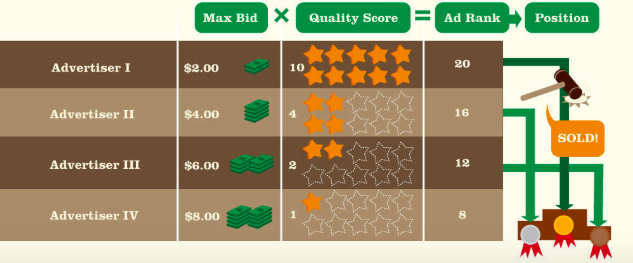
Image showing how online advertising auctions work.

Image Source

At this point, you might be thinking, “Okay, I get how the auction system works. But how do I figure out how much I should actually spend to see a return on my investment?”

My advice is to work backward from your revenue to determine what your maximum bid should be.

Use this equation:

Lifetime Value (LTV) x Average Lead-to-Customer Rate x Average Conversion Rate

Your LTV is how much a customer is worth to you throughout their relationship with your business. The average lead-to-customer rate is the rate at which your leads become paying customers. And your conversion rate is the rate at which new contacts convert on your content offers by filling out a form.

Combined, these metrics show you how much you should spend on your paid ads to break even.

Let’s say that you want to use digital ads to promote your new content offer. You’re going to need to know what your maximum ad spend should be to see a positive return on your investment. Assume that you know the following about your business:

  • Lifetime value: $500
  • Average lead-to-customer rate: 10%
  • Average conversion rate: 20%

Plug these numbers into the equation above to determine what your maximum ad spend should be: $500 x 0.10 x 0.20 = $10. This means that you can spend a maximum of $10 per click on your ad to break even. Your goal should be to spend less than $10 to see a positive return on your investment.

Types of Online Advertising

Now that we know more about how to advertise online, let’s dive into the various types of online advertising.

Social Media Advertising

Every month, there are nearly 2.5 billion active users on Facebook, 1 billion on Instagram, and 330 million on Twitter worldwide.

Whether it’s to chat with friends, stay connected to people across the globe, or for business and networking purposes, consumers are on social media for a multitude of reasons — and marketers know it. Because of the sheer number of active users on these platforms, advertising spend invested in social media channels is at an all-time high. Social media advertising across the world is projected to exceed $8.5 billion this year.

Advertising on social media comes with many advantages. You can:

  • Reach very specific target audiences with the help of targeting features and different audiences across all of the social media platforms.
  • Leverage a variety of ad formats to advertise in a way that aligns with your business goals.
  • Invest in the specific advertising efforts that drive leads and sales for your business.

Let’s take a look at eight popular social media networks, including Facebook, Instagram, LinkedIn, Twitter, Pinterest, YouTube, Snapchat, and TikTok. We’ll cover the audiences and ad types available on each one.

1. Facebook

Facebook is the most widely used social media network. Almost 2.5 billion people around the world use Facebook. That’s more than 30% of the world’s population.

With so many people using Facebook, you’re almost guaranteed to be able to reach an audience that’s relevant to any type of business. That’s where one of the most powerful features of advertising on Facebook comes in: audience targeting. The targeting capabilities on Facebook are unmatched by any other social media network.

There are three types of audiences that you can target on Facebook:

  1. Core audiences: An audience based on criteria like age, interests, and geography.
  2. Custom audiences: Get back in touch with people who have previously engaged with your business.
  3. Lookalike audiences: Reach new people whose interests are similar to those of your best customers.

Facebook’s advanced targeting can be used to target your ads to the most relevant audience — and even tap into new audiences you’d otherwise never reach with organic content alone.

Advertising on Facebook includes a range of ad types, including:

  • Photo ads
  • Video ads
  • Story ads
  • Lead ads

Photo ads are great for sharing collections of image content. Video ads are great for product explainer videos and branding. Story ads allow you to use a combination of photo and short-form video content. If you want to learn more about the different ad types, here’s a great course from HubSpot Academy all about Facebook Advertising.

Personally, my favorite way to advertise on Facebook is with lead ads because they give you the best of both worlds: sharing visual content and generating leads all at the same time. Facebook Lead Ads allow you to capture lead information without directing people out of the Facebook platform.
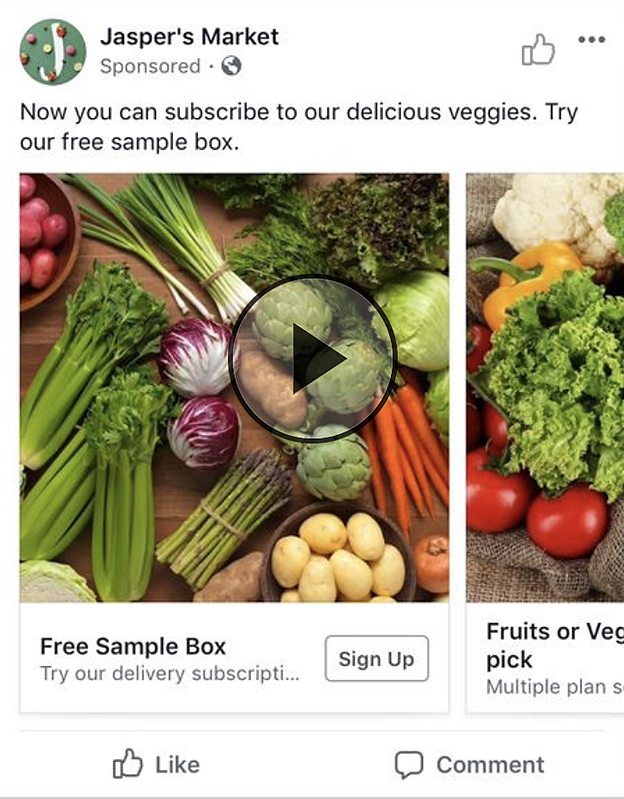
social media online advertising: facebook jasper's market

Image Source

No matter your business’ size or industry, you can use lead ads to find potential customers who are likely interested in your products or services. With lead ads, you provide a helpful piece of content that encourages viewers to sign up for a newsletter, receive a price estimate, or request additional business information. In return, when the viewer fills out the form, the business receives a new lead.

Another way to advertise on Facebook is through Facebook Messenger.

Facebook Messenger is a separate messaging app that comes with its own advertising opportunities. Facebook Messenger is the go-to messaging app in countries including the U.S., Canada, and Australia. Other messaging apps like WhatsApp and WeChat are the more popular choice in countries throughout South America, Europe, Africa, and Asia.
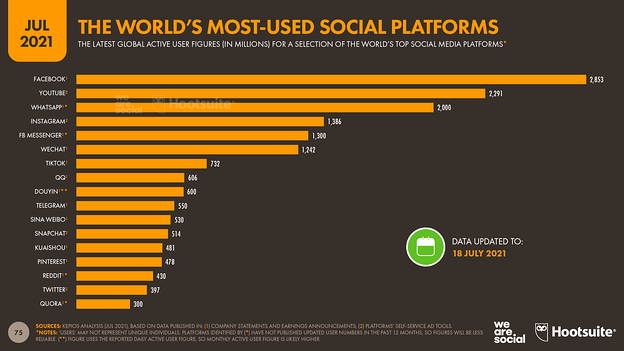
most used social media platform facebook

Image Source

Across the world, 20 billion messages are exchanged between people and businesses every month on Facebook Messenger. Ads play a big part in initiating conversations on Facebook Messenger.

There are a few different ways you can use Facebook Messenger as part of your advertising strategy.

  • Facebook Messenger call-to-action in ads: Start conversations with ads on Facebook that include a call-to-action to send a message.
  • Facebook Messenger Story Ads: Run story ads on Messenger Stories.
  • Facebook Messenger Ads: Use messenger ads to deliver content directly into users’ Facebook Messenger chats.

All of these ad types come together to encourage your audience to kick off conversations with your business. They can be used to get in contact with a sales team, request more information on a product, or even share other content like blog posts or ebooks.

My favorite way to advertise on Facebook Messenger is retargeting. Retargeting ads in Facebook Messenger are a great way to start targeted conversations and send personalized offers and content.

Sponsored messages allow you to advertise to people who have already interacted with your business in Messenger. This is a great way to re-engage your audience in a personalized way.
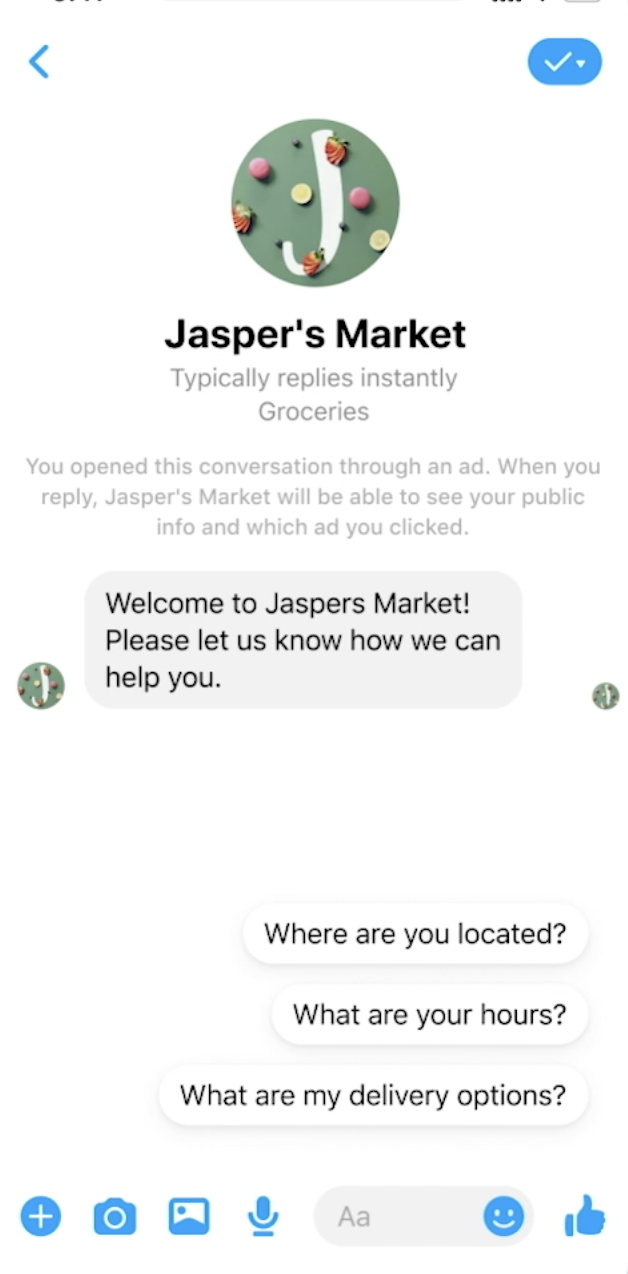
social media online advertising: facebook messenger

Image Source

2. Instagram

You can also advertise on Instagram through the Facebook Ads Manager. Instagram has over 1 billion monthly users globally. That’s a little less than half of the number of users on Facebook. The majority of users are between the ages of 18 and 34.

There are three ways that you can advertise on Instagram:

  1. Promote posts and stories directly from your Instagram professional account.
  2. Create ads from your Facebook Page and promote them on both Facebook and Instagram.
  3. Create ad campaigns in the Facebook Ads Manager to access full targeting capabilities.

I recommend taking the third option and creating custom campaigns for your audience on Instagram.

Instagram has similar ad types to Facebook, including:

  • Photo ads
  • Video ads
  • Story ads
  • Ads in Explore
  • Shopping Post ads

By far, the most interesting ad types right now are ads in the Explore Tab and Shopping Post ads. People using Instagram Explore are exploring their interests and discovering new content creators. Ads in Instagram Explore are a great opportunity to put your brand in front of a new audience.
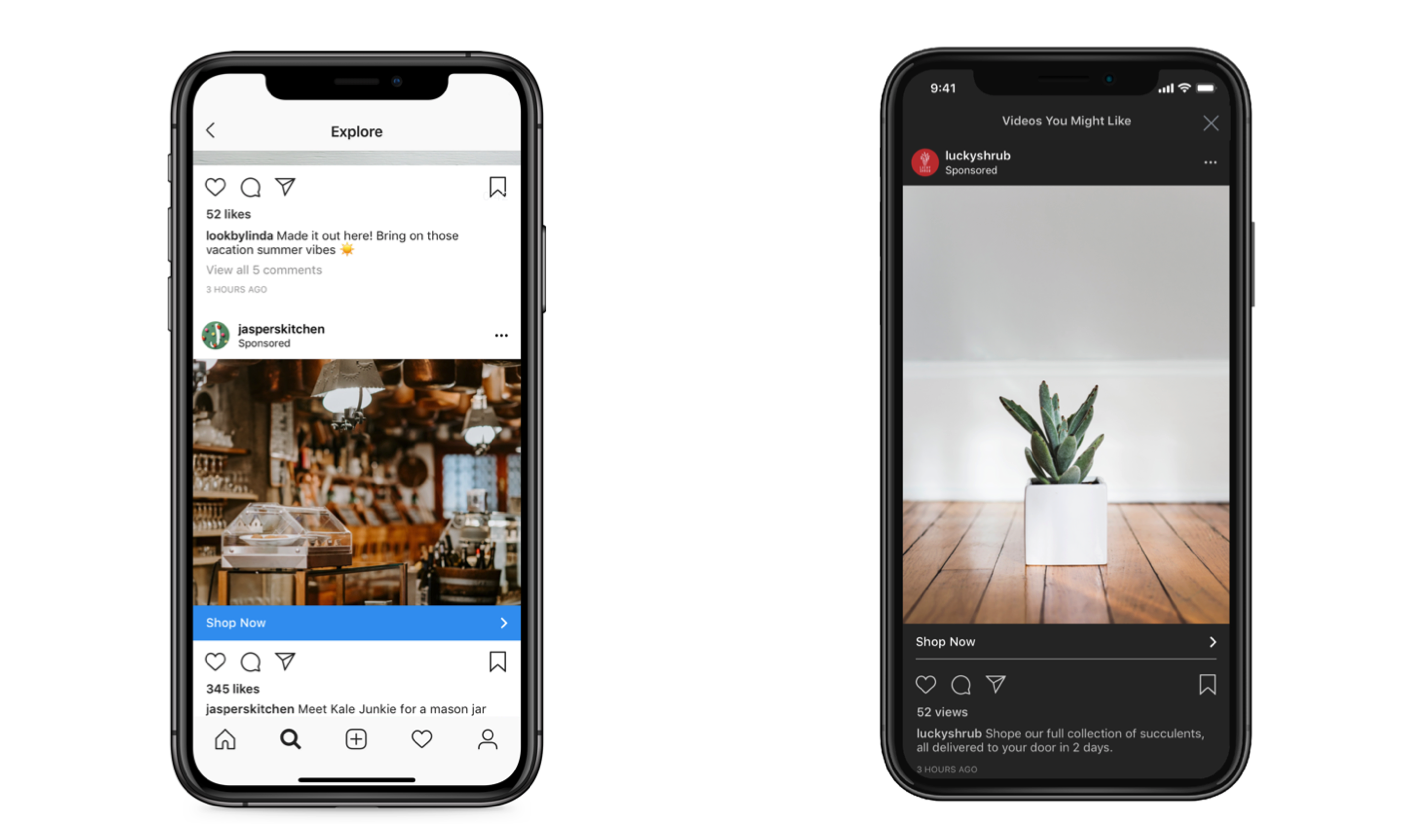
social media online advertising: instagram

Image Source

Shopping Post ads allow you to include a tag that shows the product’s name and price within your image. Clicking on the tag takes your prospects directly to a product page where they can purchase the item — all without leaving the Instagram app.
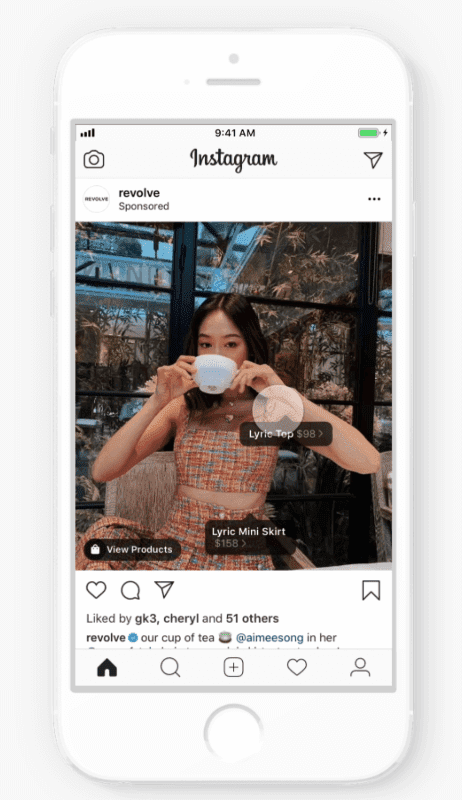
Instagram Shopping Ad example.

Image Source

3. LinkedIn

The LinkedIn platform has over 660 million monthly active members worldwide. Users on the platform are largely made up of working professionals which makes LinkedIn a great place for B2B (business-to-business) advertising. LinkedIn is the go-to platform for working professionals, which provides B2B advertisers a large audience pool to reach.

Plus, the advantage of advertising on LinkedIn is its unique targeting capabilities. On LinkedIn, you’ll have access to unique targeting criteria that isn’t available on other platforms.

You can target users on LinkedIn by unique demographics, including job title, job function, and industry. Maybe you only want to advertise to potential customers at the director level who work in customer service within the recruiting industry. LinkedIn’s targeting capabilities make that possible.

Plus, with the option to include lead gen forms in your LinkedIn ads, LinkedIn can be a lead generation machine. This will allow you to not only reach a very specific audience but drive leads without directing them outside of the LinkedIn platform.

The most interesting ad type of LinkedIn is Message Ads. Message Ads allow you to send direct messages to your prospects to spark immediate action.
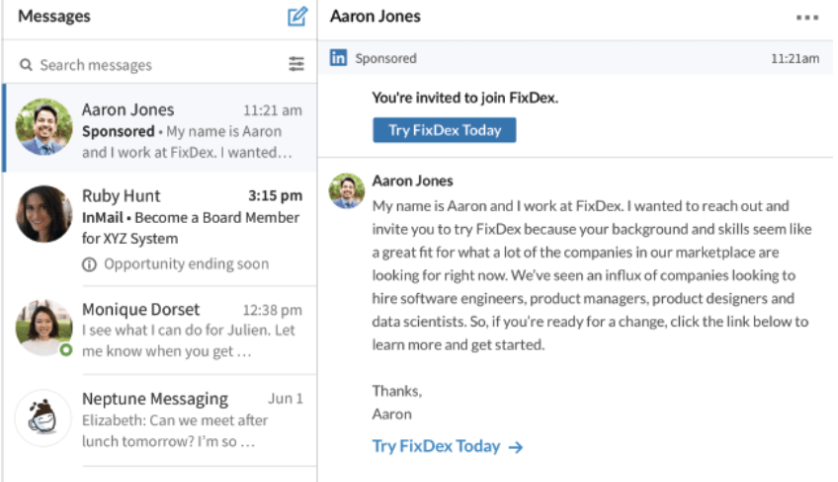
social media online advertising: linkedin

Image Source

How to use LinkedIn Message Ads:

  • Deliver a targeted message with a single CTA.
  • Drive stronger engagement and response than traditional emails.
  • Measure the impact of your messages.

But a word of warning: Don’t send too many Message Ads to the same people or it will come off like spam. And, make sure the messages sound authentic – if you were writing a LinkedIn message to a friend, what would you write in it?

If your Message Ads are too stiff, they’ll come off as spammy, too. Remember: This channel is a one-to-one conversation. Direct messages are sacred spaces – if you’re going to advertise there, you need to be extra careful about taking the time to make your Message Ads feel personal and relevant to your end-users. Make sure you’re delivering value to them in a way that feels authentic.

4. Twitter

Digital advertising is less common on Twitter because organic reach is still a significant driver of a brand’s performance on Twitter. This is very unique to Twitter – but even so, ads can still deliver strong results depending on what your goals are. Twitter has over 330 million monthly users globally. The majority of users are between 35–65 years old.

Advertisers have discovered a few niches that have high engagement on Twitter: B2B and e-commerce. Many B2B companies are using Twitter as a digital marketing tool, and Twitter users are known to spend a lot of money online. This makes advertising specifically to these audiences a great strategy.

social media online advertising: twitter

Image Source

Twitter breaks down its ads into five goals:

  • Awareness: Promote your tweets and maximize your reach.
  • Tweet engagement: Promote your tweets and get more retweets, likes, and replies.
  • Follows: Promote your account and grow your Twitter following.
  • Website clicks: Promote your website and get more traffic.
  • App downloads: Promote your app and get more downloads.

All of these can work together to help you grow your audience on the platform and convert users into customers.

5. Pinterest

Pinterest is a unique social media platform with 300 million users who are highly engaged and predominantly female. Some people say that Pinterest is the only platform where users actually want to see ads from brands they love because Pinterest is all about visuals.

How to advertise on Pinterest in four steps:

  1. Pick a pin: Promote your best pins so they appear in the most relevant places.
  2. Decide who sees it: Set up targeting so the right people see your ads.
  3. Pay for results: Choose to pay for engagement or visits to your site.
  4. Track what’s working: Once your campaign starts, see how it’s doing and make changes.
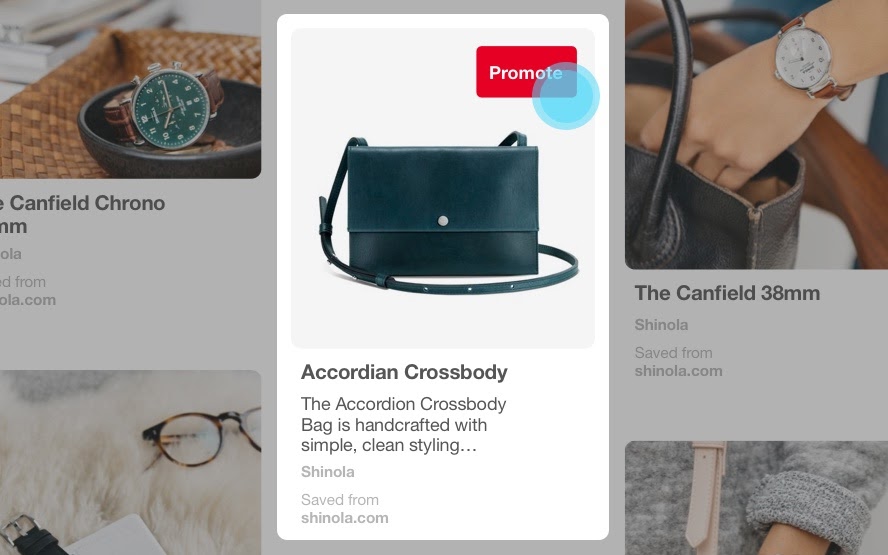
social media online advertising: pinterest

Image Source

Pinterest is great for businesses relying on photography to sell their products and who have a female target buyer persona.

6. YouTube

YouTube is the second largest search engine, second only to Google, with over 2 billion monthly active users. Ads on YouTube appear before and during other YouTube videos or as a stand-alone promoted video that’s displayed after performing a search.

Since you can target demographic information and interests, you can serve your videos to specific relevant audiences already watching videos from similar brands or on related topics.

social media online advertising: youtube

Image Source

7. Snapchat

Snapchat’s 218 million users are predominantly made up of people between the ages of 18–24.

Snapchat offers a few ad types, including story ads, sponsored tiles in Snapchat Discover, and augmented reality (AR) lenses.

Snapchat’s ad types feel pretty similar to the advertising options on Instagram. What really makes Snapchat unique is the augmented reality lenses. AR lenses are sponsored by a business to create interactive moments that users can use and share with their friends. It might be hard to believe, but in this example from Dominos that pizza isn’t really there — that’s the AR lens at work.

social media online advertising: snapchat

Image Source

8. Tiktok

One of the newer — and most popular — players in the social media advertising world is TikTok. TikTok is all about creating short, creative, and oftentimes funny videos. TikTok has exploded in the past few years and has reached 500 million monthly users.

Advertising options are still limited; they are mainly geared towards driving awareness. TikTok doesn’t hyperlink posts to websites and only recently started allowing advertising, so businesses advertising on TikTok focus on boosting brand awareness rather than leads or traffic.
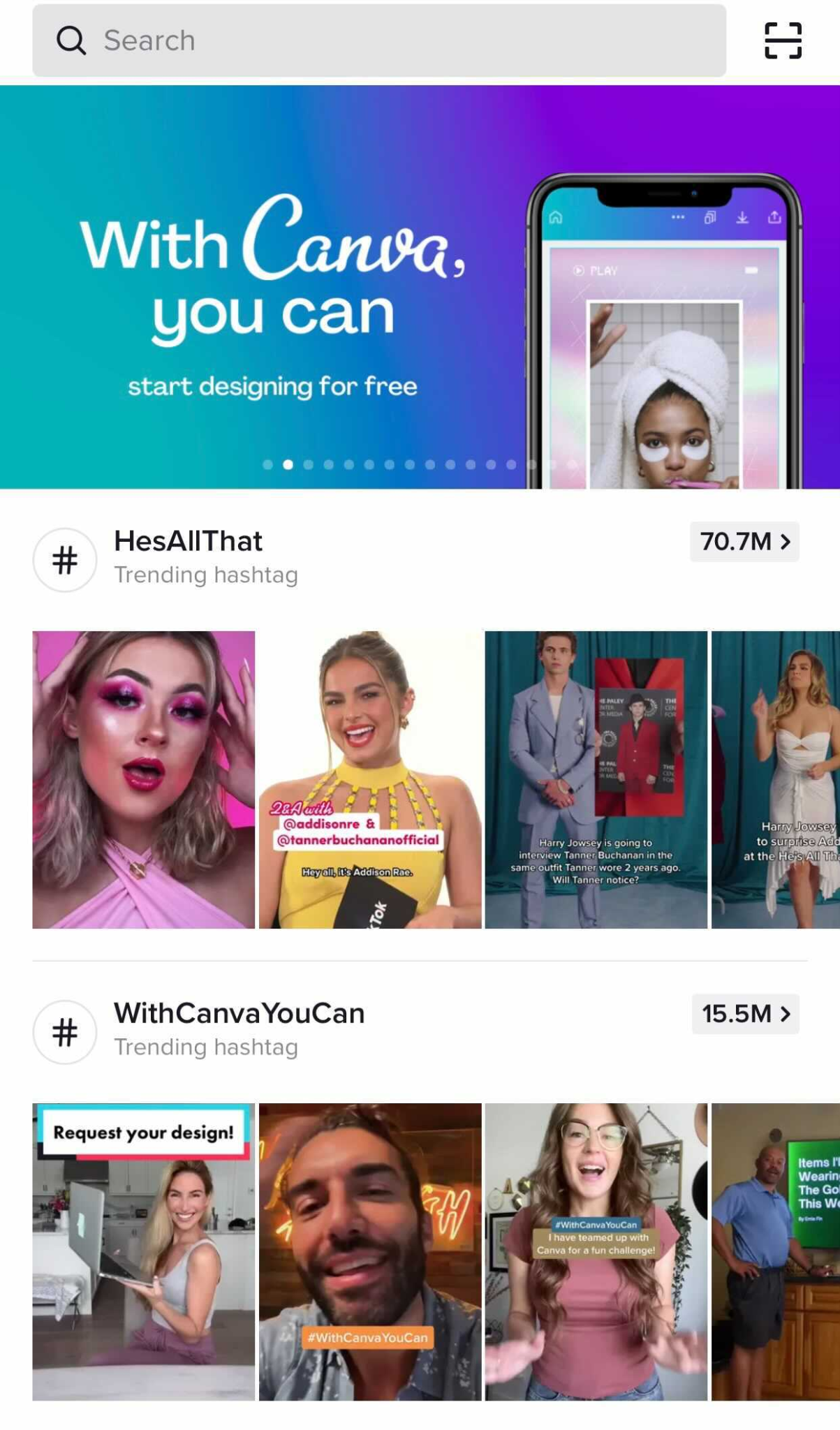
social media online advertising: tiktok

Promoting TikTok videos allow brands to build awareness with a young target audience. Most of the posts you’ll see on TikTok are aimed at getting laughs. From a brand perspective, you’ll want to create videos that are funny and align with other content on the platform. Think of things like dance challenges and memes. This type of content is the most effective.

Paid Search Advertising

People searching online are looking for something specific and will click on the first result they believe is going to be the most helpful to them.

You might be thinking: “I already appear in organic results on search engines. Why should I pay to advertise too?”

Well, there are three key reasons:

  1. On average, digitally prepared businesses anticipate four times better revenue compared to the less-prepared ones
  2. Advertising on search engines protects you from the competition who may be advertising on your branded terms.
  3. Search ads appear first in the search engine results pages (SERPs) above the organic results.

Paid search advertising allows advertisers to capture the attention of their audience in a more targeted way than with organic search alone.

Search ads allow you to anticipate the wants, needs, and desires of your potential customers and serve ads to them that are highly contextual. Over time, the analytics of your search ads can help you analyze and improve those ads to reach even more people.

But how does Google know how to deliver the right ad to the right person? That’s where keywords come into play. A keyword is one word or phrase that someone uses to describe what they need in search. Advertising on search platforms takes the targeting capabilities available on social media platforms, like demographics and location, and layers it with the addition of keywords.

When a Google user types a query into the search field, Google returns a range of results that match the searcher’s intent. Keywords align with what a searcher wants and will satisfy their query. You select keywords based on which queries you want to display your ad alongside.

Keyword research is just as important for paid ads as it is for organic search. That’s because Google matches your ad with search queries based on the keywords you selected. Each ad group you create within your campaign will target a small set of keywords and Google will display your ad based on those selections.

Let’s say Mary is moving to a different house and is looking for a home mover. So she goes into Google and types “who are the best movers.” By searching “best home movers,” she’s going to see results for advertisers that targeted keywords like “moving companies” and “top-rated movers.”
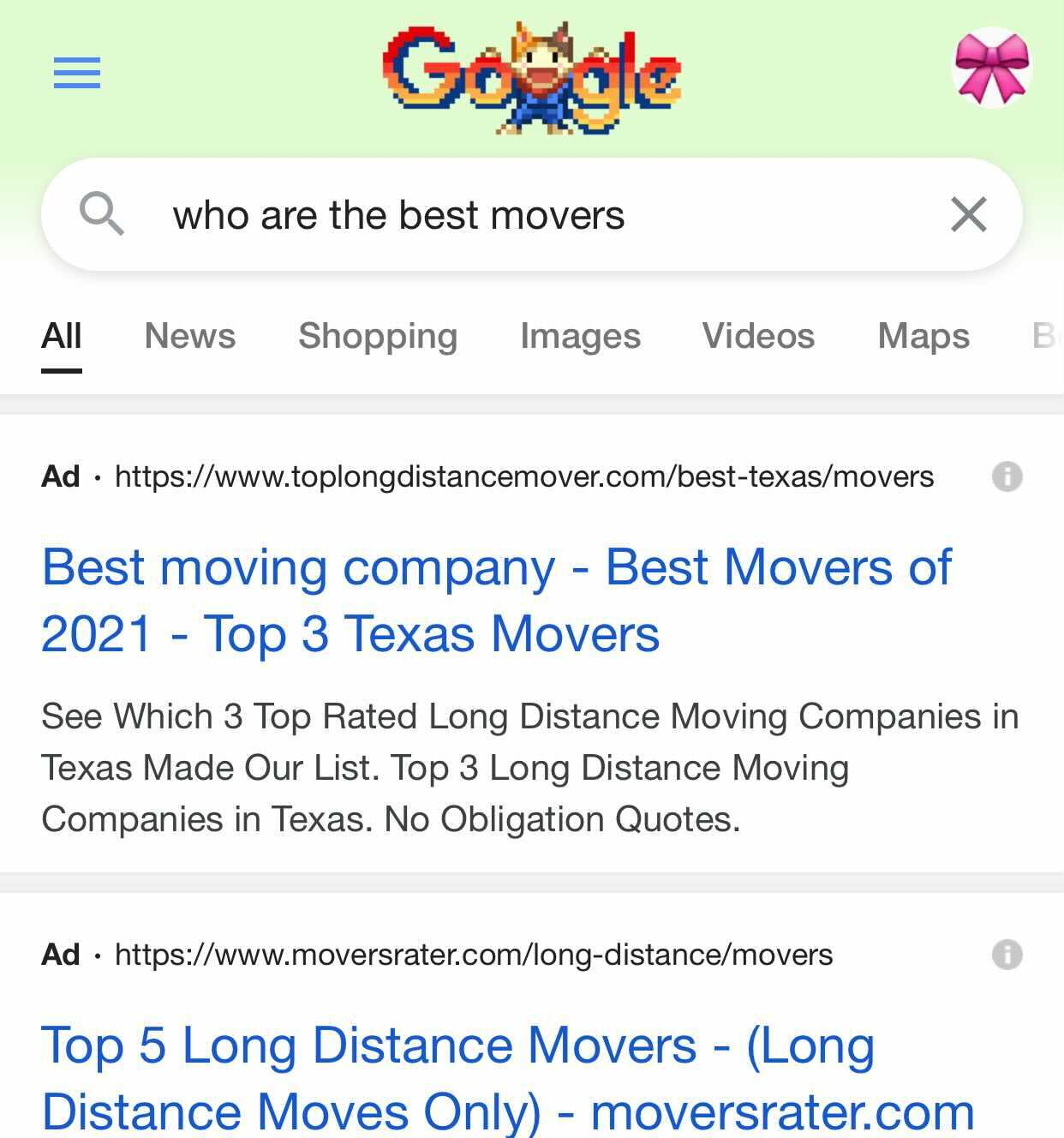
paid search advertising: Google example

Search engines also consider your intent when choosing the types of ads to display.

In the example above, search ads were the most helpful resource. But what if you’re looking for a location-based business, like a coffee shop? In Google maps, you might see “Promoted Pins” like these, shown in purple on the map and in the search results on the left. Promoted Pins are a great way for businesses to attract customers to their business based on location.

Promoted pins on Google Maps example.

What if you’re looking to make a purchase? Well, Google might show you a different kind of post to match your intent, such as Shopping Post Ads.

In this example below, Google shows you shopping post ads for the keyword “buy snowboard.” Since my query includes the word “buy,” Google knows that I’m interested in making a purchase, so I am shown ads for products I might be interested in.
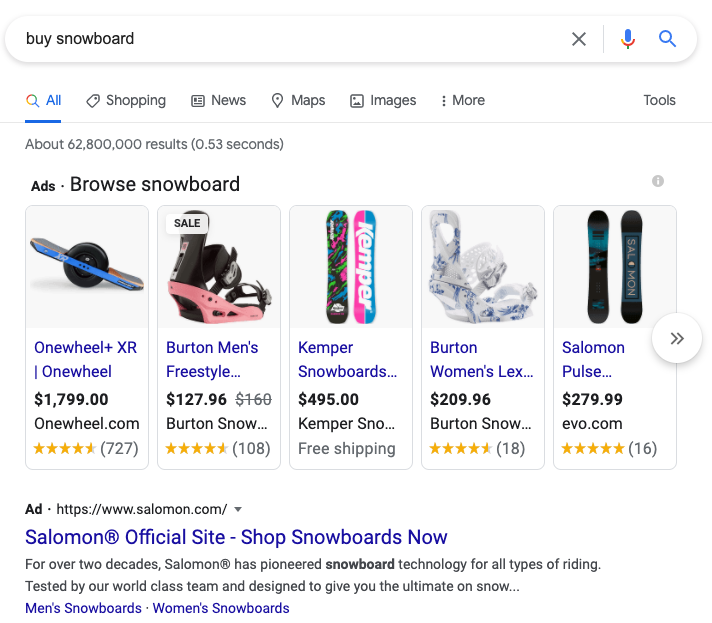
So how do you select your keywords?

Keywords typically fall under two categories: brand and non-brand.

A brand keyword is a word or phrase that includes a brand’s name or variations of a brand’s name. For example, some of HubSpot’s brand keywords include HubSpot, HubSpot Free CRM, and HubSpot Marketing Hub. These are all variations of the HubSpot brand and the tools that we offer.
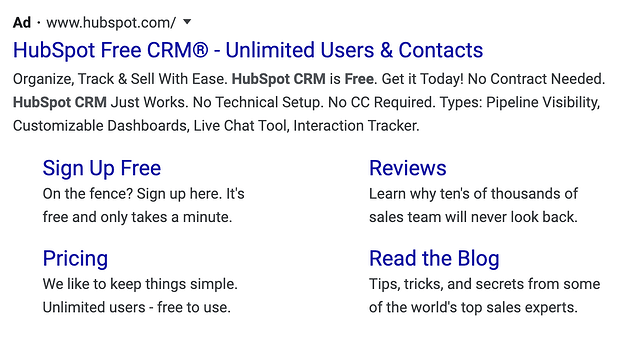
Branded keywords example in Google paid search ads.

Non-brand keywords are all other relevant keywords that don’t include a brand’s name or variations of a brand’s name. Some of HubSpot’s non-brand keywords include inbound marketing, sales software, and customer relationship management.

While these keywords are not part of HubSpot’s brand name, they are relevant terms that allow HubSpot to reach audiences that might be interested in eventually making a purchase.

Brand and non-brand keywords play a role in your digital advertising strategy. Brand keywords help you protect your brand from your competitor’s ads.

If you don’t run ad campaigns for brand keywords, you’ll leave your business vulnerable to losing website traffic to the competition who is bidding on your brand keywords. Non-brand keywords still have a role to play, too. Non-brand keywords allow you to reach new audiences unfamiliar with your brand.

When it comes to when your ad is displayed, you don’t just want to pick a certain group of keywords and have the ad shown only when those keywords are entered into the search engine.

This is where match type comes in. Since there’s an infinite number of ways that people can actually search for one term, Google gives you three match types to choose from: exact match, phrase match, and broad match. You can even use a broad match modifier and exclude negative keywords to optimize where your ads are delivered.

Let’s take a look at each match type:

  • Exact match: A keyword set to exact match will only display your ad if the search term includes that exact keyword or a very close variation. Exact match keywords are surrounded in [brackets].
  • Phrase match: A keyword set to phrase match will display your ad if the search term contains the same order of the words, but it can also contain additional words. Phrase match keywords are surrounded by “quotes”.
  • Broad match: A keyword set to broad match displays your ad when the search term contains any or some combination or variations of the words in your keyword, in any order. Broad match keywords don’t include any symbols.
  • Broad match modifier: The broad match modifier allows you to select keywords that must be included in the search query for your ad to be displayed. Keywords with a broad match modifier use a +plus sign.
  • Negative keywords: Excludes your ads from being shown on searches with that term. Negative keywords include a -minus sign.

Google vs. Bing vs. Yahoo

There are a few advertising platforms out there for search, including Google, Bing, and Yahoo. But Google is by far the most used search engine out there. With 3.5 billion search queries a day, over 71% of the total searches made daily around the world are done on Google. Google brings in six times more searches every day than Bing and Yahoo, combined.
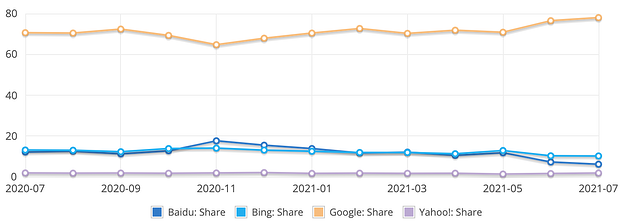
google vs bing vs yahoo most used search engines line chart

Image Source

But this doesn’t mean you should entirely rule out advertising on these other platforms. In some cases, you can achieve impressive results with a smaller ad spend on Bing and Yahoo than you could on Google since there is less competition from advertisers.

My recommendation is to dig into your organic traffic to identify if Bing or Yahoo make up a significant amount of traffic for any given keywords or topics. This might indicate that advertising for those keywords on Bing or Yahoo could be profitable.

Regardless of where you advertise, the good news is that advertising on all of these platforms more or less work and look the same. So knowing how to advertise on one will make advertising on the others easier.

Native Advertising

Publishers like BuzzFeed and The Dodo produce content that snowballs in popularity on social media almost every day. And they make money by helping other brands do it, too. Brands will pay these publishers to craft posts and videos that follow the publishers’ formula for virality. They also pay publishers to distribute this sponsored content to their massive audience through social media and their website.

This is native advertising.

Check out this example from Geico. It partnered with BuzzFeed to create this video advertisement for morning workouts. It’s a topic that is loosely related to insurance, which Geico sells, and it tapped into BuzzFeed’s expertise to create this video that feels right at home with the rest of the content on the site.

When you pay for a publisher’s native advertising services, you’ll be able to leverage their editorial expertise and audience reach to help your brand tell captivating stories to a bigger and better viewership. And each publisher is going to support different ad formats and creative types.

During the creative process, you’ll collaborate with publishers to craft sponsored content that covers one of their main topics and looks like a regular piece of content on the publisher’s website.

This way, even though your post is technically promotional, it won’t disrupt their audience’s browsing experience. They’ll enjoy reading your post and won’t feel like you or the publisher are advertising to them. This exposes your work to a huge, engaged viewership and attracts new followers to your brand.

Native advertising creates a symbiotic relationship between publishers and brands. Publishers who do sponsored content right reap the benefits of another revenue stream and gain more audience trust if they promote a native ad from a trustworthy brand.

For brands, collaborating with prominent publishers can unleash unprecedented amounts of creativity to help them win over the publishers’ audience and boost engagement — as the click-through rate on native ads far exceeds traditional. For example, T Brand Studio, the New York Times native ad business, crafted sponsored posts that captured as much engagement as some of nytimes.com’s highest-performing articles.

To find the optimal native advertising opportunities for your brand, try using StackAdapt or Nativo.

Display Advertising

Display ads are a controversial topic in the digital marketing community. For almost 25 years, advertisers have abused them by tricking internet users into clicking misleading ads — some malicious display ads have even infected people’s computers with viruses. It’s easy to see why people have developed banner blindness and can’t stop downloading ad blockers: display ads have the reputation of being intrusive, distracting, and irrelevant.

On the other side of the spectrum, though, display advertising technology has advanced to the point where ad networks can leverage data and machine learning to offer advertisers more effective targeting strategies and consumers more relevant ads.

Ad networks like Google Display Network and Facebook’s Audience Network are the leaders in the banner ad renaissance. They can display your ads to the right target audience at the right place and time. And if you want more control of your advertising, they’ll let you decide where to place your ads. Below, we’ll cover each ad networks’ features and targeting capabilities:

1. Google Display Network

When you use Google’s Display Network, you can design visually appealing ads and place them on over two million websites and apps, YouTube, and Gmail.

You can also build new audiences by targeting people who are most likely to be interested in your product or service and remarket website visitors just by importing a list of their contact information.

If you don’t want to build out your ideal audience or deal with bidding, you can let Google Ads do it for you. Its automated targeting and bidding features can identify your highest-converting audience for the best return on investment.

Display ads can be most effective when retargeting an audience that’s already familiar with your brand.

2. Facebook’s Audience Network

With Facebook’s Audience Network, brands can expand their Facebook ad campaigns and use the same targeting data they use on the platform to advertise on a huge collection of websites and apps.

Brands can place native ads, banner ads, full-screen ads, in-stream video ads, and rewarded video ads (for example, “Watch this video ad to get more tokens!”) on the network’s websites and apps that their Facebook audience frequently visits.

This type of advertising can be particularly effective for mobile games, like in the example below from 5agame who was able to attribute 80% of their revenue through their rewarded video.
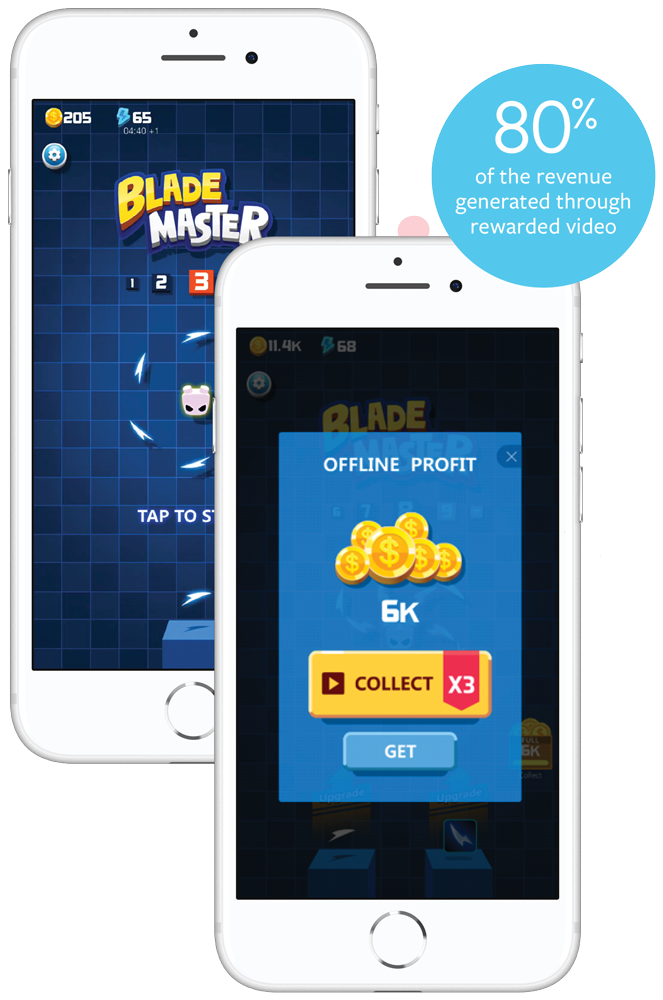
facebook's audience network mobile game native advertisement

Image Source

Now that you know about all of the digital ad types that are available, the next step is to learn how to leverage the right ads for your business to achieve your goals.

If you want to continue leveling up your ads training, check out HubSpot Academy’s free course on the Digital Advertising Training Course.

Editor’s note: This post was originally published in April 2020 and has been updated for comprehensiveness.
advertising plan

Categories B2B

The 70 Best Chrome Extensions for 2021

Google Chrome browser extensions allow you to increase productivity, reduce distractions, and source content — all in the comfort of your internet browser.

The best part is that you have plenty of options. The Google Chrome web store offers a variety of different tools that help you become safer, smarter, and more productive with just one click. We’ve curated the best ones here.

Uncover more leads in less time with HubSpot's Chrome Extension

We can’t guarantee that these extensions will make puppy YouTube videos less tempting to watch, but we recommend them for busy marketers who want to make their time online more efficient. We’ve broken them down into different categories if you want to jump ahead:

Please note: All of these are free tools, but some of the services that they work with may have paid features or subscriptions.

For all of the greatness that the internet affords — cute animal videos, GIFs, and interesting blogs — one of its biggest downsides is how distracting it can be. How many times have you sat down to work and been pulled into a pit of procrastination?

Perhaps you get absorbed in updates on social media, or maybe you click through Wikipedia trying to determine what exactly Gina Rodriguez’s first TV role was (it was on Law & Order). No matter where you click online, it’s easy to be pulled into a black hole of distraction and low productivity.

Check out the extensions below to remedy this problem and be your most productive self.

1. HubSpot Sales

HubSpot Sales Chrome extension

Users: 800K+

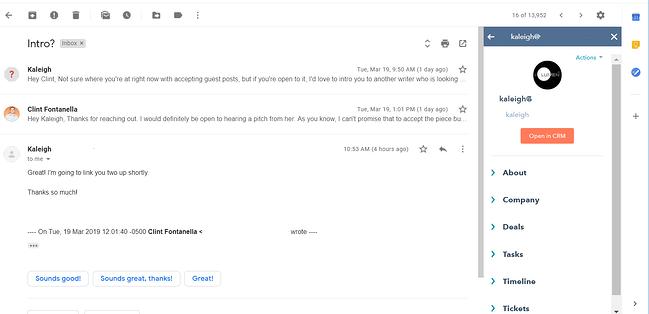
HubSpot’s Sales tool connects your email inbox with your CRM. Instead of having to navigate back and forth between the two products, this extension allows you to transfer contact information from your email directly into your CRM. This saves employees time in their day-to-day workflow and retains valuable information about customers.

Another cool feature that HubSpot Sales provides is the tracking and logging of emails. Users can send emails and receive alerts when their message is delivered, opened, and clicked on. The email thread can then be logged continuously into the CRM throughout the entire correspondence.

2. TodoistTodoist Chrome extension

Image Source

Users: 700K+

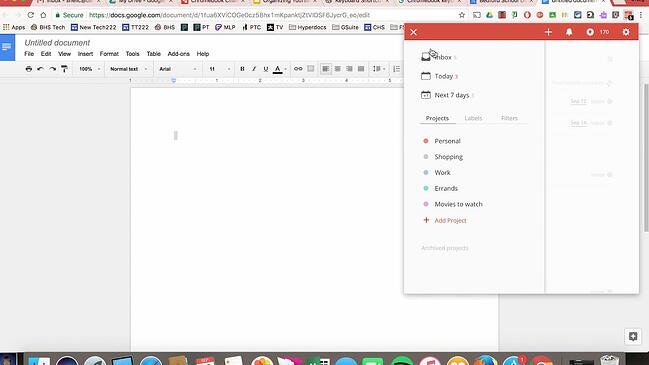
Todoist is a project management tool that lets you create highly organized and visually appealing to-do lists across all of your devices. What’s neat about the Chrome extension is that you can see your to-do list, or your team’s shared lists, and add tasks to it without having to open a separate tab, app, or device.

3. Reply

Reply Chrome extensionUsers: 10K+

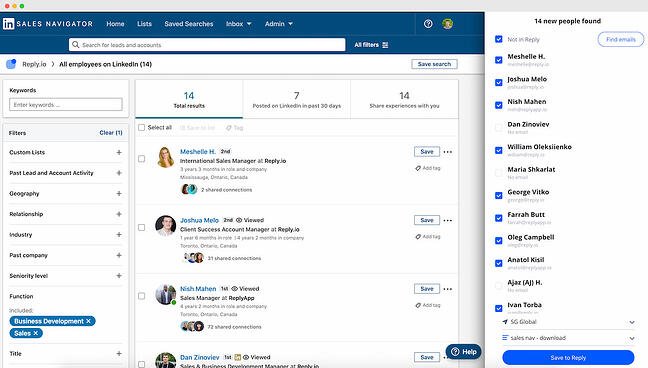
Reply’s Chrome extension helps you research and engage with your potential prospects on LinkedIn. This is a fast and easy way to find and verify anyone’s email address — both one by one or in bulk using LinkedIn Sales Navigator.

Once you get the contacts, you can sync them to your CRM — including HubSpot — or connect with the prospects right away.

4. StayFocusd

Stayfocusd Chrome extension

Users: 600K+

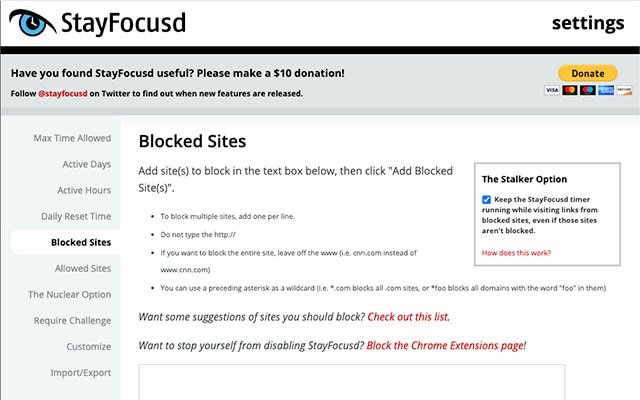
StayFocusd lets you budget your time on specific websites so you can eliminate distractions when you need to buckle down and work. It’s highly customizable — you could set your time limit to 20 minutes on Twitter and only five minutes on Facebook, for example. It also has neat features like the Require Challenge: Once you set time limits on sites, if you want to go back and change your settings, you have to complete a challenge (think: retyping a piece of text without typos or answering questions).

5. LastPass

Lastpass Chrome extension

Users: 10M+

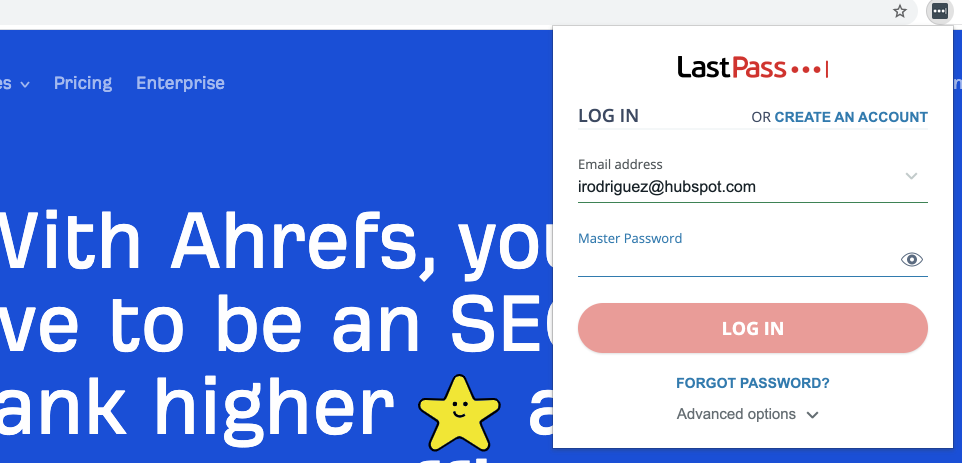
LastPass is a password manager that autofills in passwords for all of the accounts you save with this extension. You only have to remember one password: your LastPass password. This saves you time and headaches and increases the security of your personal data.

6. Add to Trello

Add to Trello Chrome extension

Users: 10K+

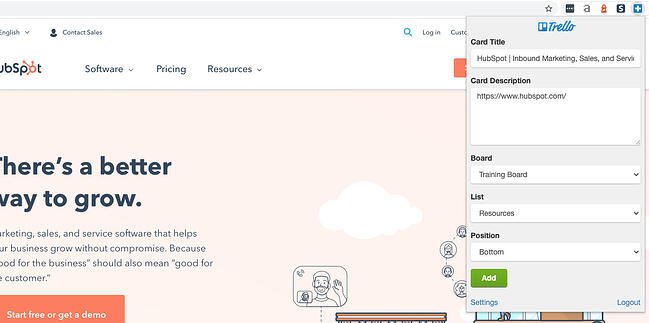
If you use Trello for project management, team collaboration, your content calendar, or just a personal to-do list, this extension lets you easily add links as cards to your Trello boards.

7. Extensions Manager

Extensions Manager Chrome extension

Users: 100K+

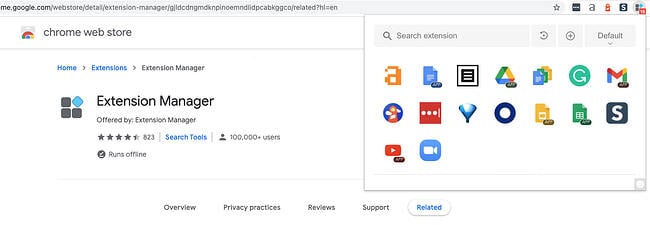
We couldn’t give you 50+ different extensions to try out without also suggesting Extensions Manager. Try this tool to organize all of your extensions so they don’t take up half of your browser’s screen. It shows you what extensions you have operating on Google Chrome and gives you the option to hide some of the icons to keep your browser better organized.

8. Toggl Track

Toggl Track Chrome extension

Users: 300K+

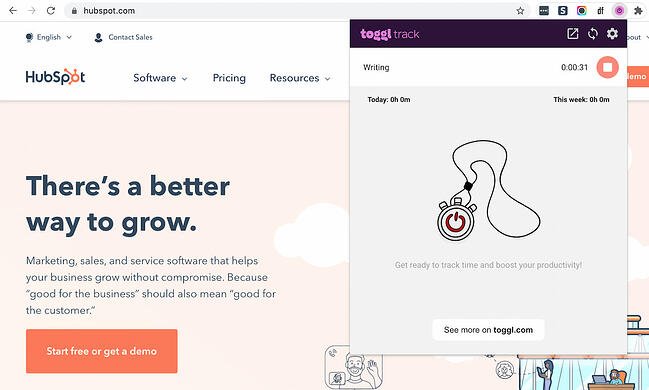
If you often find yourself spending too much time on one task — to the point that you no longer have time to complete other tasks — consider using the Toggl Track Chrome extension. It initiates a timer right within the comfort of the browser. There’s no need to start a timer on your phone. Simply open up the extension and begin tracking the time you spend on tasks.

9. Print Friendly & PDF

Print Friendly Chrome extension

Users: 700K+

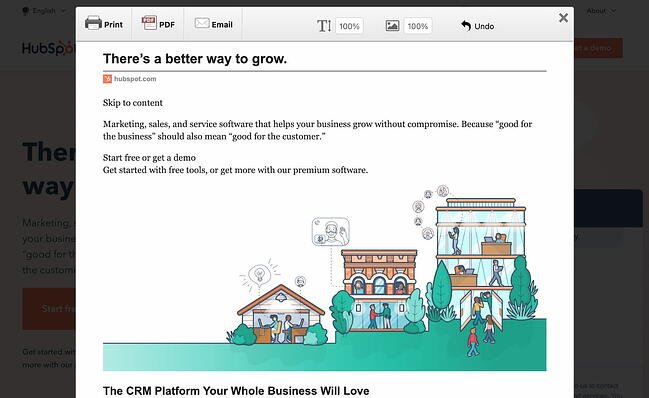
If you ever need to save a page in a print-friendly format or as a PDF, you can easily do so with the Print Friendly & PDF Chrome extension. The extension removes ads and other cluttering elements from the web page to turn it into a pleasant reading experience. You can also delete images and change the text size.

10. Email Finder

Email Finder Chrome extension

Users: 200K+

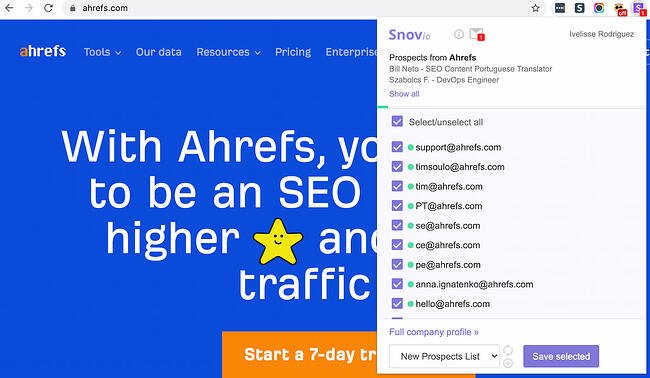
Whether you’re carrying out sales outreach, seeking guest blogging opportunities, or looking for the owner of a small website, Email Finder will automatically give you a list of verified emails associated with that domain. It’s an absolutely brilliant tool for sales reps and marketers who want to save time when looking for potential contacts at a company.

1. HTTPS Everywhere

HTTPS Everywhere Chrome extension

Users: 2M+

“HTTPS” is a website protocol that ensures a site is secure before you visit it. And although you might recognize this tag at the beginning of most websites, it’s not quite ubiquitous across the internet — nor does it guarantee that the site you’re browsing is 100% secure.

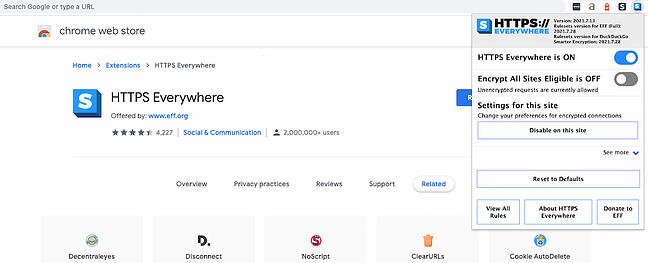
The Chrome extension, HTTPS Everywhere, rewrites the request you send to any website you visit in Chrome so you can be sure your browser produces the secure version of that site. Browse assured that all your personal information is kept safe and your computer doesn’t catch malware while you’re online.

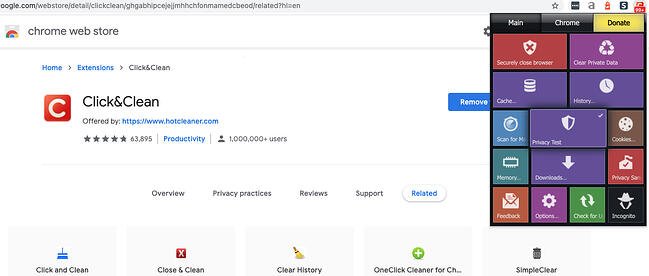
2. Click&Clean

Click and Clean Chrome extension

Users: 1M+

If you’re constantly searching and downloading work material during the day, it can be a tedious task to clear your browser history. You just don’t have the time to keep pulling up your history page and manually clearing your cache or download log.

The Click&Clean extension for Chrome allows you to clear your cache, URL searches, website cookies, and download history with a single click of a button on your browser toolbar. The extension can also scan your computer for viruses and clean up your hard drive of unused applications — helping your computer run faster as a result.

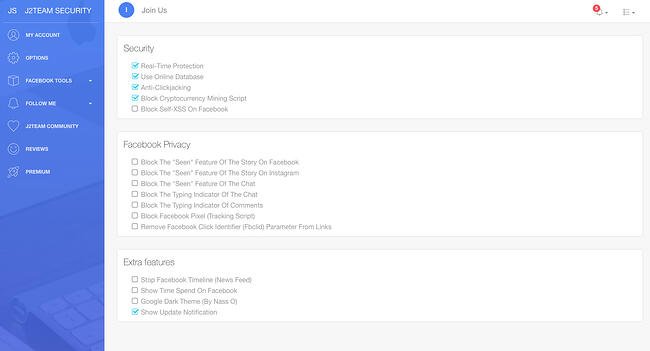
3. J2TEAM Security

J2TEAM Security Chrome extension

Users: 200K+

J2TEAM Security isn’t your average firewall. This Chrome extension starts with basic virus protection. It also allows you to customize your website block list and ensures your Chrome browser uses the “HTTPS” security tag on blogging sites — preventing you from visiting user blogs that are deemed unsafe.

The extension also offers a variety of Facebook-specific privacy settings, such as blocking the “seen” tag after you read certain private messages and hiding how long you’ve been active in Facebook Messenger.

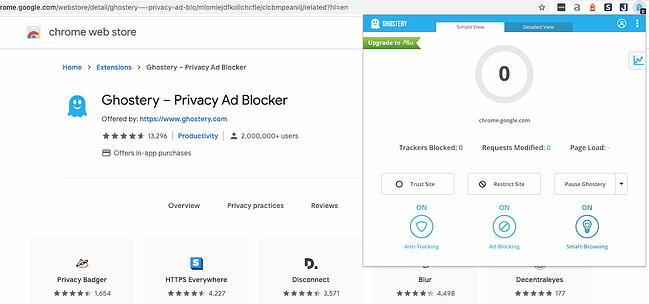
4. Ghostery

Ghostery Chrome extension

Users: 2M+

Ghostery is a sophisticated ad-blocking extension designed to remove ads that distract or interrupt you while you’re viewing specific website content. It also disguises your browsing data so ad-tracking tools are unable to collect personal information that you’d prefer to keep private. These features help to speed up webpages’ load time and ultimately improve your browsing experience.

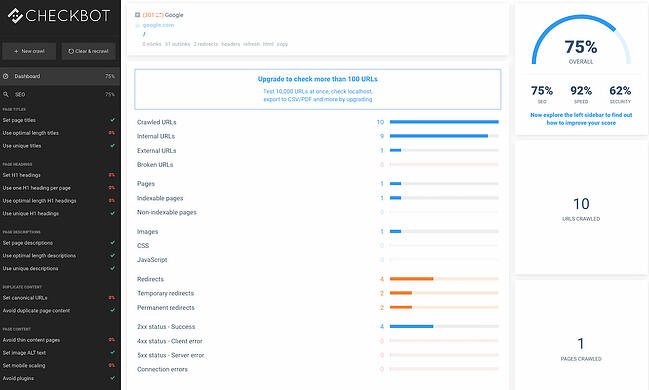
5. Checkbot

Checkbot Chrome extension

Users: 40K+

Checkbot combines technical SEO with modern security to help you analyze both how safe and how optimized a website is for search engines. Because search engines like Google prioritize website security in addition to content quality in their rankings, this Chrome extension is a handy one-two punch for content creators and web developers.

Checkbot can test the page speed, SEO, and overall security of more than 250 URLs per domain for free — and help you improve in these three categories to protect you and your website visitors from unsafe material.

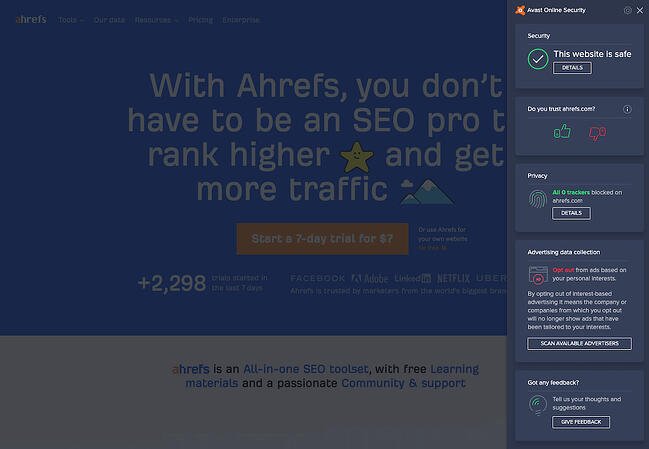
6. Avast Online Security

Avast Online Security Chrome extension

Users: 10M+

Avast Online Security is known as a “web reputation plugin,” examining each individual website you visit for suspicious information. The extension also warns you if the site you’re visiting simply has a bad reputation. In turn, you can rate the websites you visit to help Avast get better at flagging potentially unsafe webpages while on Chrome.

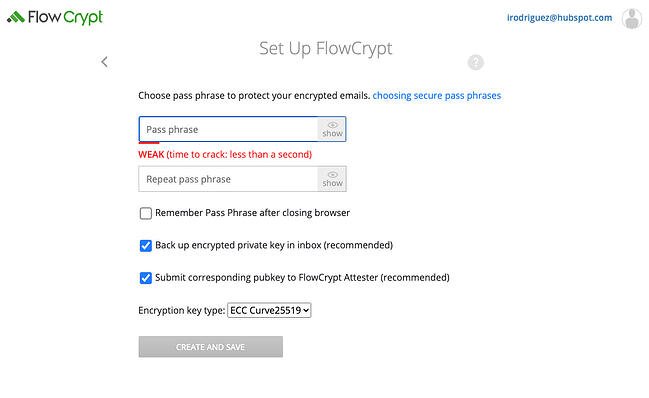
7. FlowCrypt

Flowcrypt Chrome extension

Users: 70K+

This security extension is specific to emails, allowing you to send and receive encrypted emails (and attachments) to and from your colleagues. It’s one of the best ways to be sure your emails are kept private and secure while in transit to the recipient.

FlowCrypt uses PGP encryption, which stands for “Pretty Good Privacy” — the standard for encryption in most email clients. The tool integrates perfectly with Gmail, adding a “Secure Compose” button to your inbox.

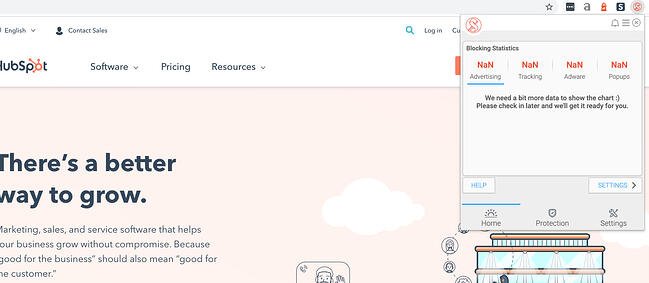
8. Fair AdBlocker

Fair AdBlocker Chrome extension

Users: 1M+

Fair AdBlocker offers both malware and adware in one browser extension. The tool protects you from malware as well as distracting ads and pop-ups. Once installed, you can configure your blocking settings to hide the types of ads you’re least interested in seeing — especially those that carry dangerous information that can infect your computer.

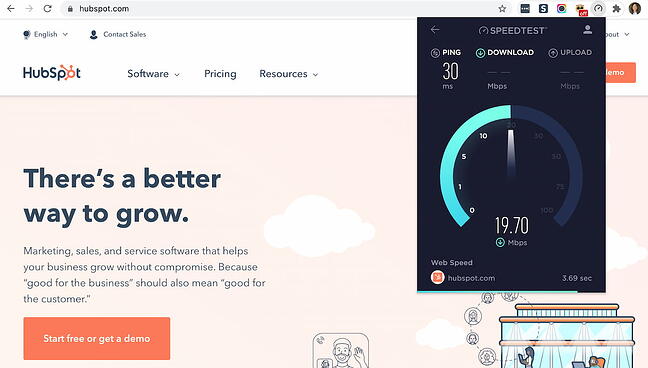
9. Speedtest by Ookla

Speedtest by Ookla Chrome extension

Users: 2M+

Find out how fast your internet connection is and learn how quickly websites are loading. Knowing this information can help you move to another internet connection if needed, and you’ll also get to see performance metrics for your own site.

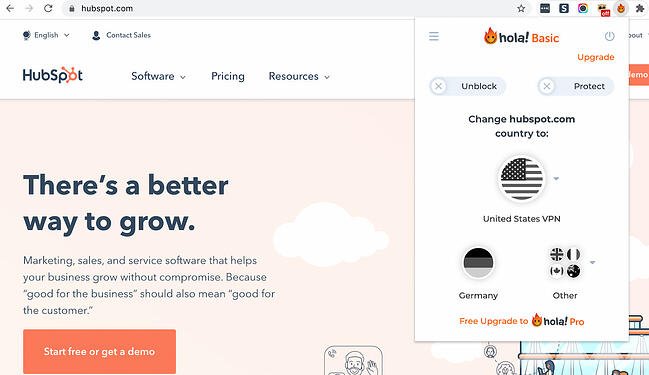
10. Hola Free VPN

Hola Free VPN Chrome extension

Users: 7M+

Whether you need to cloak your identity online or browse content from another country, Hola Free VPN allows you to do that for free. The tool can help you browse the internet safely and anonymously without needing to pay for an external VPN service.

Chrome Extensions for Social Media

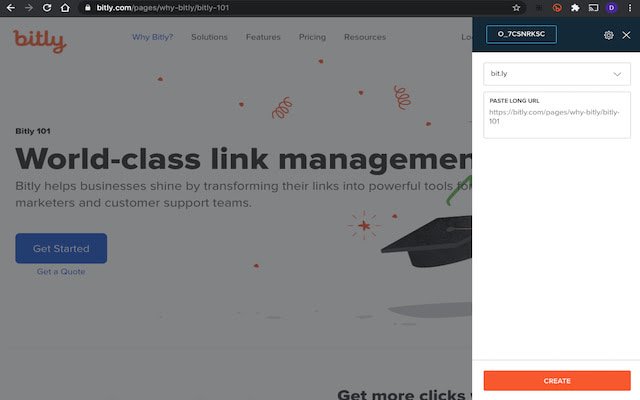
1. Bitly

Bitly Chrome extension

Users: 500K+

This extension lets marketers quickly and easily shorten links and share them on social media directly from their browser. This is particularly useful for social media marketers and allows for personalization with an Enterprise plan.

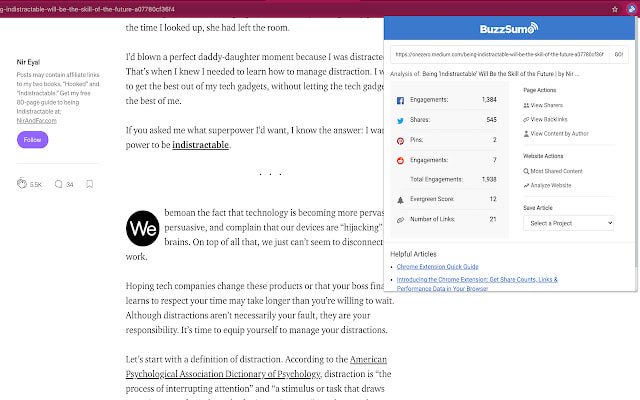
2. BuzzSumo

Buzzsumo Chrome extension

Users: 20K+

BuzzSumo provides insight into how content is performing. When you’re on a web page, click the extension to show metrics such as the number of social shares and backlinks to a piece. This tool provides an easy way to see how much engagement your content is generating. You could also use BuzzSumo to perform competitor analysis and uncover strategies that might make your content more shareable.

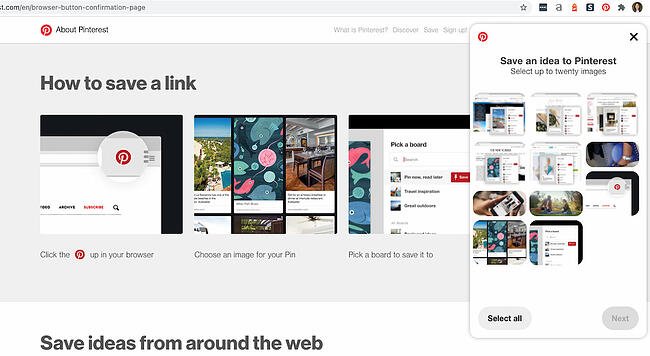
3. Pinterest

Pinterest Chrome extensionUsers: 8M+

This extension allows you to easily save items onto your Pinterest boards without navigating away from what you’re doing. What’s neat about this tool is that it shows you multiple pinnable items available on each website so you can save more than one item to your board at a time. (Normally, you would have to click into each blog post or image in order to separately pin each to your boards individually.)

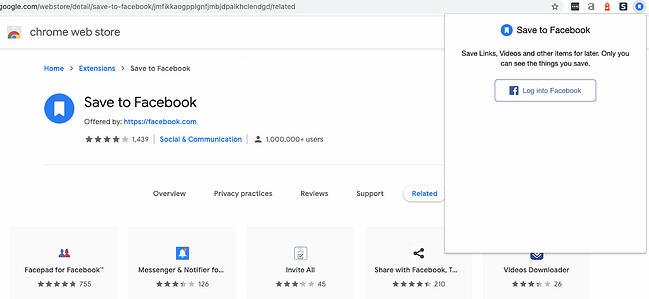
4. Save to Facebook

Save to Facebook Chrome extension

Users: 1M+

Facebook’s “Save” feature lets users aggregate links, images, and videos they find on Facebook in one location in their account. This extension allows you to do the same from anywhere on the web, making Facebook a centralized place to save content you’re interested in checking out later.

5. RiteTag

Ritetag Chrome extension

Users: 30K+

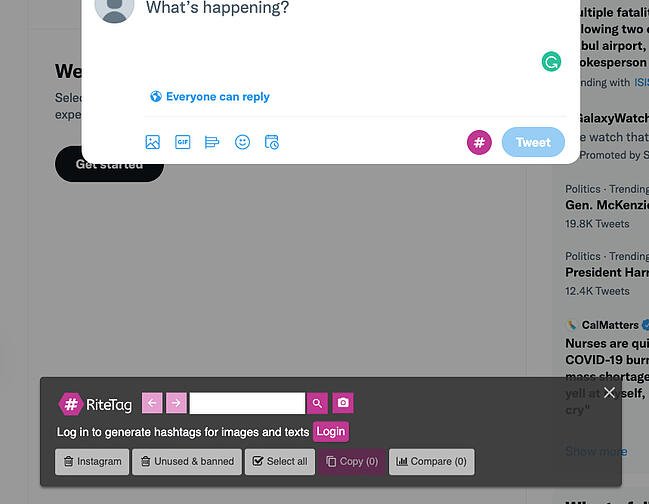
RiteTag shows you how hashtags are performing on Twitter and Facebook before you post content. Once you log in to RiteTag using your Twitter or Facebook credentials, it checks the hashtags you begin typing in real time and color codes them:

  • If your hashtag is green, it means the hashtag will help your content be seen now.
  • If your hashtag is blue, it means the hashtag will help your content be seen over time.
  • If your hashtag is gray, you should select a new hashtag because it has low levels of engagement.
  • If your hashtag is red, you should select a new hashtag because it’s so popular, your content will disappear into the crowd.

6. Buffer

Buffer Chrome extension

Users: 200K+

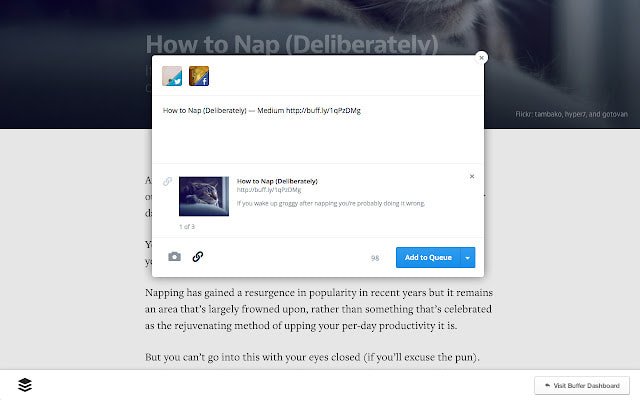
Buffer allows you to easily share content from any website to your Facebook, Twitter, and LinkedIn profiles. If you’re a Buffer customer, you can also use the extension to schedule posts from your browser without needing to access the Buffer website. You can also queue posts for future publication.

7. App for Instagram

App for Instagram Chrome extension

Users: 90K

Want to keep tabs on Instagram notifications without having to constantly check your phone? With this extension, users can see what’s happening on their Instagram content directly within their browser. As opposed to having to check your phone, you can access your Instagram feed right in the browser and see other Instagram user’s content in much greater detail.

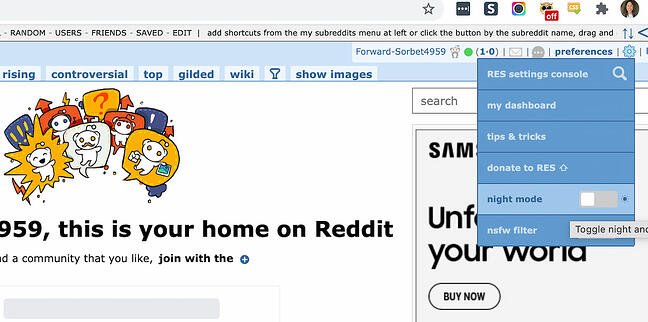
8. Reddit Enhancement Suite

Reddit Enhancement Suite Chrome extension

Users: 1M+

Do you regularly use Reddit in your personal life or in your marketing efforts? And are you specifically a fan of the old version of Reddit? Download the Reddit Enhancement Suite Chrome extension to enhance your experience on the website and browse posts much more easily than you did before. This extension is only compatible with the original version of Reddit.

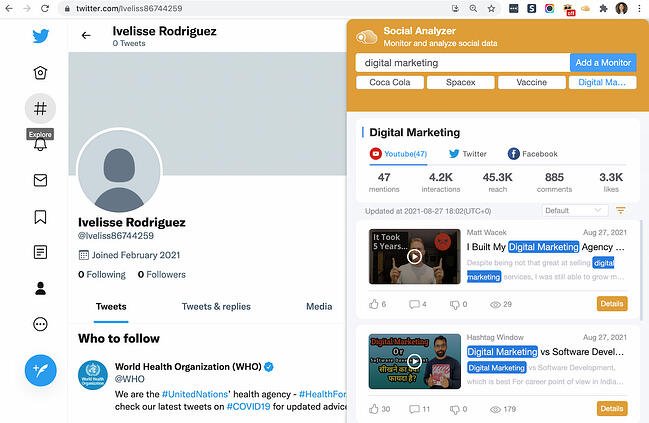
9. SocialAnalyzer

SocialAnalyzer Chrome extension

Users: 800+

SocialAnalyzer is a social media monitoring tool that allows you to keep up with trending posts in one of your target markets or industries. See the most recently published posts and videos on YouTube, Twitter, and Facebook, and see whether people are interacting with the content that people are already publishing. You can use this tool to further refine your social media marketing efforts and track brand sentiment.

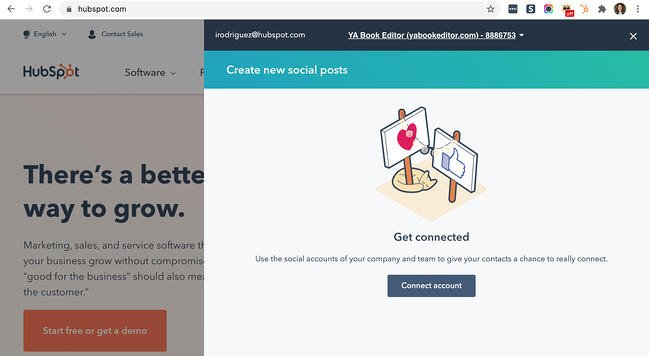
10. HubSpot Social

HubSpot Social Chrome extension

Users: 20K+

Are you a current HubSpot customer? HubSpot Social allows you to post on your social media profiles straight from your browser. You can schedule posts in advance, share a quote from an external article directly to your social feed, and share webpages, too. No need to access your HubSpot portal in another tab. Do it straight from your current webpage.

Chrome Extensions for SEO

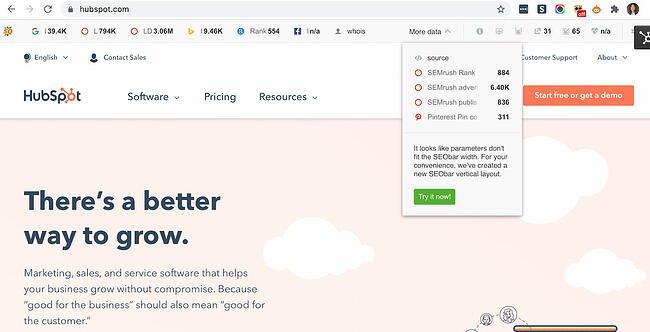
1. SEOQuake

SeoQuake Chrome extension

Users: 700K+

SEOQuake is a Chrome extension that allows SEO marketers to easily get insights about different websites without leaving their web browser. With one click, you can find search ranking and backlink information about the search results on a Google results page. It also provides details about the amount of backlinks the website has (according to SEMRush), shows you the keyword density of a page, and lists external and internal links.

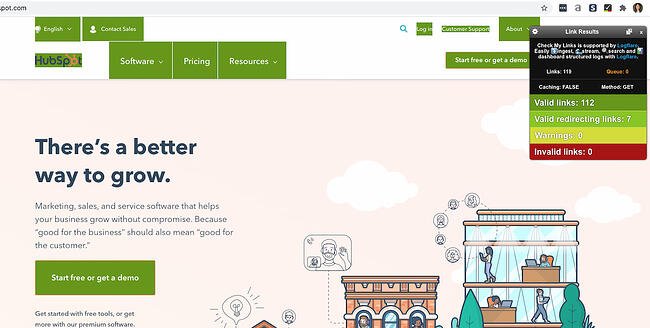
2. Check My Links

Check My Links Chrome extension

Users: 200K+

Check My Links does what it says it will: It quickly scans web pages and shows you which links are working properly and which are broken. With this extension, marketers can ensure that their own websites are functioning properly for their visitors. Additionally, marketers can check for broken backlinks to their content on other websites. That way, they can build backlinks to their content and increase their domain authority.

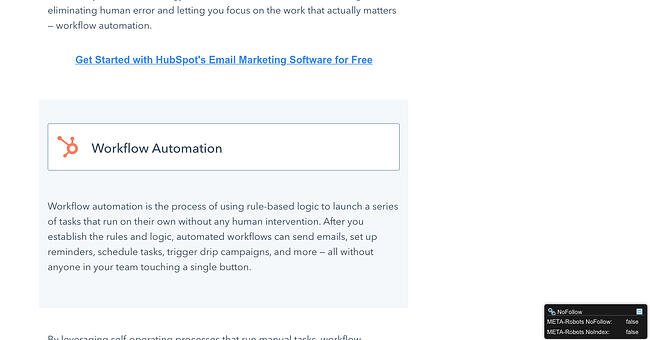
3. NoFollow

NoFollow Chrome extension

Users: 100K+

NoFollow quickly indexes web pages and identifies links that are coded with the no-follow metatag. No-follow links aren’t crawled by search engines and don’t contribute to search engine authority, so SEOs can use this extension to determine if external sites are backlinking to them with followed, or indexed, links.

Additionally, you might use no-follow links on web pages you don’t want crawled, such as a landing page or thank you page, and this extension can easily double-check if you’ve coded links correctly. In the example screenshot below, no-follow links are highlighted in red.

nofollow.png

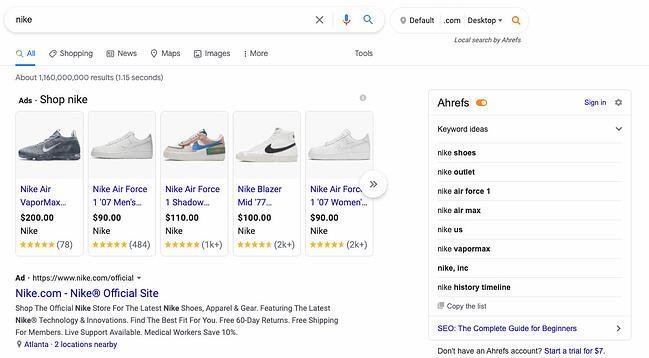
4. Ahrefs SEO Toolbar

Ahrefs Chrome extension

Users: 80K+

Ahrefs SEO Toolbar is an SEO tool that’s great for beginners and experts alike. Ahrefs SEO Toolbar is a Google Chrome plugin that lives in the search engine results page (SERP), so you can get SEO insights for every website and keyword, all while you Google search.

Discover thousands of the best performing keywords to target for SEO & PPC. Spy on your competitor’s Google Ads, Facebook, and Instagram ads, and find the best backlink opportunities.

5. Impactana

Impactana Chrome extension

Users: 2K+

Impactana’s Chrome toolbar offers a wealth of SEO, social media, and content marketing information about any web page. Its two biggest metrics are “Buzz,” which measures a website’s reach on social media, and “Impact,” which measures SEO metrics such as click-through rate, backlinks, and time on page. It also shares details like author and publisher contact information that are useful for PR professionals.

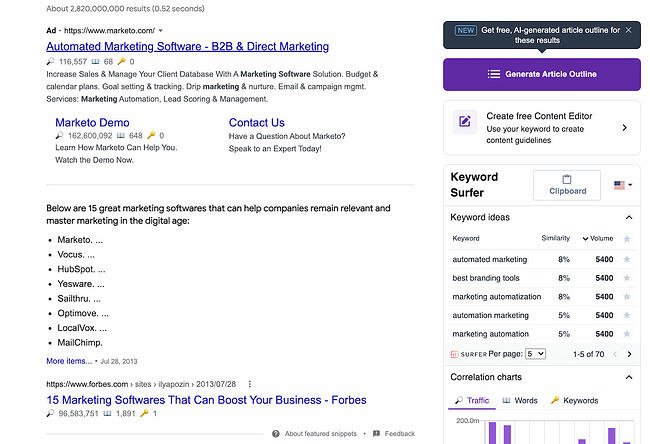
6. Keyword Surfer

Keyword Surfer Chrome extension

Users: 300K+

Keyword Surfer is just like the Arel=”noopener” target=”_blank” hrefs Chrome extension in that it gives you related keywords for your industry-related searches. You can see the monthly search volume for the keyword and generate an article outline that could potentially help you rank for the keyword. The tool also allows you to see the word count of competing pages and articles.

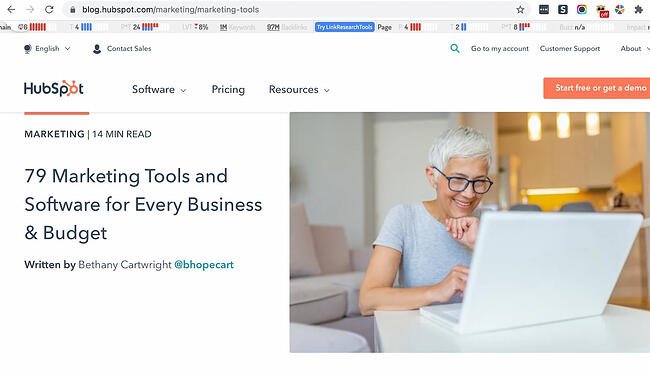
7. Link Research SEO Toolbar

Link Research SEO Toolbar Chrome extension

Users: 10K+

Link Research SEO Toolbar allows you to see the core metrics of a website and understand how well it performs against the competition. The Chrome extension is best paired with an active Link Research Tools subscription to get the most out of it.

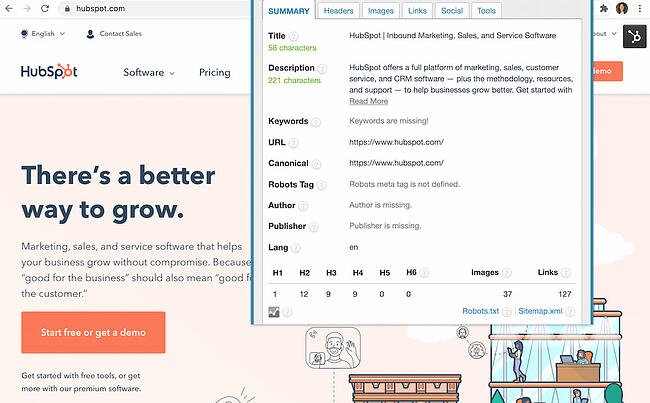
8. SEO META in 1 CLICK

SEO META in 1 CLICK Chrome extension

Users: 200K+

SEO META in 1 CLICK is a fantastic tool for seeing a website’s meta information in — you guessed it — a single click! No need to right-click, hit “View Page Source,” and read through line after line of code to see a website’s meta description. You can use this as a competitive research tool to see what your top-ranked competitors are putting in their meta descriptions.

You can also use it to double-check that your website is optimized across the board. It even offers shortcuts to check the mobile friendliness of your website and analyze the keyword density of the page.

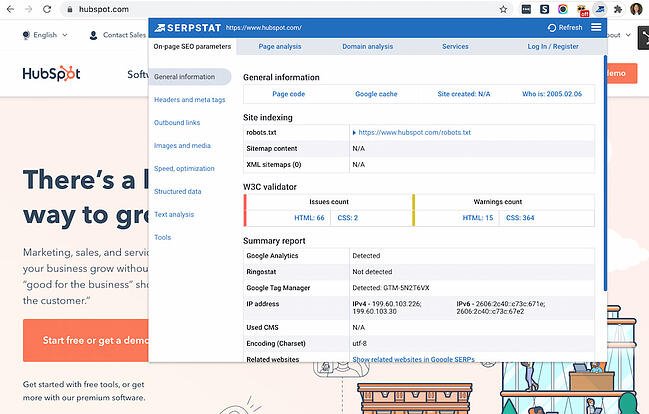
9. Serpstat Website SEO Checker

Serpstat Website SEO Checker Chrome extension

Users: 20K+

Analyze your competitors’ performance with the Serpstat Website SEO Checker extension. Depending on your competitors’ website security, you’ll be able to detect their CMS, sitemap status, structured data, and more. When you sign up for a Serpstat account, you can also see the page’s top keywords and traffic.

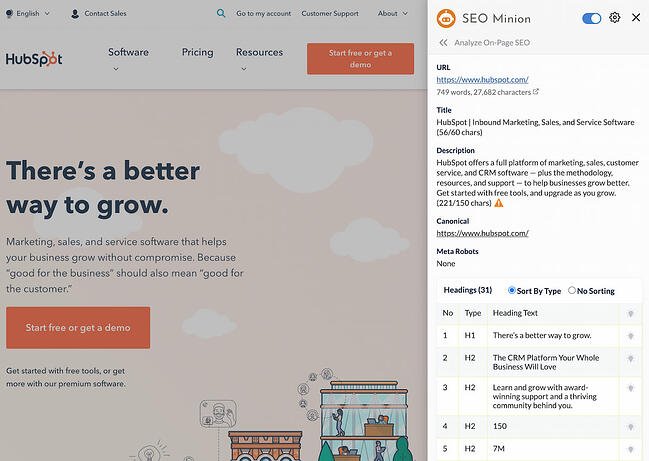
10. SEO Minion

SEO Minion Chrome extension

Users: 100K+

SEO Minion allows you to carry out in-depth competitor research by giving you access to your competitor’s website metrics and data. You can also check for broken links, highlight all links, and preview how the page appears in the SERPs — all handy tools for examining your own webpages and articles and ensuring they’re in tip-top shape.

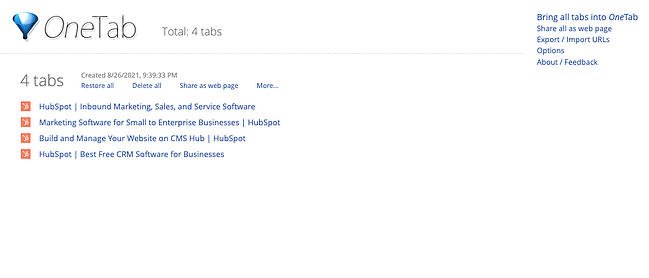
1. OneTab

OneTab Chrome extension

Users: 2M+

When you conduct research for a piece of content, it’s easy to get swamped in multiple open tabs with great resources you want to cite. The trouble is, once it comes time to write and refer back to the sources, it’s hard to navigate between all of the tabs. Luckily, OneTab lets you put multiple different URLs into a single tab for easy reference.

2. Momentum

Momentum Chrome extension

Users: 3M+

Momentum is a simple Chrome extension that replaces blank new tabs with beautiful photography, inspiring quotes, weather reports, and a space for you to write down a priority for the day when you open up your browser for the first time. (Don’t worry — the temperature is in Celsius, it’s not that cold in Boston.)

3. Blank New Tab Page

Blank New Tab Page Chrome extension

Users: 30K+

Blank New Tab Page is exactly what it sounds like — a completely blank, white page when you open a new tab in Chrome. Today’s browser settings and themes — and new versions of Google Chrome — display previews of recently visited websites or a Google Search bar on new tabs when you open them. If all you want is a blank page to navigate somewhere new, this Chrome extension is what you’re looking for.

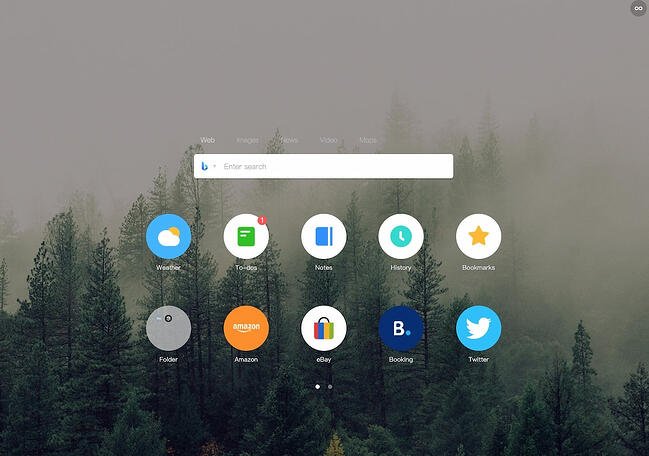
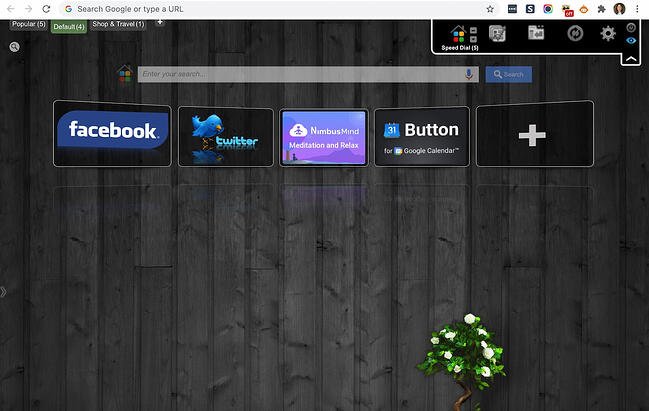
4. Infinity New Tab

Infinity New Tab Chrome extension

Users: 400K+

Infinity New Tab includes a feature known as Speed Dial on every new tab you open in Chrome. This feature produces large icon-based shortcuts to your most frequently visited websites, as shown in the screenshot above. You can customize these icons with new websites as needed, and add productivity widgets like to-do lists to each new tab as well.

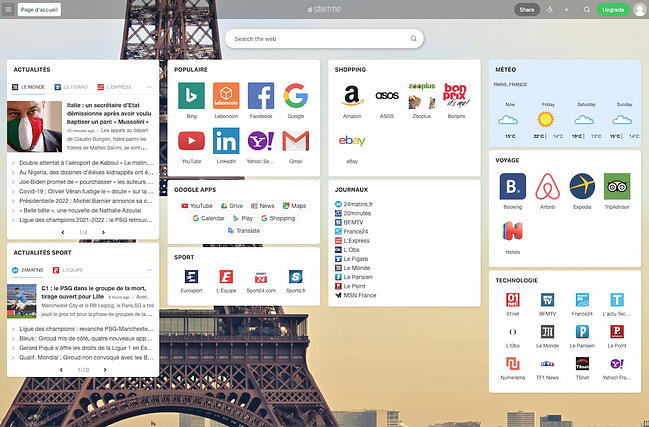
5. Start.me

Start.Me Chrome extension

Users: 70K+

With Start.me, you turn each new tab you open in Chrome into a personal dashboard. You can populate this dashboard with webpage bookmarks, productivity widgets, news feeds from specific websites, and various photos and videos. If you prefer to keep your daily schedule online, rather than in print or on your desktop, you might find this extension useful.

6. Earth View

Earth View Chrome extension

Users: 900K+

This Chrome extension might not make your browsing experience easier, but it will make it prettier. Broaden your geography skills while surfing the internet at the same time with Earth View by Google. Each time you open a new tab, the first thing you’ll see is a satellite image of a beautiful location somewhere on Earth. See some of the images that pop up on new tabs in the screenshot above.

7. Infinite New Tab

Infinite Chrome extension

Users: 200K+

Not to be confused with “Infinity New Tab” (the fourth new tab extension on this list), this browser accessory turns your new tab into a canvas. Choose from more than 100 wallpapers to customize your new tab background, as well as a reminder list and note pad for staying on task.

8. Homey

Homey New Tab Chrome extension

Users: 30K+

Homey is a relaxing and uncluttered new tab Chrome extension that turns your new tab page into a dashboard. You can see your city’s weather, access your bookmarks, or create a grid with your most-frequented websites. Alternatively, you can keep the dashboard clean and mess-free for a less overwhelming experience. Like most new tab Chrome extensions, it also gives you access to the search engine of your choice.

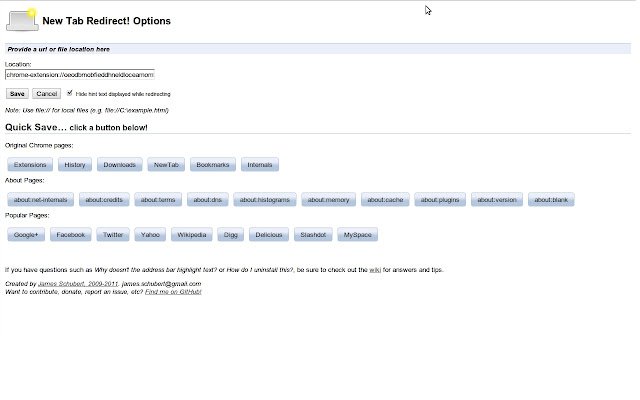
9. New Tab Redirect

New Tab Redirect Chrome extension

Users: 600K+

Got a website you always need to have open? This Chrome extension automatically opens a page of your choice when clicking on a new tab. The tool can even redirect to a specific file you have saved in Google Drive or elsewhere online.

10. Speed Dial

Speed Dial Chrome extension

Users: 600K+

Speed Dial is a charmingly old-school Chrome extension that turns your new tab into a 3D dashboard. Access your bookmarks and more frequented sites in a dashboard that might just remind you of your MySpace days. Don’t let its design fool you: The extension is constantly updated for performance and user-friendliness.

Chrome Extensions for Content Sourcing

Sometimes you just need a good content curation tool to help you save important information while you’re researching or writing a blog post.

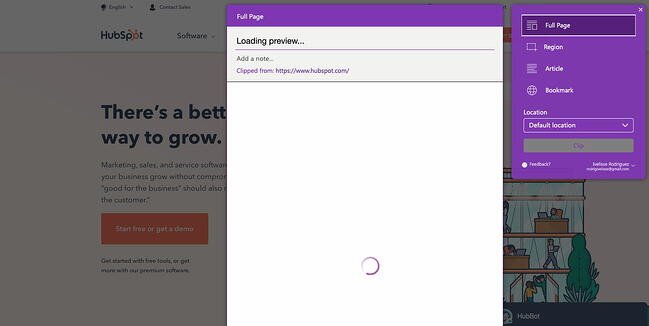
1. OneNote Web Clipper

OneNote Web Clipper Chrome extension

Users: 1M+

Are you a OneNote user? Whether you’re conducting research for a project or simply reading different articles online, you most likely come across resources that you want to save and return to for later use.

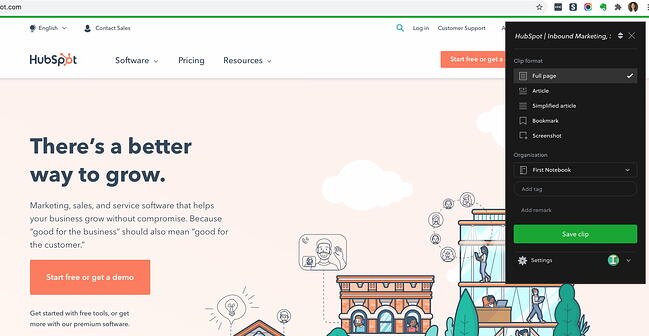
That’s where OneNote Web Clipper comes in. Instead of saving content to another application or document, you can save it directly to your existing OneNote notebooks for easy reference when you sit down to write a blog post or web page. The best part? Everything will be available on any device where you use OneNote.

2. AwesomeScreenshot

AwesomeScreenshot Chrome extension

Users: 2M+

AwesomeScreenshot is a screen capture extension with capabilities for annotation and photo editing while staying in your browser. Once you take a screenshot of a selected area of your screen or an entire web page, you can crop, highlight, draw shapes, and blur sensitive information.

3. Evernote Web Clipper

Evernote Web Clipper Chrome extension

Users: 3M+

Evernote is a note-taking and organization app that can be shared across teams for content collaboration. With the Evernote Web Clipper extension, users can save links onto a clipboard within their Evernote app for later reading and reference.

4. Giphy for Chrome

Giphy Chrome extension

Users: 300K+

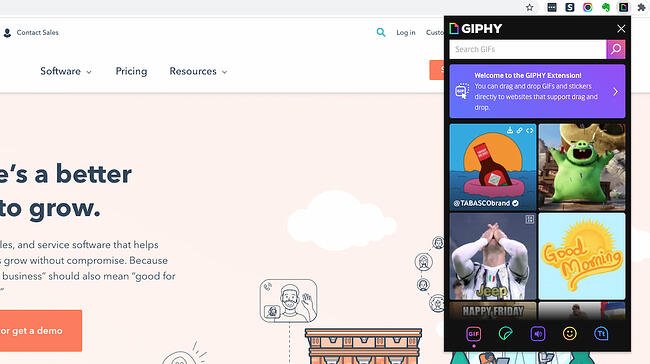
Everyone loves animated GIFs. They make emails, blogs, and social media posts engaging and funny, and with this extension, you can easily grab a GIF from Giphy’s huge database for whatever content you’re working on without navigating away.

5. Sidebar

Sidebar Chrome extension

Users: 20K+

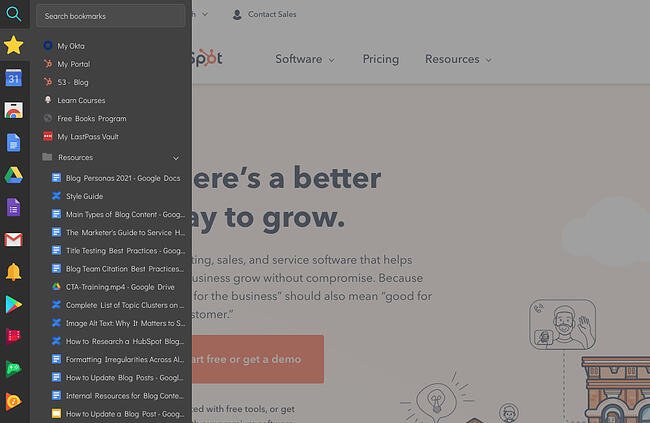
Manually bookmarking websites can sometimes be a tedious process. Sidebar allows you to organize websites you want to save without having to open a new tab. Save websites to bookmarks, create folders, and add notes for later reference.

6. Distill Web Monitor

Distill Web Monitor Chrome extension

Users: 200K+

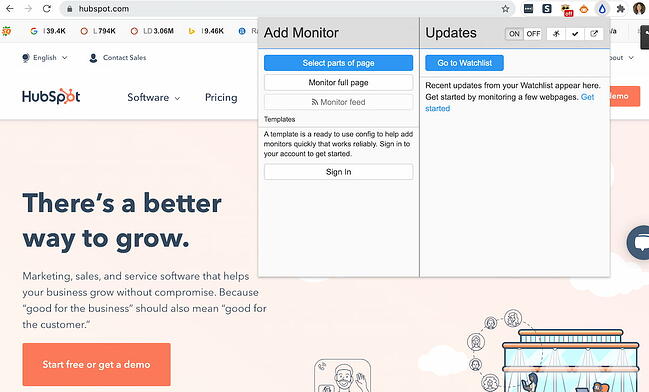
Distill Web Monitor allows you to keep track of changes to websites or articles that you’ve cited in your own work. That way, you can ensure that you’re providing the most up-to-date information to your readers and website visitors. You can also use it to simply track pages that you’re interested in citing in the future.

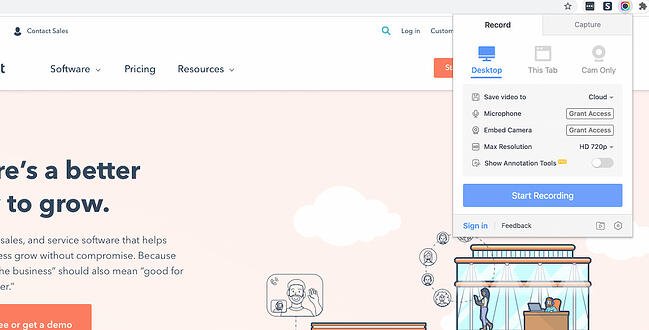
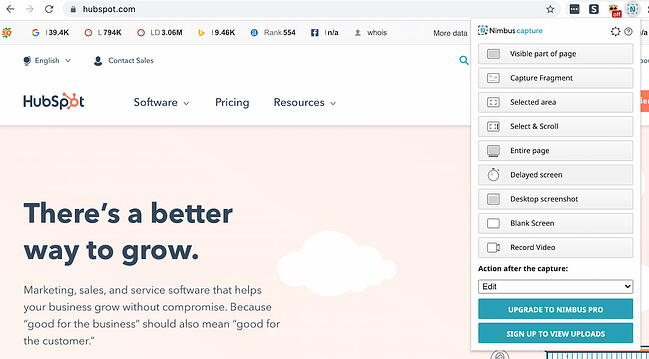
7. Nimbus Screenshot

Nimbus Screenshot Chrome extension

Users: 1M+

Nimbus Screenshot is another screenshotting extension that will live within your browser, making it easier than ever to capture a partial or entire page. It will automatically save your screenshots to the cloud, ensuring that you don’t lose them.

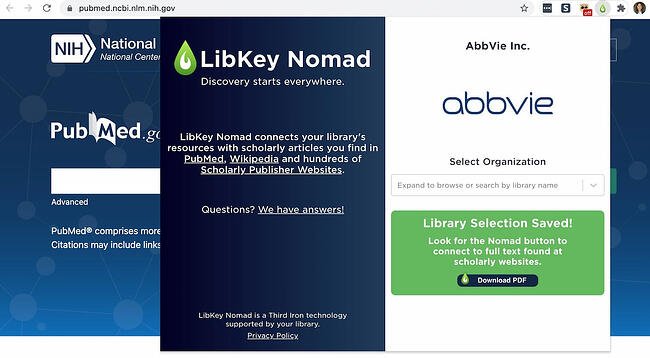
8. LibKey Nomad

Libkey Nomad Chrome extension

Users: 200K+

For marketers and bloggers who work in technical or research-based industries, LibKey Nomad can be an extremely useful Chrome extension to have in your arsenal. The extension allows you to find, access, and source millions of scholarly articles based on the library that you primarily use.

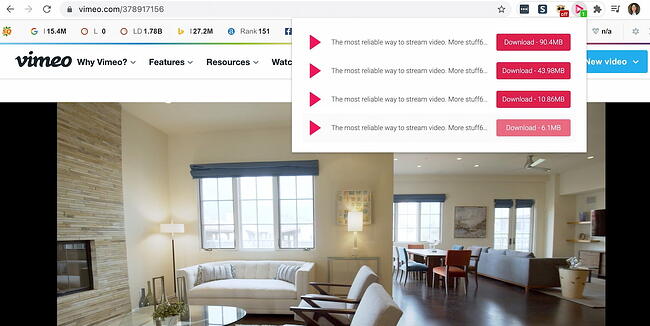
9. Video Downloader Professional

Video Downloader Pro Chrome extension

Users: 300K+

Do you need to source non-YouTube-based videos for your blog posts? Check out Video Downloader Professional, a Chrome extension that allows you to download videos from the internet. This is particularly useful if you find a video on Twitter, Facebook, or other external website where the embed code or original video link isn’t available.

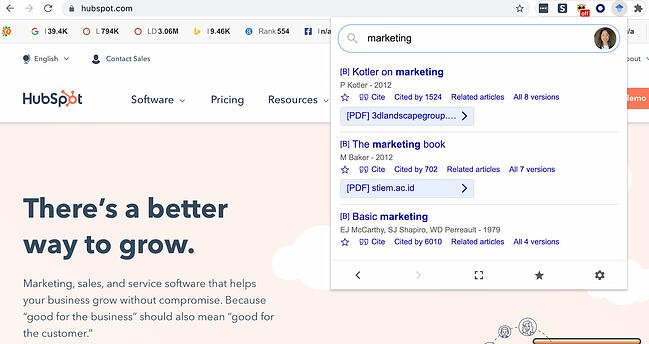
10. Google Scholar Button

Google Scholar Chrome extension

Users: 2M+

Google Scholar is another tool you can use if you write content in a technical, scientific, or otherwise research-heavy industry. You can find articles and books straight from the comfort of your browser. The tool sometimes links to the article’s landing page on a research website, and sometimes it links directly to the PDF. Either way, it’s a great way to streamline research so you don’t have to manually search for books and articles online.

Chrome Extensions for Blogging

1. Grammarly

Grammarly Chrome extension

Users: 10M+

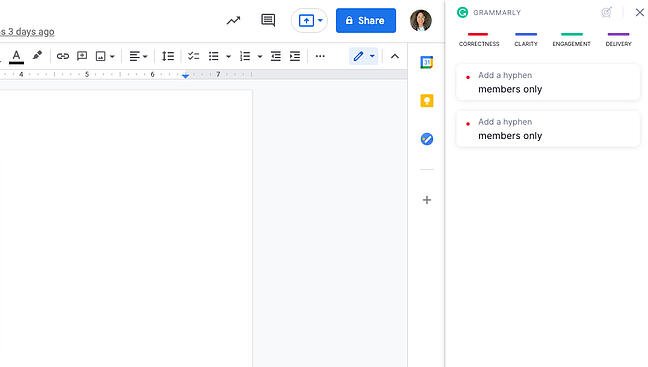
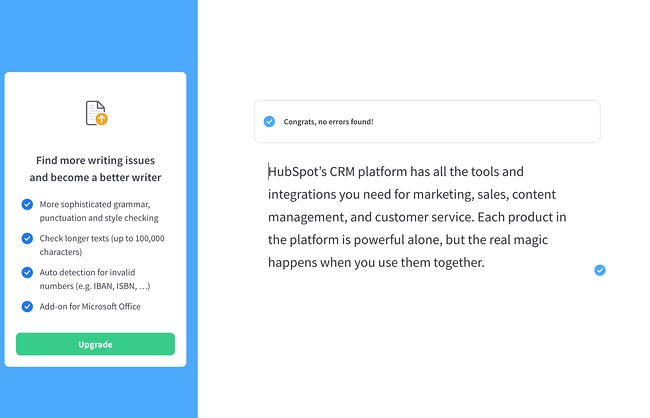
Grammarly is my go-to app for reviewing blog posts for proper spelling, grammar, and word use. You can drop large pieces of text into the desktop application for review, or you can use the handy Chrome extension to call out any grammar errors you’re making while typing on the web.

2. Google Dictionary

Google Dictionary Chrome extension

Users: 3M+

Have you ever come across a word you’re not familiar with while doing research online? Instead of Googling it in a separate tab, quickly highlight the word and click on the Google Dictionary extension to get the definition.

3. Office Editing for Docs, Sheets & Slides

Office Editing Chrome extension

Users: Not Published

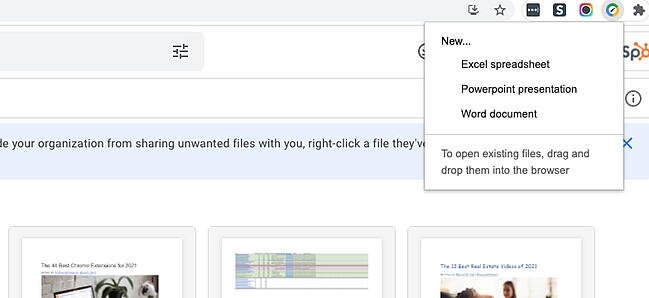
For those times when you and your coworkers are working on computers with different operating systems, or want to collaborate on a live document together, check out Office Editing. This extension lets you easily drop Microsoft Office files into Google Drive to view and edit them without needing the software installed on your hard drive.

4. Difree

Difree Chrome extension

Users: 8

Sometimes it’s hard to free yourself of distractions to write productively, especially if you’re writing online. This new extension quickly opens a new tab for a clean and neutral text editor that auto-saves while you’re working if you need a break from where you normally write.

5. LanguageTool

Language Tool Chrome extension

Users: 1M+

LanguageTool is a useful Chrome extension for checking the existing text on a website and checking the grammar of your work as you write. It works in Google Docs and any website where there’s an active text box. It also works for different languages, so if you’re aiming to write for different markets and regions, you’ll most definitely want to add this tool to your arsenal.

6. Wordtune

WordTune Chrome extension

Users: 200K+

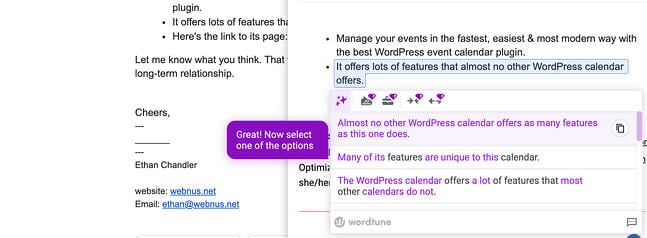
Wordtune is an AI-powered Chrome extension that provides several alternatives to what’s currently on the page. No matter what tool you’re using — whether it’s Google Docs, Outlook, or another text editor — you can highlight the sentence or phrase you’d like to rewrite, and Wordtune will provide several alternatives. After that, you only have to choose the one you like best.

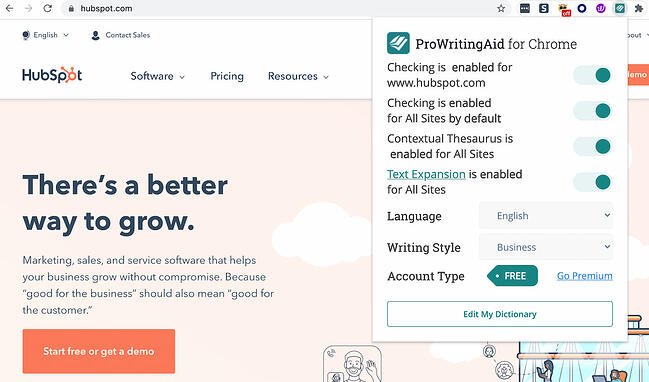
7. ProWritingAid

ProWritingAid Chrome extension

Users: 200K+

ProWritingAid is another smart Chrome extension for checking the grammar, spelling, and clarity of your blog posts, web pages, and articles. Like the other tools on this list, it works with Google Docs and any text editor in your browser. It will catch any errors you make as you write and suggest corrections.

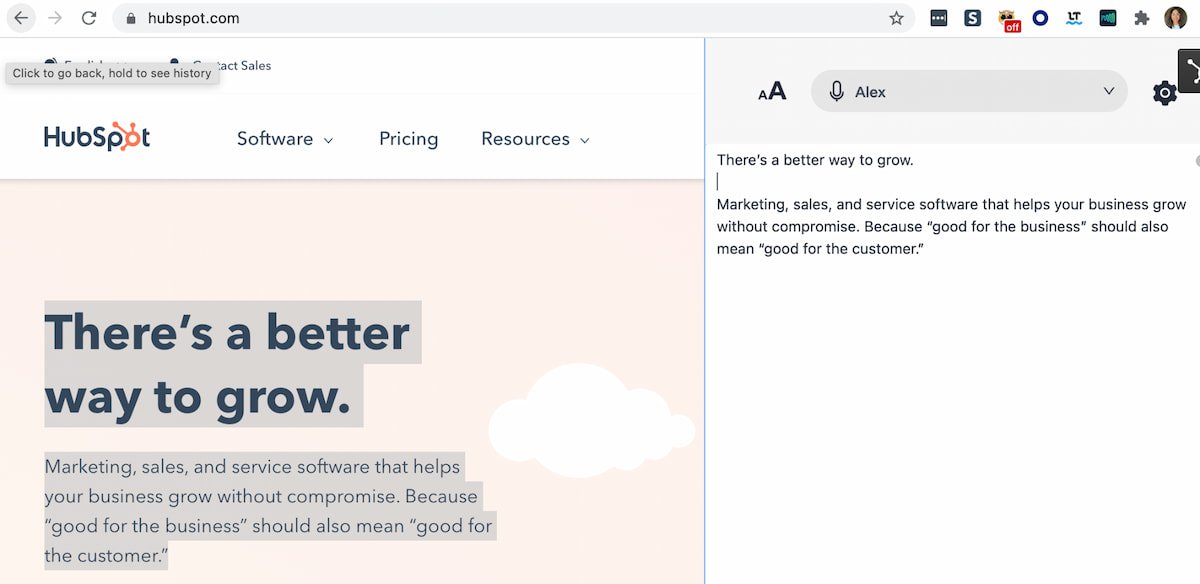
8. ReadmeReadMe Chrome extension

Users: 100K+

Readme is a text-to-speech reader that works right within your Chrome browser to increase accessibility as you write or read articles. It can also help you listen to your drafts out loud for proofreading purposes. Listening to your writing can be an excellent way to catch errors.

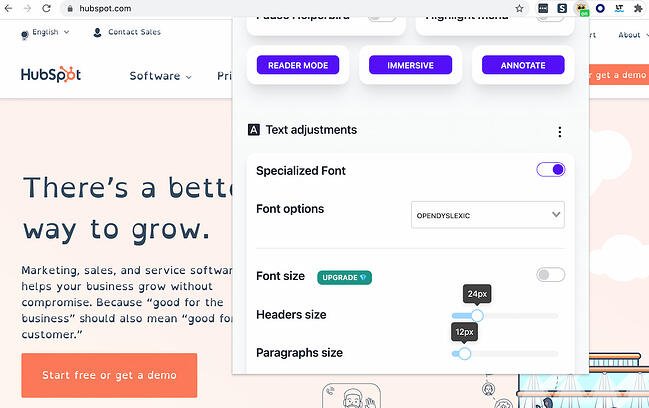
9. Helperbird

Helperbird Chrome extension

Users: 20K+

Helperbird is an accessibility Chrome extension that can help writers with dyslexia, blindness, or other disabilities work more efficiently. You can change the font of the page, change the font sizes, use a magnifier, and turn text into speech. You can also turn pages and articles into a plain-text “Reader Mode” for easier reading and scanning.

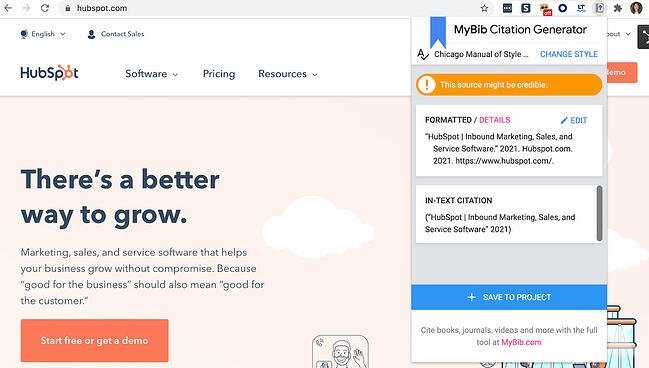
10. MyBibMyBib Chrome extension

Users: 800K+

Do you list citations in your blog posts and articles? Use the MyBib Chrome extension to create citations right within the browser. Simply travel to the page, Tweet, article, or video you’d like to cite, select the format you’d like to cite it in, and then copy and paste. Alternatively, if you’re collecting various sources, save it to a “Project.” You’ll then be able to download all of your works cited in any format you prefer.

Bonus: It gives you an in-text citation, too. Absolutely brilliant.

More Chrome Extensions Equals More Productivity

Now that your browser is loaded with extensions to make marketing easier on a day-to-day basis, test them out to see what time and efficiencies you’re able to save. When you’re ready to work on your next piece of content, try all of the tools listed above to make the process less painful and time-intensive. Your team will thank you for it.

Editor’s note: This post was originally published in November 2016 and has been updated for comprehensiveness.

How to Run a Marketing Campaign with GSuite

Categories B2B

How to Calculate ROI in Marketing [Free Excel Templates]

It’s a brand new month, everyone! It’s a time for new beginnings. New email campaigns, blog posts, and social media strategies are on the horizon.

But, aren’t we forgetting something? With last month’s activities done, we need to pause for a second to examine what worked and what didn’t. You can’t do that just by saying last month’s activities were “great” — because “great” doesn’t pay the bills.

If you can prove that your marketing activities actually made an impact on your business, you’ll have many more opportunities at your disposal. More budget to play with, potential hires to bring on board, and more ideas to put in action. Sounds like every marketer’s dream, right?

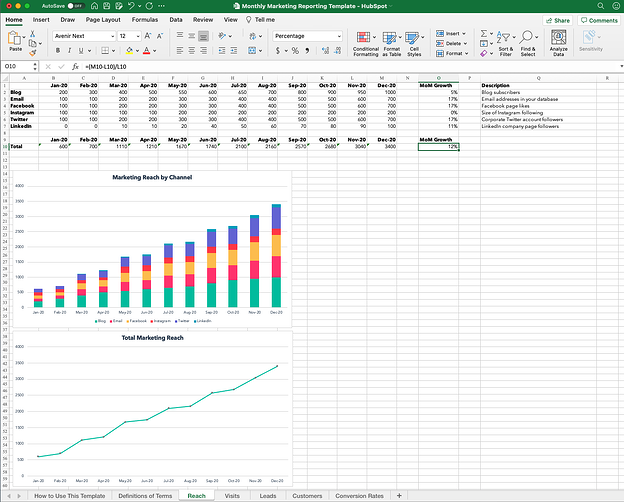
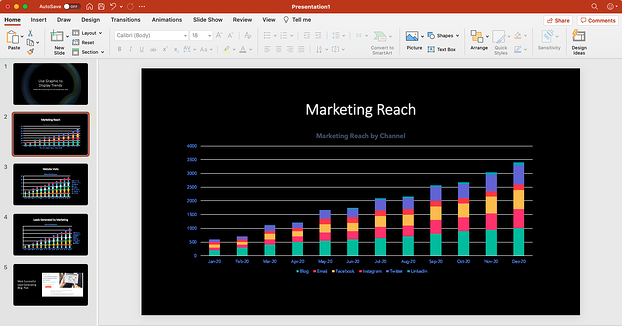
So how do you go about first, finding the right metrics to use, and second, proving your marketing’s ROI to your boss? Why, with a monthly marketing report template, of course. Download our completely revamped PowerPoint and Excel templates by clicking here, Keep reading to learn how you can calculate your ROI in marketing through Excel, and use them in real life.

→ Free Download: Free Marketing Reporting Templates [Access Now]

Marketing Reporting Templates

For example, if you’ve been running a $800 campaign for three months, and you’re seeing a average sales growth of 5% per month and $10000 sales growth from the previous month, then your ROI calculation can assess that trend: (10000 – (.05*10000) – 800)/800

Additionally, if you’re a HubSpot customer, you can access an ROI calculator programmed with the same formula in our CRM. But let’s go ahead and break down how it’s done in Excel for you with and without an existing sales trend.

How to Calculate ROI in Excel

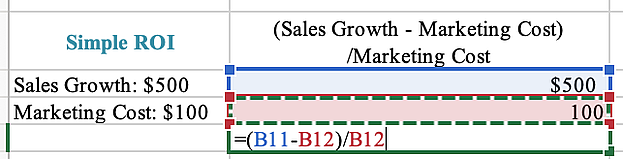
Inputting formulas into Excel is a quick and easy way to solve any equation, and calculating return on investment can be done in a matter of seconds. For an equation without a pre-existing sales trend, the simple ROI equation can be plugged in with ease in Excel as follows: (Sales Growth – Marketing Cost)/Marketing Cost

When you have the amount of sales growth collected and the amount it cost to market collected, plug in the variables into their own rows or columns. When completed, select a free cell to type in the formula using your data.

Excel calculation of simple ROI formula

With these steps completed, press “ENTER” and you’ll have your ROI calculated. If the formula doesn’t automatically calculate it as a percentage, make sure the outcome is recorded as such by selecting the Home Tab > Number > Percentage.

Completed calculation of simple ROI in Excel

How to Calculate ROI in Marketing

Figuring out your return on investment with more factors — or more realistic outcomes — doesn’t have to be a tricky feat.

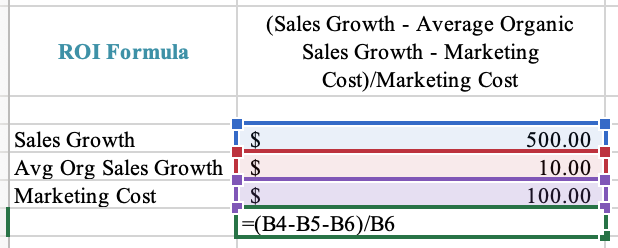
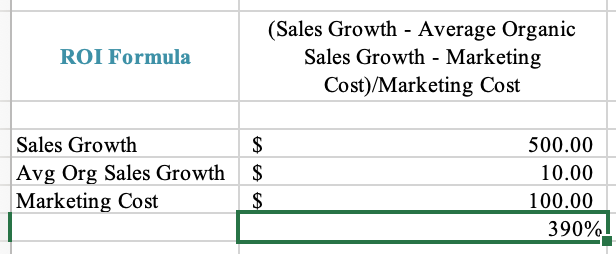
For example, over a 12-month campaign, your team may identify an existing sales trend in organic growth and can use it to determine a more precise return on investment. Plug in this variable along with the original factors and input them using this ROI equation: (Sales Growth – Average Organic Sales Growth – Marketing Cost)/Marketing Cost

ROI formula for marketing in Excel

To compute the percentage, press “ENTER” and you’ll have a more precise ROI to base your marketing decisions on for the future.

Completed calculation of ROI for marketing in Excel

Now that we’ve reviewed a couple of examples, let’s walk through how to use your data and how a HubSpot resource can make your marketing reporting a piece of cake.

Which Metrics Should You Track?

First things first — which metrics should you be paying attention to in the first place? Not all metrics were created equal, and if you’re going to capture your boss’ attention with this PowerPoint deck, you’re going to need to tell your story efficiently through data. Click through our marketing metrics template and get tips on how you can put together your marketing report deck.

How to Create Your Own Marketing Metrics Report

So now you know what metrics you need, but what about customizing the PowerPoint slides to fit your business? Follow these four steps so you’ll have engaging, accurate, and concise slides to show to your boss.

1. Download our monthly marketing reporting templates for Excel and PowerPoint.

How to Calculate ROI in Marketing Free Templates

2. Open up Excel, and fill in the metrics you want to track.

Equations and graphs will automatically populate based on the metrics you add.

free monthly marketing reporting template

3. Copy the graphs and paste them into PowerPoint.

free marketing template graphs in PowerPoint

4. Customize your graphs and charts to fit your company’s theme.

After crunching a bunch of numbers, you probably need a little creative break anyway. Click on individual elements in the graph to customize them. If you really want to get fancy with your presentation, check out these five simple PowerPoint tips.

customized graphs from free monthly marketing templates in PowerPoint

5. Add relevant examples to back up your graphs.

If you truly want to explain your marketing team’s success from the past month, don’t forget to include a slide here or there that touches on specific examples. For example, if you have a blog post that drove a crazy number of leads in a month, you could include that example slide with a few bullet-point takeaways after the “Leads Generated by Marketing” slide. These specific examples give color to your presentation and justify the time spent on future projects.

PowerPoint featuring conclusions drawn from free monthly marketing reporting templates

ROI Excel Templates

Excel is one of the best tools to use when tracking and calculating ROI regularly.

Download our monthly marketing reporting templates for Excel and PowerPoint.

In the above collection of marketing reporting templates, you’ll get to fill in the following contents (and more) to suit your company:

1. Reach

Excel template calculating marketing reach

In this template, you can calculate your marketing reach. For example, you can calculate the reach of your blog, email, or social media.

Then, the graphs below will help turn your data into a visual graph.

2. Visits

Graphs calculating website visits

With this template, you can calculate your visits. This will include visits via several sources and channels including paid traffic, direct traffic, and social media referrals.

Then, the graph below will create a visualization of your data.

3. Leads

Excel graph calculating marketing leads

In this template, you can input how many leads are generated with your marketing campaigns.

In the graph below, you can visualize your leads depending on the sources.

4. Customers

Excel graph for calculating customers

In this template, you can calculate your customers via traffic source. In the below graph, you can visualize your customers.

5. Conversion Rates

Excel template for calculating conversion rates

In this template, you can calculate conversion rates by inputting your information.

Keep Better Track of Your Marketing in Excel

Excel is a tool meant to help you in your business, and it’s an organized way to track your team’s success. Make sure to use it to your advantage, and who knows, after a few months of this you may have a bigger budget or a brand new marketer on board.

Editor’s note: This post was originally published in September 2013 and has been updated for comprehensiveness.

 marketing reporting templates

Categories B2B

How to Create a Funnel Report [Quick Guide]

You’ve probably heard that it’s crucial to keep a full, flowing funnel for a business. But what does this mean, and how do you know when you’re on the right track?

Funnel reporting is key to understanding the inner workings of your business. With a detailed funnel report, you can see where customers are at every stage of the sales process. The funnel report can show how many leads you are generating, what deals are being negotiated, what contracts are being finalized, and, ultimately, how many sales are going through.

→ Free Download: Free Marketing Reporting Templates [Access Now]

Knowing your funnel at all times can help ensure that funnel doesn’t dry up, leaving you without leads or consistent sales. So, let’s dive into what exactly funnel reporting is and how to create a funnel report.

What is funnel reporting?

Before you understand funnel reporting, you need to understand the funnel. The funnel is essential to mapping out the customers’ journey to purchasing, from brand awareness all the way through to a sale. Keeping a funnel full of ongoing leads is important to a thriving business.

As such, a funnel report can give insight as to how a customer discovers your brand and what leads them to either flow through the funnel all the way to purchase or drop off somewhere along the way.

The funnel report can determine how effective your marketing efforts are, the number of people coming into the funnel, and conversion rates. This report can also provide insight into ongoing lead generation and sales, so you can see just how many leads you are generating and how many are in the process of signing contracts or making purchases.

1. Awareness

As the customer first enters your funnel, it’ll be through awareness. There are many ways a potential customer can first hear about your brand, whether they hear about your product through word of mouth, see an ad on Instagram, or pass your billboard while driving to work.

2. Interest

Once the customer has found your brand, if they like what they see, they’ll likely start doing some digging. Reading reviews, checking out your FAQ section, and comparing you to competitors are all likely to happen in this stage.

3. Decision

Now, the potential customer will start really considering making a purchase. They might consult with a sales rep or ask for pricing quotes.

4. Action

As the customer moves through the funnel, they will use the information gathered from the previous steps to decide whether or not to make a purchase. That’s why investing in excellent branding, marketing, and customer service is so important, as they will each leave an impact throughout the funnel process and can ultimately be a make-it-or-break-it situation for potential clients.

Ready to start reporting? Here’s how to create a funnel report. These reports can typically be generated through tools like Google Analytics. To make it easier, consider Dashboard & Reporting Software, which will house all your analytics, reports, and dashboards in one easy-to-navigate space.

1. Input Data

First and foremost, you’ll need to input data, from the number of customers clicking on your website link to the number of sales that go through and everything in between. This is something that can be automated and pulled for you through Google Analytics or HubSpot. You’ll set the number of building blocks to differentiate the different stages as well.

2. Filter

Next, you can filter out data you don’t need. The platform you use to create your funnel report will offer basic and/or customizable filter options.

3. Organize into Groups

To better analyze the report, you can organize the funnel by different marketing methods or products being sold. For example, you might create a funnel breakdown that separates the types of marketing used.

4. Visualize

Now, the platform will display the funnel report based on your filters and breakdowns. You’ll be able to see how many people found your website, then compare it to say, how many people made an inquiry, signed up for your newsletter, and/or purchased your products or services.

5. Note Strengths and Weaknesses

With your funnel in front of you, note conversions. See where customers are dropping off and where they are coming from. Your funnel report might show a lot of people coming in from social, despite most of your efforts being on email marketing, where less people are converting into sales. Noting your observations can help you adjust your future marketing strategies.

1. Next-Step Conversions

One of the simpler funnel reports is for next-step conversions. This funnel report will show the conversion rates between steps. So if you have 500 people see your social media ad, and 100 click through to your website, the conversion for this step is 20%.

2. Cumulative Conversions

Similarly, cumulative conversion funnel reports will also visualize conversion, but they will compare each stage’s numbers to the starting stage. This is most helpful when making comparisons to competitors or previous funnel reports.

3. Trends

A funnel trend will visualize changes in conversion rates as time goes on, for better or for worse. This can help you note what marketing strategies work and which ones don’t over time.

4. Time to Convert

How long does it take for a potential customer to make a purchase from the awareness stage to the action stage? A time-to-convert funnel will show how long it takes a customer to make it through each stage of the funnel.

5. Frequency

A frequency funnel report can help you identify what stage is most successful in drawing in customers or where customers tend to drop off.

Use Funnel Reports to Improve Marketing Strategies

A funnel report is an invaluable tool to track the progression of potential clients to customers making purchases. Knowing how clients become aware of your brand and what leads to them ultimately abandoning or making a purchase can help you sharpen your marketing skills.

A funnel report will allow you to visualize the weaker parts of your marketing strategies to improve them while also spotlighting successful — sometimes surprisingly-so — components of the funnel.

 marketing reporting templates

Categories B2B

4 Reasons Why You Should Use YouTube Shorts [+ 5 Brand Examples]
Did you know that the first video published on YouTube was only 18-seconds long?

Since launching in 2005, the video giant’s founders have learned time and time again that content doesn’t need to be long to engage audiences.

Sign up for HubSpot Academy's YouTube for Marketers Course [Free Online Course]

Now, following a nearly year long beta period – as well as the success of TikTok, Instagram Reels, and other viral video platforms – YouTube Shorts is in full swing and creators can now take advantage of the YouTube Shorts Fund.

Let’s talk about what YouTube Shorts is, how it works, and how brands like yours can leverage it.

What’s the latest with YouTube Shorts?

In September of 2020, YouTube Shorts – a YouTube app feature that rivals TikTok and Instagram Reels – began its first round of testing in India. The beta feature enabled users to see and create 15-second videos with musical overlays.

Even in its most basic beta form, the Shorts feature saw solid performance in India.

In late February of 2021, Google and Alphabet CEO Sundar Pichai announced that videos on the India-based Shorts player receive 3.5 billion cumulative daily views.

The Shorts beta was fully released in the U.S. in March of 2021, surpassing 6.5 billion daily views.

A few months later in July, Shorts launched globally in over 100 countries.

With YouTube Shorts still in beta mode, marketers are wondering how they’ll take advantage of this video feature, what the final platform will look like, if it will have similar virality to TikTok, and how it could help brands better engage with YouTube’s more than 2 billion active users.

The truth is, as short-form video platforms grow more and more popular, it’s hard to know which will rise above the others. And, because the YouTube Shorts is still evolving, we can’t fully predict what using it will be like in the near future.

Here’s one thing we do know: YouTube houses millions of hours of branded content. As such, YouTube Shorts could be worth your time – especially if you already have a video strategy on the platform.

Below, I’ll walk through the basics of YouTube Shorts, and what opportunities it could provide for marketers upon its official launch.

When explaining why YouTube decided to launch Shorts, a blog post from the tech giant read, “Every month, 2 billion viewers come to YouTube to laugh, learn and connect. Creators have built entire businesses on YouTube, and we want to enable the next generation of mobile creators to also grow a community on YouTube with Shorts.”

“User-generated short videos were born on YouTube starting with our first upload, a short 18-second video called ‘Me at the zoo.’ As technology advances, creators and artists can now take advantage of the incredible power of smartphones to easily create and publish high-quality content wherever they are in the world,” the YouTube post added.

The post continues to say that consumers today enjoy bite-sized content that they can enjoy at any time of the day. A platform like YouTube Shorts allows viewers to step away from long-form video content and alternate as they please.

What YouTube Shorts Looks Like

YouTube Shorts is currently in beta in over 100 countries.

While we don’t know what Shorts will look like for certain when it moves out of beta, I took a few screenshots of the beta I recently discovered on my YouTube app to help marketers envision the potential user experience.

Creating YouTube Shorts

When you have the YouTube app, creating a Short is one tap away.

When you land on the home screen, you’ll see the “+” icon on the lower center navigation. Once you click it, you’ll see “Create a Short” from the menu.

how to create a youtube short on the youtube app

When you tap Create, the Shorts creation interface will be similar to that of Instagram Stories in that it opens to a camera screen that allows you to:

  • Record segments of a 60-second clip or a full minute-long video.
  • Upload pre-created content from a camera roll.
  • Film a “short” with back or front-facing cameras.
  • Adjust video speed.
  • Set a recording timer.
  • Pick sounds for musical overlays.
  • Add filters and text.

Here’s a quick screenshot of some of the platform’s features.

youtube shorts record screen

Image Source

Watching YouTube Shorts

Before the Shorts beta test, YouTube had already been testing a section of its site where shorter videos were placed, shown below.

Today, YouTube added a dedicated shelf for the Shorts feature to its app homepage where you can start to view Shorts created by beta testers as well as short videos YouTube already had on the platform.

youtube shorts on the homescreen of youtube app

When watching a Short, you can tap icons on the right bottom of the screen to “Like,” “Dislike,” or comment on the video. If they enjoy what they see, they can also tap the “SUBSCRIBE” to follow the video creator.

youtube shorts vertical feed

Once a viewer finishes a Short, they can swipe their finger up – like on Reels or TikTok – to see a vertical feed of more Shorts from other creators.

Users can also access this vertical feed on their home screen, by clicking on the Shorts tab.youtube shorts tab on youtube app

What Makes YouTube Shorts Different from Its Competitors

As a marketer, seeing every social media platform launch Stories or short-form video features might be overwhelming.

And, now that so many have come out, you might be asking yourself, “Will YouTube Shorts provide more opportunities than Instagram Reels or TikTok?

Well, we still don’t know yet. However, we think YouTube Shorts will be worth watching. Here are a few reasons why.

1. Short-form creators could see a bigger reach.

While Gen Z users flooded TikTok, causing its astounding early growth, YouTube, the second largest website globally, launched Shorts to more than 2 billion monthly active users.

Rather than wondering, “Will YouTube Shorts get awareness?“, ask yourself instead, “How do I tap into YouTube’s huge audience with Shorts?

According to Nelson Chacon, HubSpot’s principal YouTube content strategist, you’ll want to know which segment of YouTube’s huge audience you want to market to before producing Shorts – or any other YouTube video for that matter.

Additionally, if you have a solid subscriber list, continue to create content that’s still relevant to them – even if it’s shorter-form.

“Your subscribers know your channel for its content and Youtube, as a platform, works best with consistency,” Chacon says.

For example, say you regularly create long-form content related to your product or industry and find that it engages your audiences. Chacon notes that you can use Shorts to create quick tutorials or step-by-step videos around those content topics.

2. Brands in most industries could leverage Shorts.

Because TikTok has a somewhat niche user-base filled with younger consumers, some types of brands, such as B2B companies, might have a harder time growing awareness there.

While YouTube shares similar popularity with young adults, the content on its platform is so vast that it brings in people from all sorts of age groups, countries, industries, and niches.

Ultimately, there’s a video for everyone on YouTube. With Shorts, more brands will be able to engage with audiences from a much wider range of audience targets.

For example, while a B2B brand might have difficulty connecting with Gen Z consumers on TikTok, they might be able to connect with professionals looking for industry-related content on Shorts.

Similarly, if you target older generations, such as Gen X, your short-form content might get more engagement on YouTube than TikTok.

3. YouTube Shorts could be less vulnerable than other viral platforms.

This summer and throughout the fall of 2020, TikTok was threatened with bans and censorship regulations.

Why is this concerning? If you’re a marketer who spends time mastering content strategies on a social media app, a ban or regulation of that app could mean that the content you’ve worked so hard on might never be seen.

However, because YouTube is one of the oldest and most successful online platforms, and it’s owned by the publicly traded Alphabet, it might be seen as more trustworthy to governments than viral apps that provide less public data security information – like TikTok.

4. Shorts could provide long-term benefits.

While Instagram Stories and Reels content expire by default after 24 hours, some YouTube Shorts beta testers say Shorts don’t disappear from YouTube – which could help grow long-term YouTube awareness.

For example, if a person who prefers short-form content stumbles upon your YouTube page, they can see all of your short videos, rather than only being able to access your longer content.

Or, if someone’s in a rush and searching for a quick how-to video related to something you’ve filmed, they might find and watch your short videos on that topic – even if you published them months ago.

How 5 Brands Use YouTube Shorts

1. Danessa Myricks Beauty

Have exciting news you want to share with your audience? Take a page out of this brand’s playbook.

In this countdown-style video, Danessa Myricks Beauty used a short to promote its launch in Sephora and build some anticipation.

In the first half of the video, multiple people can be heard saying “One more day.” Then, we see the CEO sending off a package to be sent to Sephora stores.

Here’s why this works: There’s no time wasted in this Short. It’s engaging from the very start and every frame serves a purpose. Secondly, there’s a clear message – the audience leaves knowing the 5Ws (who, what, when, where, why).

Lastly, this Short creates excitement for the brand’s growth and invites the audience to join in the countdown.

2. LYFE Marketing

Who said informative content had to be long? LYFE Marketing shows that you can create fun, engaging, and informative content in under 30 seconds.

In this Short, the brand breaks down color psychology. The talent in front of the camera simply points to the text which appears on different parts of the screen during the video.

If you don’t have a big media budget, this is an effective, low-effort method of creating content your audience will be interested in.

3. WebFX

Shorts are a great way to repurpose content. You can take content from a blog post, live stream, or downloadable report to create a short-and-sweet video.

Digital marketing agency, WebFX, created a short to explain the costs behind social media marketing.

With the use of graphics, WebFX delivers great information in a succinct way. It’s likely the brand has an article or other form of content that dives deeper into this topic.

But for social media, snippets are the way to go. When done right, they pique your audience’s interest and lead them to your website.

4. The Voice

To promote its new season, NBC’s The Voice created a Short featuring this year’s hosts.

What works well here:

  • It serves as an ad for the brand.
  • It utilizes text to emphasize certain phrases and keep the audience engaged.
  • It includes a banner at the end with clear directions for viewers on when and where to watch the show.

5. Satori Graphics

Here’s another great example of how graphics and illustrations can take your Shorts to another level.

Satori Graphics is a popular YouTube channel to learn graphic design. The channel features hundreds of long-form videos on the topic and this Short serves as an extension of what’s already on the channel.

This tactic can work well for attracting new viewers to the channel, as a one-minute video is less intimidating than a 20-minute video. It’s similar to how you present a content offer at the end of a blog article.

A reader may be more likely to read a blog post first than read a 20-page report, as it’s an easier point of entry. The same concept can apply to Shorts.

How to Prepare for YouTube Shorts

While we aren’t sure how Shorts will evolve, it’s not too early to consider how you could implement it into your social media or video marketing strategy. Here are a few quick tips to keep in mind.

  • Optimize short YouTube videos: Chacon says global creators should begin to add, “#shorts” to descriptions of videos that are 60 seconds or less.
  • Identify short-form topics: Are there any topics your team creates content around that could be distilled into a few quick tips, steps, or data points? If so, you might be able to repurpose this information by creating a Short.
  • Audit your short-form videos: Have you created Instagram Reels, TikToks, or other social media videos that would only need a few light tweaks to engage your YouTube audience? If so, you could test them on Shorts when the platform launches.

To learn more about YouTube Marketing, check out our Ultimate Guide – or download the free resource below.

Editor’s Note: This post was originally published in March of 2021 and has been updated for comprehensiveness.

Apply for a job, keep track of important information, and prepare for an  interview with the help of this free job seekers kit.

Categories B2B

11 of the Best A/B Testing Tools for 2020

In the marketing industry, we treat experts like they’re village elders, soaking up every tip and trick they have to offer so we can implement them into our own work, desperately hoping for similar results.

But, when you really think about it, marketing is always changing and experts often don’t have visibility into your unique context.

This naturally begs the question: what should you do when you can’t find a solution to one of your problems on the internet? To find the answers to your unique problem, consider channeling your inner Sherlock Holmes and become an investigator.

Investigators forage for information that’ll lead them to the answers to their own specific questions. And, as a marketer, one of the best investigative tools at your disposal is A/B testing.

Free Download: A/B Testing Guide and Kit

Every company has a different set of customers, so there’s no one-size-fits-all formula for designing the most optimal website, crafting the most compelling copy, or building the most effective product.

To figure out which website design, line of copy, or product feature will produce the best results for your company, you must discover what your unique set of customers prefer.

To help you do this, we’ve curated eight of the best A/B testing tools that’ll help you optimize your website design, copy, product, and, most importantly, help you find the answers tailored to your needs

1. HubSpot & Kissmetrics’ A/B Testing Kit [Featured Tool]

Don’t know where to start with A/B testing? This tool may be just what you need.

a/b testing tool from HubSpotDownload the kit for free to get started with A/B testing in your business – an A/B test tracking template, a how-to guide for instruction and inspiration, and a statistical significance calculator to see if your tests were wins, losses, or inconclusive.

It’s ideal for businesses just getting started with A/B testing, or for businesses that need a way to track their existing tests.

Pricing: Free

2. Google Optimize

Google Optimize offers a set of tools under the Google Marketing Platform to help brands improve their website’s performance.

a/b testing-tool: Google Optimize

Image Source

Their A/B testing tool, in particular, offers more than just the standard A/B testing. Users can test more than two versions and can also run:

  • Multivariate testing
  • Split URL testing
  • Server-side experiments

The best part? It’s free to use for all your testing and personalization needs.

Pricing: Free

Landing Page A/B Testing Tools

3. Freshmarketer

a/b testing tool freshmarketer

Image Source

Freshmarketer, which is the marketing arm of the business platform Freshworks, is a conversion rate optimization software that offers A/B testing and split URL testing.

Their A/B testing tool can test, target, and validate your experiment, integrate with Google Analytics, and even track the amount of revenue your experiments have generated.

Freshmarketer’s Split URL testing tool can help you test multiple variations of URLs, turn winning test variations into real web pages, and grasp the effectiveness of your web design by offering heatmaps of every variation of your split URL test.

Pricing: Starts at $19/month for A/B testing features

Web Testing Tools

4. VWOa/b testing tools - vmo

Image Source

Trusted by over 4,500 enterprise brands including eBay, Target, and Virgin Holidays, VWO is an A/B testing and conversion rate optimization platform tailored specifically for enterprise brands.

In their suite, you can build A/B tests, Split URL tests, and multivariate tests with a drop-and-drop editor.

To gauge the performance of your tests, VWO offers a robust reporting dashboard. VWO also offers a SmartStats feature that leverages Bayesian statistics to help you run faster tests, give you more control of your tests, and reach more accurate conclusions.

Pricing: Upon request

5. Optimizely

With 24 Fortune 100 companies as customers, Optimizely is a digital experimentation platform for enterprise marketing, product, and engineering teams.

optimizely testing example

Image Source

Using their powerful A/B and multi-page experimentation tool, you can run multiple experiments on one page at the same time, allowing you to test various variables of your web design.

Optimizely also offers testing on dynamic websites, various experiment dimensions like an ad campaign, geography, and cookies, and various experiment segmentation parameters like device, browser, and campaign.

Pricing: Upon request

6. Omniconvert

a/b testing tool omniconvertImage Source

It’s a conversion rate optimization platform that offers an A/B testing tool, as well as survey, personalization, overlay, and segmentation tools.

Using their A/B testing tool, you can run A/B tests on desktop, mobile, and tablet. Additionally, you can turn winning versions of an A/B test into the control for a future test and leverage Frequentist or Bayesian statistics to validate your tests.

Omniconvert also blends their segmentation tool with their A/B testing tool to let you test over 40 segmentation parameters, like:

  • Geolocation
  • Traffic source
  • Visitor behavior

This allows you to improve your website’s user experience, product features, and content’s ability to engage and convert.

Pricing: Starts at $167/month

7. Crazy Egg

a/b testing tool  - crazy egg

Image Source

Crazy Egg is a website optimization software that offers A/B testing, heat mapping, and usability testing tools.

Its A/B testing tool lets you test variations of every single page on your website by adding one snippet of code to the pages you want to experiment on.

Crazy Egg also lets you build A/B tests without any coding experience, sends more traffic to the optimal variant of your test once it recognizes it’s the winner, and offers intuitive conversion tracking and reporting tools.

If you work for a small business, Crazy Egg is definitely a tool you should consider.

Pricing: Starts at $24/month

8. AB Tasty

With AB Tasty’s conversion rate optimization software, your team can build and run A/B tests, split tests, multivariate tests, and funnel tests with their visual editor.

a/b testing tool  - ab tasty

Image Source

You can also leverage their advanced targeting to test based on various criteria like URL, geolocation, weather, and more.

To help validate your tests, AB tasty offers reports that display your tests and their confidence levels in real-time. This allows you to make decisions quickly and accurately.

Pricing: Upon request

9. Convert

a/b testing tool - convert

Image Source

Trusted by brands like Sony, Unicef, and Jabra, Convert is an A/B testing and web personalization software that offers A/B testing, split testing, multivariate testing, and multipage experiment tools.

Convert also offers an advanced segmentation tool that allows you to segment users based on their historical behavior, cookies, and JavaScript events.

Additionally, Convert can gauge the performance of all your tests by reporting on a large mix of metrics, from your variations’ clickthrough rate to its return-on-investment.

If you want to use Convert in conjunction with your other tools, they offer a ton of integrations with third-party tools, like WordPress, Shopify, and HubSpot. Convert is best suited for small businesses.

Pricing: Starts at $699/month

10. Adobe Target

Testing your website is important, but what if you have other channels that you want to test? Adobe Target helps you do exactly that.

a/b testing tool - adobe targetImage Source

Whether you’re want to test your app’s new home screen or want to experiment on your internet-of-things system, this tool’s got you covered.

In addition to testing on multiple platforms and devices, Adobe Target also offers testing on both the client and server side, offering advanced features for experienced teams.

Pricing: Upon request

11. Leadformly

Struggling to capture leads through your forms? Perhaps visitors are leaving right before reaching the final step. Or maybe they leave halfway through completion.

a/b testing tool - leadformlyImage Source

In any of these cases, you want a tool like Leadformly to help you get to the bottom of this. Even teams with high-converting forms can still benefit from testing their forms, as they may discover additional ways to increase their CVR.

Pricing: Starts at $37/month

Editor’s Note: This post was originally published in July 2019 and has been updated for comprehensiveness.

The Ultimate A/B Testing Kit

Categories B2B

What Are Interpersonal Skills? + 5 Ways to Develop Them

To succeed at our jobs, we often ended a wide range of skills, from simply communicating to in-depth product knowledge.

Soft skills, like communication, fall into the category of interpersonal skills, and they are typically expected of everyone, regardless of the position you apply for. In this post, learn what interpersonal skills are, examples of what they look like in action, and how to develop them and display them on your resume to stand out against other applicants.

→ Click here to download leadership lessons from HubSpot founder, Dharmesh  Shah [Free Guide].

Interpersonal skills relate to all aspects of life, from close relationships to business partnerships.

Interpersonal Skills in Organization

In the business world, interpersonal skills dictate how we get along with our team members. For example, suppose you sense tension at work. You may pick up on this and use active listening to get to the root of the problem and then use effective communication to come to a resolution.

Why are interpersonal skills important?

Many career paths come with consistent interaction with people, whether coworkers or teammates, so it’s crucial to know how to interact with everyone. Without them, it would be challenging to perform as expected.

Given this, employers look for people with strong interpersonal skills because it means they can work well with others and communicate in a way that drives business success. In some jobs, like customer service, strong interpersonal skills are critical.

Most critically, interpersonal skills help us interact with others in a respectable manner. Even if you’re a software engineer who spends most of your time on the computer, you still need to interact with your teammates and sometimes explain technical details to those who may not have the same know-how, which requires good communication.

There tends to be some confusion about interpersonal skills vs intrapersonal skills, so we’ll explain the difference below.

Intrapersonal vs. Interpersonal Skills

A few letters make up the difference between intrapersonal and interpersonal skills, but they are different. Specifically, interpersonal skills are how you speak to yourself in your mind, and interpersonal skills are involved in conversations with other people.

However, both relate to each other through emotional intelligence. Having strong self-awareness (intrapersonal) can help you become better with interpersonal skills, as you’ll be able to manage your emotions, regardless of the situation, and respond accordingly.  

Types of Interpersonal Skills

There are various types of interpersonal skills, and many complement each other. Below we’ll list common interpersonal skills and give examples of what they look like in action.

  • Communication — The way you communicate clearly and effectively with others.
  • Conflict management — How you deal with troubling business situations as they arise, whether mediating an issue between colleagues or seeking solutions for a personal matter. Regardless of your level of seniority, conflict management is an essential skill.
  • Empathy — Empathy is the most important interpersonal skill, as you need to have empathy, understanding, and care for those around you and that you work with daily.
  • Leadership — Involves being able to motivate and encourage others, regardless of whether you’re in a leadership role, and being able to step up to the plate in scenarios where a leader is needed.
  • Listening — Strongly relates to communication and empathy; you need to listen to your coworkers, so they feel comfortable, listened to, and valued.
  • Collaboration — As an employee, it is crucial to be able to get along with others and work as a team to get the job done.

Examples of Interpersonal Skills

Type of interpersonal skill

Example of interpersonal skill in action

Communication

Non-verbal communication and body language, public speaking, verbal communication, written communication, ability to develop rapport

Conflict management

 Problem-solving, active listening, mediating

Empathy

Being caring, compassionate, diplomatic, kind, practicing active listening, being understanding, developing rapport

Leadership

Encouragement, management, mentoring, motivation, dependability, consulting, constructive criticism, diplomacy, flexibility

Listening

Active-listening, curiosity, ability to focus and show that you’re focused, and listening to those who are speaking

Collaborate

Ability to see both sides, make people feel respected and valued, work in teams, and understand team dynamics

How to Develop Interpersonal Skills

Interpersonal skills are essential, regardless of the role you’re in. Here are some tips for developing your interpersonal skills and improving upon the ones you already have.

1. Leverage available resources.

Look for online courses or books from experts that explain the importance of interpersonal skills and give tips on developing them based on their own experiences.

2. Identify areas for improvement.

Identifying areas for improvement can help develop your skills.

You can ask for feedback from people who work with you daily and hear about areas that they think could use improvement. If you work in customer-facing roles, you can monitor your NPS scores or customer feedback surveys to get a sense of where they feel you fall short.

3. Ask for feedback, and learn from it.

One of the best ways to get a sense of your skill level is to ask for feedback on your current performance from people that interact with you every day, like colleagues, mentors, or bosses.

For example, maybe you work in teams on a day-to-day basis, and one of your colleagues says that sometimes they don’t feel heard by you. You can learn from their assessment and make an effort to practice active listening.

4. Practice your skills.

As with most skills, one of the best ways to develop them is by practicing them. Put yourself in situations where these skills will be required of you, like stepping up during team meetings and assuming leadership roles. As mentioned above, you can then ask for feedback from peers and learn what went right and what needs more work.

5. Recognize that there is no “end” to developing your skills.

Although your desire may be to be perfect, there is no way to be perfect. Everyone is always learning on the go and developing their skills, especially since role requirements can vary.

For example, working in customer service may require you to focus more on problem-solving and empathy, while assuming a role as a manager may require you to spend more time collaborating and conflict management. Recognize that there is always room for growth and development and, as long as you are aware of this, you’ll develop the skills you need to succeed.

Interpersonal Skills on a Resume

It’s important to emphasize your interpersonal skills on a resume, as many employers look for them. Sometimes interpersonal skills are referred to as soft skills instead of technical skills like having product knowledge.

The most important thing to do is to identify the skills you have that match the job description of the new role, so you can explicitly demonstrate how they’ll help you succeed.

Once you’ve identified these skills, you have three options for displaying them:

  • A simple bulleted list of skills,
  • A bulleted list of your job accomplishments and the interpersonal skills you have that have helped you achieve this success,
  • In a summary of your experience at the top of your resume.

As mentioned above, there is no finish line for developing your interpersonal skills. Those you need for each job will likely change depending on your industry, and it is always important to continuously be learning. However, leverage the tips on this list, put yourself in situations where you’ll need to practice your skills, and you’ll find yourself succeeding in your roles, regardless of whether you’re just starting out or are a seasoned executive.

New Call-to-action

Categories B2B

The Plain English Guide to Return on Ad Spend (ROAS)

As a writer, I’ve never been very good at math. I know … shocking.

Most marketers can relate because as a bunch, we tend to be better at English and history than math and science.

However, as a marketer, we need to be able to analyze data and calculate the effectiveness of an article or campaign, even though math might not be our strong suit.

One of the calculations we need to run and metrics we need to track is return on ad spend (ROAS).

Below, let’s review ROAS. In this post, we’ll discuss what ROAS is, how it’s different from ROI, and how to calculate it.

Click here to download 8 free marketing budget templates.

Ultimately, ad spend is meant to measure the effectiveness of a specific ad campaign, not your overall ROI — more on that below.

Besides ROAS, you’ll most likely measure other metrics such as click-through rate and ROI. By measuring multiple metrics, you’ll get a more accurate view of your results.

Of course, measuring performance and tracking analytics is an important part of any marketing campaign.

By tracking performance, you can improve and iterate on your marketing techniques. Plus, data is one of the only ways to truly prove that your department brings in revenue, which is incredibly important.

However, it’s important to note that not everything can be measured with quantitative data. For instance, calculating brand awareness and sentiment is much more difficult. And while you can calculate downloads or email sign-ups, those might not always lead to revenue.

When you’re analyzing any data, it’s important to consider context and review qualitative data as well as quantitative data.

That being said, today we’re going to dive into ROAS specifically. Before we do that, let’s review how ROAS is different from ROI.

ROAS vs. ROI

Ultimately, this means that the only cost considered in a ROAS calculation is the cost of advertising. On the other hand, the cost of an entire project or campaign will be considered in an ROI calculation.

The goal of your ads campaign, of course, will be to generate a positive return on your ad spend. However, how can you determine what that ad spend should be?

In the YouTube video below, HubSpot details how to determine ad spend by understanding the bidding system used by ad networks.

You’d use ROAS to help you determine how you spend your advertising budget and as a signal to determine if your campaigns are successful. This would let you know that you might need to evaluate your approach to running ads.

So, at this point, you might be wondering, “How can I calculate ROAS?” Let’s review that now.

While the equation is simple, you might face difficulty gathering the data needed to run this calculation. For instance, calculating the cost of an ad isn’t always easy. You’ll need to consider the cost of the ad bid, the labor cost for the time it took to create the creative assets, vendor costs, and affiliate commissions.

But it’s important to get an accurate estimate of the actual money spent on an ad to get an accurate ROAS measurement. If your data isn’t accurate, your findings won’t be either.

ROAS formulaAdditionally, if you don’t run an ecommerce business, it can also be difficult to measure the revenue generated by an ad. For example, someone might convert from your ad because they downloaded an ebook, however, they haven’t spent any money yet. In fact, they might not spend money for months.
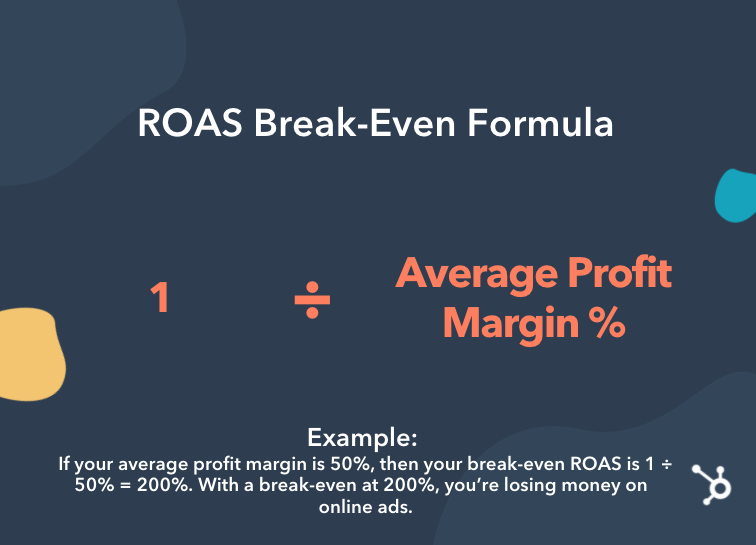
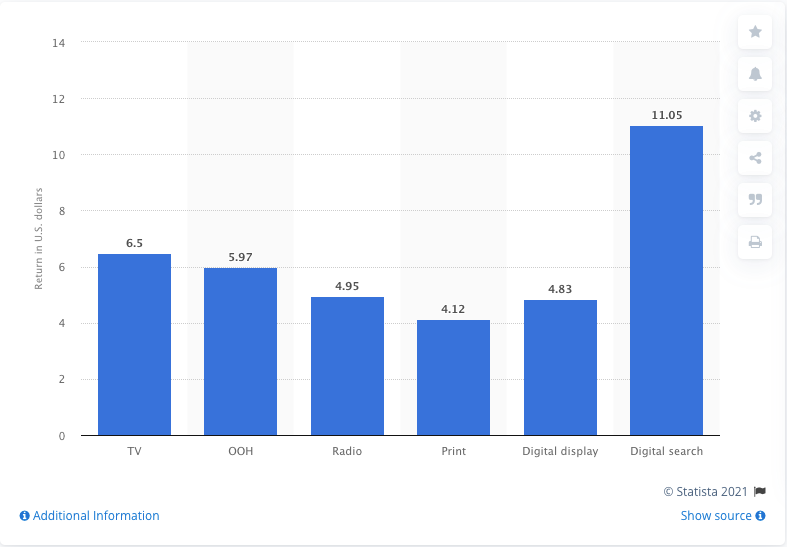
To combat this, you can use a CRM software like HubSpot in conjunction with HubSpot Ads, to track revenue made from leads.

With a CRM and ads software, you can keep track of your data and tie it all together — marketing leads, ad results, etc.

break even roas

Now, you might be wondering, “What’s a good ROAS?” and “How can I improve my ROAS?”

Well, a good ROAS is typically around 3:1. If you’re barely breaking even, it might be time to dig further into the accuracy of your metrics and evaluate your ads and bidding strategy.

However, it’s important to note that the objective of some ad campaigns might not be to make immediate revenue but to increase brand awareness. If that’s your objective, then a lower ROAS makes sense.

What is a good ROAS?

Depending on the medium, return on ad spend can be anywhere from $4-11 for every dollar spent on advertising.

In the graphic below, you can see the ROAS per dollar invested in the United States in 2018, by the medium.

For each dollar invested in digital search advertising, U.S. advertisers gained about 11 U.S. dollars, making it the medium with the highest return on advertising spending.

Screen Shot 2021-08-15 at 2.29.25 PM

Image Source

How to Increase ROAS

To improve your ROAS, you can lower your ad spend and review your ads campaigns. You might want to optimize your landing pages or rethink your negative keywords.

Overall, ROAS is an important metric to track, but it shouldn’t be tracked in a vacuum. It’s important to look at other data and metrics to get the full picture of your return on investment.

Editor’s note: This post was originally published in July 2020 and has been updated for comprehensiveness.

New Call-to-action

Categories B2B

The Ultimate Guide to Social Testing

As marketers, we know the importance of making data-driven decisions. The more information we have about our audience, the more we’re able to make effective marketing moves. 

In addition, having the numbers to back up the implementation of a marketing strategy is almost as important as the strategy itself. One of the ways to get this data is through social media testing, where you figure out what campaigns resonate most with your audience and help you meet your marketing goals.

In this post, learn how you can run a social media test to help you meet your marketing goals and discover high-quality tools that will help you do so. 

Free Download: A/B Testing Guide and Kit

For instance, you might run a social test to learn if video campaigns are worth investing in on Facebook, so you create a post that measures impressions of an ad with and without a video attached. After the campaign, the interactions with your post will tell you if a video is a worthwhile investment for your brand, which makes this process so important.

The Benefits of Social Testing

Social media testing is important because it provides data-driven insights about your social media marketing activities. It allows you to analyze how different variables, like photo and video, affect performance.

Ultimately, social media tests provide data about how audience behavior can influence the structure of your campaigns. You’ll get a picture of what is successful for your brand, and you can create campaigns that you know will work. Instead of researching countless industry benchmarks, you’ll have concrete data specific to your business that comes from testing results. 

There are multiple types of social media tests you can run for your business, and we’ll discuss them next.

Types of Social Tests

Let’s say you want to know how copy affects an international audience on LinkedIn. Or, that you want evidence of a landing page performing better with a different image. Maybe you’re trying to identify if changing the tone of Instagram captions will lead to more audience engagement.

All of these scenarios are prime for social tests. They point out a problem that can be answered with data. This data would give insight about audiences interactions with brands on social media.

After identifying the goal, it’s time to pick the type of test. Let’s go through the different types and when you might use them.

A/B Test

A/B tests are likely the most common form of social testing. They look at a variable between two content types, measure the outlined goal, and provide results. So, consider running an A/B test if you want to test a single, small variable that may alter audience behavior.

For example, run an A/B test if you want to test out different CTA buttons on a Facebook ad or experiment with a post’s copy with/without emojis. The image below is an example of what an A/B test can look like. 

social a/b testing set-up layout example

Image Source

Split Test

Split tests are often confused with A/B tests. In essence, they do the same thing: test two content types based on a goal. The difference is that a split test is more general than an A/B test; they’re used to determine big changes, and the two variants are often entirely different.

Use split testing if you want to know which layout of your Facebook Business page performs better. You can also run split tests to determine A/B test factors. For example, you can run a split test to determine which ad video cut you will use for a Sponsored Tweet, then A/B test different sections of the winning cut. The image below is an example of what a split test could look like on a business website. 

split social testing example set upImage Source

Multivariable Test

Multivariable tests work differently than the two previously mentioned types, as they work with multiple variables instead of one or two. You can run a multivariable test to determine which of four ads works best. Alternatively, you can run one to assess the different makings of a post, like images vs. copy vs. captions.

Run a multivariate test if you want to see the results of more than two different elements. For example, compare the caption, image, and CTA of a LinkedIn post to see what audiences are responding to, or look at three versions of a GIF to learn how audiences react to them. The image below is an example of a what a multivariate test set up could look like.

social multivariate testing exampleImage Source

When you’ve picked out your social test experiment, make sure you’re imploring best practices so the results are helpful.

Social Testing Best Practices

Social media testing can be extremely helpful — if you’re executing them correctly. Otherwise, your test could be inaccurate, immeasurable, and ultimately, a waste of time.

The good news is that social tests aren’t hard to create or run. The bad news is that if you aren’t prepared to run one, your results won’t be usable. Make sure that when you design your test, you follow these best practices:

1. Have one specific goal.

When your social test has one identifiable goal, everything else falls into place: variables, unit of measurement and time frame. To illustrate this, let’s say your goal is to improve international engagement with your next Facebook ad.

With that goal decided, you can create the variables, so you decide to run an A/B test to determine which copy earns the most impressions. You estimate that because your impression ads usually run for a month, half that time would give measurable results.

You also know the direction of the ad, so your focused goal makes it easier to know what to look for during analysis. Impressions, for example, would be the metric to look at for the Facebook ad mentioned earlier.

2. Know who your audiences are.

If you decide to conduct a social test, your data will reflect the behaviors of a specific target market and how they engage with your messaging. 

Social testing is a great way to learn about the social media behavior of an audience segment. If you had little to no information about how your millennial audience would react to a new Instagram Story Ad, running a test would give you a data-driven answer.

Without knowing your audience, your data wouldn’t apply to a defined set of your target market. You’d have insight, but it would be unclear how results relate to your different audience segments

3. Take note of your current performance.

Before you run the test, know how your current campaign is running or note previous results. Then, at the end of your experiment, you can compare results and make informed decisions. The previous report will give the background information and context needed to analyze the social test findings.

Even if your marketing goals for your social test are different than previous campaigns, it’s still a good idea to refer to them for context. For instance, you may be testing for conversions rather than retargeting, but having an idea of what audiences prefer helps you structure your campaign.

4. Monitor your test periodically.

Don’t leave your test as soon as it begins — monitor it so you can adjust accordingly. A test that’s running for a month, for example, should be checked regularly for performance benchmarks.

If you use social test software or tools on social media channels, the report starts aggregating when your test starts. So, when you check-in, look at how you’re tracking for your #1 goal. Additionally, take note of what other metrics you see and how they’re performing.

You might find, for instance, that your conversion rate is low. You can monitor conversions for the duration of the test or make a minor tweak to try to improve performance. For the subsequent check-ins, you’ll have an additional metric to take into account.

When the test concludes, you’ll have the knowledge from previous checks to round out your perception of the completed report. Along with your intended goal, identify supporting metrics to understand how they work together.

5. Make your test timely.

How long should you run your test? Long enough to get the answer to your hypothesis. That doesn’t tell you much, though, so let’s add to that.

Ideally, your test should run for at least seven days. A week is enough time for your social testing software to compile a basis of data. It won’t be as concrete as a more extended test, but it’s a starting point.

After seven days, look at your performance and decide if you’ve gathered enough data to answer your hypothesis. If not, run the test for a few more days. Then, based on the nature of your campaign, fix the time frame to fit your business and your audience — but make sure you give yourself enough room for an actionable report.

Picking a test duration period ensures you won’t be wasting money and time. Instead of having a test run for too long or too little, figure out your time frame and budget during the planning process.

So, with these best practices in mind, you’re almost ready to run a successful social test. Before you get going, though, let’s talk about where — and how — to do that.

Where can I run a social test?

There’s a couple of avenues to explore when choosing where to run a social network test. If you’re running a test specifically for social media, the channel you’re using might have testing tools in their business software.

Running social tests on the corresponding media platforms is helpful because you don’t have to track different channels during the test. Additionally, you won’t have to worry about misconstrued data a third party might provide.

You can also run a social test using a CRM, like HubSpot. CRMs are a great choice if you want to test functions outside of social media — landing pages, emails, or other marketing activities. First, though, let’s talk about social media offerings.

Facebook Social Testing

Facebook offers tools to run A/B and multivariate tests for ads. You can access these tests via Ad Manager. Ad Manager tells you which ads (or ad tests) are running and their status. When you click on a certain test, details and metrics open.

Facebook A/B testing

Multivariate tests on Facebook are similar, except they can be found in the Experiments section of your Facebook Business account. Though the social tests are located in different places, the process for setting them up is largely the same.

Social testing on Facebook is intuitive, especially if you’re used to running Facebook Ads. After clicking “Create Ad,” you’ll be taken through a series of prompts to create, set metrics, and pick an audience. When you fill in the details, you publish it, and wait for the results.

Start small if you’re getting the hang of things. Its features are customizable, so the choice is yours in terms of time frame, audience, copy, testing options, and metrics. As your familiarity grows, tests can be scaled.

As an example, after running a social test on Facebook, bone broth brand Kettle & Fire found a 14 point increase in brand awareness. The marketing team wanted to raise online sales with a video campaign, and wanted to find out which video length was favored by customers.

Kettle & Fire Facebook social media A/B Test example

Image Source

In a little less than a month, a 1.5 lift in purchasing consideration and sales conversions from the short video led to the answer. A Facebook test saved the team ad spend and informed them about their audience’s Facebook preferences.

Facebook delivers social testing results in a downloadable report. The software determines the winner based on the metric(s) you chose when creating the test. For information about running a Facebook social testing, check out this post about testing on the platform.

Twitter Social Testing

Social testing on Twitter leads to creating tweets audiences will interact with and enjoy. You’ll identify how they use the platform and know how to cater to their needs. Twitter’s testing tools are best fit for creative, targeting, and brand awareness campaigns.

A Twitter A/B social media test example

Image Source

Twitter lets you social test Ads in an A/B format. To do this, after publishing the ad, go back into Ads, duplicate it, make the change, and publish the new variable. Track performance from the Tweet Activity Dashboard and campaign dashboard. 

Note that there’s no way to set an official test using Twitter, so you’ll have to analyze the data yourself. For instance, if you want to see if your new brand voice is taking flight, you’ll probably want to look at the amount of clicks and impressions your Ad earned.

LinkedIn Social Testing

If you’re not used to LinkedIn Ads, there’s several different types. They’re sorted based on campaign goal, like Conversion, or type of ad, like Carousel, Text, or Sponsored. It’s a great idea to test LinkedIn Ads for promoting — your brand, event, or job listing.

Dynamic Ads, which show up on the ride side of a user’s main feed are highly personalized. Under Dynamic Ads, there’s several versions: Follower, Job, Content, and Spotlight. These versions specify what the goal of your ad is — so if you want to let audiences know your company is hiring, you would run a Dynamic Job Ad.

If you wanted to make a similar Dynamic Job Ad on LinkedIn, you can run a test to see if your listing ad is compelling to job seekers. You’ll have the option to test image layouts, such as the company photo, copy, and central images, if applicable.

LinkedIn’s marketing team uses social testing for content and event promotion, as well as account-based marketing. They ran a test for a webinar Dynamic Ad to gauge if audiences preferred an image of the speaker or the company’s logo. According to one of LinkedIn’s senior marketing managers, Cassandra Clark, results included a 326% lift in click-through rate in the ad with the speaker.

To access ad results, check your Conversion Tracking dashboard, which will show you page and audience activity from your ads. While LinkedIn doesn’t have a formal testing feature, they do have an option for you to duplicate and tweak a portion of an ad, like Twitter.

CRM Social Testing

If you’re not running a test on a social media channel, using a CRM is another worthwhile option. With a CRM, you can set up tests for website content, like landing pages. 

In HubSpot, you can run social tests for web pages simply by accessing your dashboard and going to one of your web pages. Click the “Actions” hyperlink next to one of your pages, and you’ll find the option to “Run a test.”

HubSpot lets you run an A/B or multivariate (Adaptive) test. As you’re creating your test, you’ll have the option to look at testing tips, like figuring out what to test. Since HubSpot has a drag-and-drop editor, and tons of modules to choose from, you’ll have plenty of options. In the past, I’ve run tests for CTA buttons, images, headline copy, body text, and landing page layout through social media.

It’s commonplace for CRMs to have tools for running social testing. Some offer a niche version of social testing; for instance, MailChimp’s are for emails. When you decide to use a CRM for testing, do some research to determine which one will offer you the tools you need to succeed.

But, if you don’t know where to begin looking for software that offers social testing, here’s a list of tools for your benefit.

1. HubSpot

Price: Free plan, or $800 for Marketing Hub Professional

With HubSpot’s CRM, you can run A/B and multivariate tests. The tools are part of HubSpot’s Marketing Software and are included in the Marketing Hub Professional and Enterprise plans. You can use HubSpot to test landing pages that are promoted through social media.

HubSpot testing screens

The CRM’s drag-and-drop editor makes it easy to configure variables for tests. In addition, you’ll have optimization features to make your page shareable and user-friendly, like social media badges. That way, when you promote the page on socials, your followers can share them with one click.

HubSpot’s testing tool is accessible from the landing page dashboard via “Run a test” from the drop-down menu. From there, you can choose your test type and get started. If you want an easy-to-use platform that lets you create and analyze social tests, HubSpot is a great choice.

2. OptinMonster

Price: Free plan, or $19-49/mo.

OptinMonster is a CRM that also offers built-in testing software. You can run A/B or split tests to increase conversions over time with tools that let you experiment with content, headlines, campaign triggers, styles, and layouts.

Once you set up the test, you can leave the software to do the work. It’ll show your test content to website visitors and collect data on conversion rates. Your report will determine the number of impressions, acquisitions, and page visits.

social media testing tool Optinmonster A/B test results example

Image Source

You can use OptinMonster’s testing tool to test social media landing pages. Test the landing page’s effectiveness for your next ebook offer before it’s published on LinkedIn first. If you want a platform that offers intuitive tools for social testing, try OptinMonster.

3. Optimizely

Price: Case-by-case basis, contact sales for pricing

If you’re heavily promoting your website on social media, test it to learn how it performs among your audience. One way you can do that is with Optimizely, which provides marketing software solutions.

Optimizely social media testing tool multivariate test example

Image Source

Optimzely’s tools let you perform split and multivariate tests. Optimizely will count the number of website visitors and the metrics you pick, such as engagement, goals, conversions, and clicks. You’ll be able to apply custom audience segments that can be filtered based on social proof performance.

4. Leadpages

Price: Free, or $48-$199/mo.

If you want a tool specifically for testing landing pages you promote on social media, try Leadpages. This is software that was made just for building professional landing pages. You can use the split testing feature with the tool.

When you run split tests with Leadpages, you’ll be able to access its analytics the minute it aggregates traffic and engagements. At the conclusion, you’ll get a report that includes the total and unique visits, conversions and total conversion rate. Your report will also include specific insights about test variations.

example of social media testing with Leadpages A/B landing page test tool

Image Source

Keep in mind that you can’t set a time frame for your tests. From the analytics dashboard, you’ll be able to see how many days your test has been running. When you’re ready for the test to be complete, you’ll have to end it manually. 

5. Inspectlet

Price: Free, or $39-$499/mo.

Inspectlet was created just for testing. It’s a software that lets you test multiple different content types, including web pages. You can also create content variations for future social tests, like edited graphics.

The visual editor in Inspectlet makes it easy to code or create different pages. You can change your page’s design or code in real-time and access analytics as soon as the test begins. Inspectlet lets you track views, page elements, unique visitors, and custom events.

When you access your performance report, you’ll get the metrics based on the goals you set. This can be anything from tracking clicks, user engagement, custom events, or URL views. Basically, anything that you can track with the software can be measured.

Now, you have a couple of options separate from social media sites that you can social test with. With this in mind, you’re ready to run the test.

Think back to the example in the beginning of the post. Knowing all you do about social testing now, you’re fully equipped to run a video engagement experiment of your own. Will it be on a social channel or with testing software?

One of the many great things about social testing is how creative they can be — you can social test just about any piece of content, and social media sites are starting to make that process easy. Testing your social ads ensures you’re providing the most value to your customers, and now, you can.

The Ultimate A/B Testing Kit